Student records
One student record, from pre-enrolment details to graduation.
Register students one by one, by Excel or from admissions, let new students enter their own details, approve leave, withdrawal and graduation, and record custody and disclosure restrictions — one record per student.
How a student record moves
S01 Register accepted applicants
Admissions
Carried over from admissions
S02 Register one by one or by Excel
Registrar staff
Incomplete rows become provisional
S03 Enter own details
Student
Self-entry (vocational, university…)
S04 Send the invitation
Classio
To fully registered students
S05 Request a status change
Registrar staff
Leave, withdrawal, transfer, graduation…
S06 Approve
Approver
Status changes on the effective date
Who acts, in what order. The “Classio” row is what the system does by itself.
Student records in Classio
Student records work means creating each student’s enrolment record, keeping it correct and recording changes such as leave, withdrawal or graduation through the proper steps. In Classio every entry point — one by one, Excel, admissions or self-entry — produces the same record, and enrolment status changes only after a request is approved.
Last updated: October 26, 2026
Register one student: five steps and drafts
New student registration has five steps — personal details, enrolment, contact and account, guardians and support, review — which can be opened in any order. You can save a draft at any point; only its author sees it.
Student numbers are not generated automatically; enter them in the school’s own format. Year options follow the school type and department, and separately admitted groups such as 専攻生 can be set up.
Teachers without registration rights submit a registration request from the same screen; once a registrar approves it, the student is registered and invited.
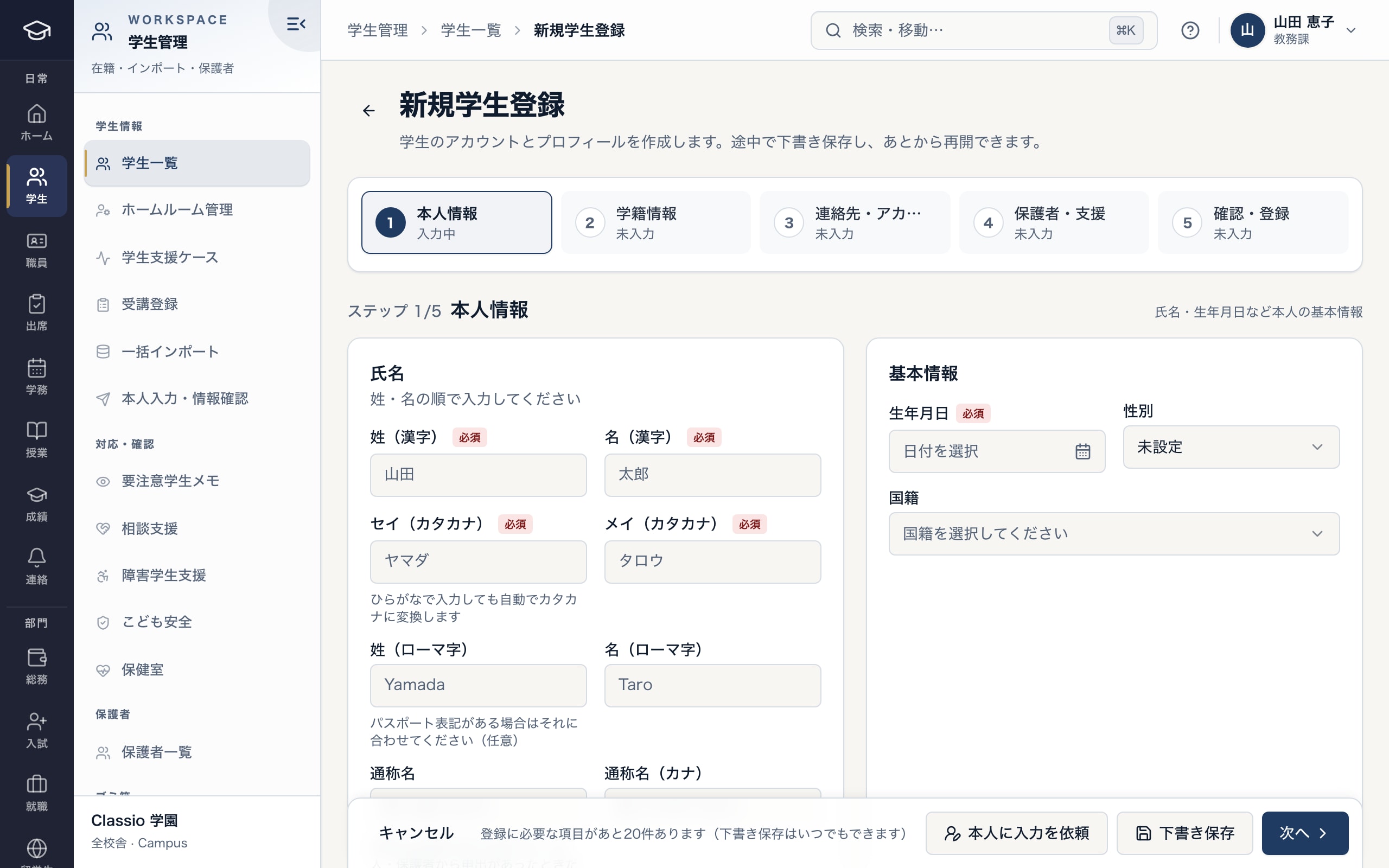
Five steps, with drafts saved at any point
- Steps can be opened in any order
- Or ask the student to fill it in
- Save a draft even with required fields empty
Import from Excel, completing missing details later
Download a template with the school’s departments, classes and courses as choices, fill it in and upload it: .xlsx only, up to 5 MB and 500 rows. Nothing is registered at the Check contents stage.
Rows without a family name, given name or email are errors. Rows missing a student number, previous school or guardian email, or that may be duplicates, become provisional; they are not treated as students until completed, and Complete details asks only for what is missing. You can also ask students to enter it themselves.
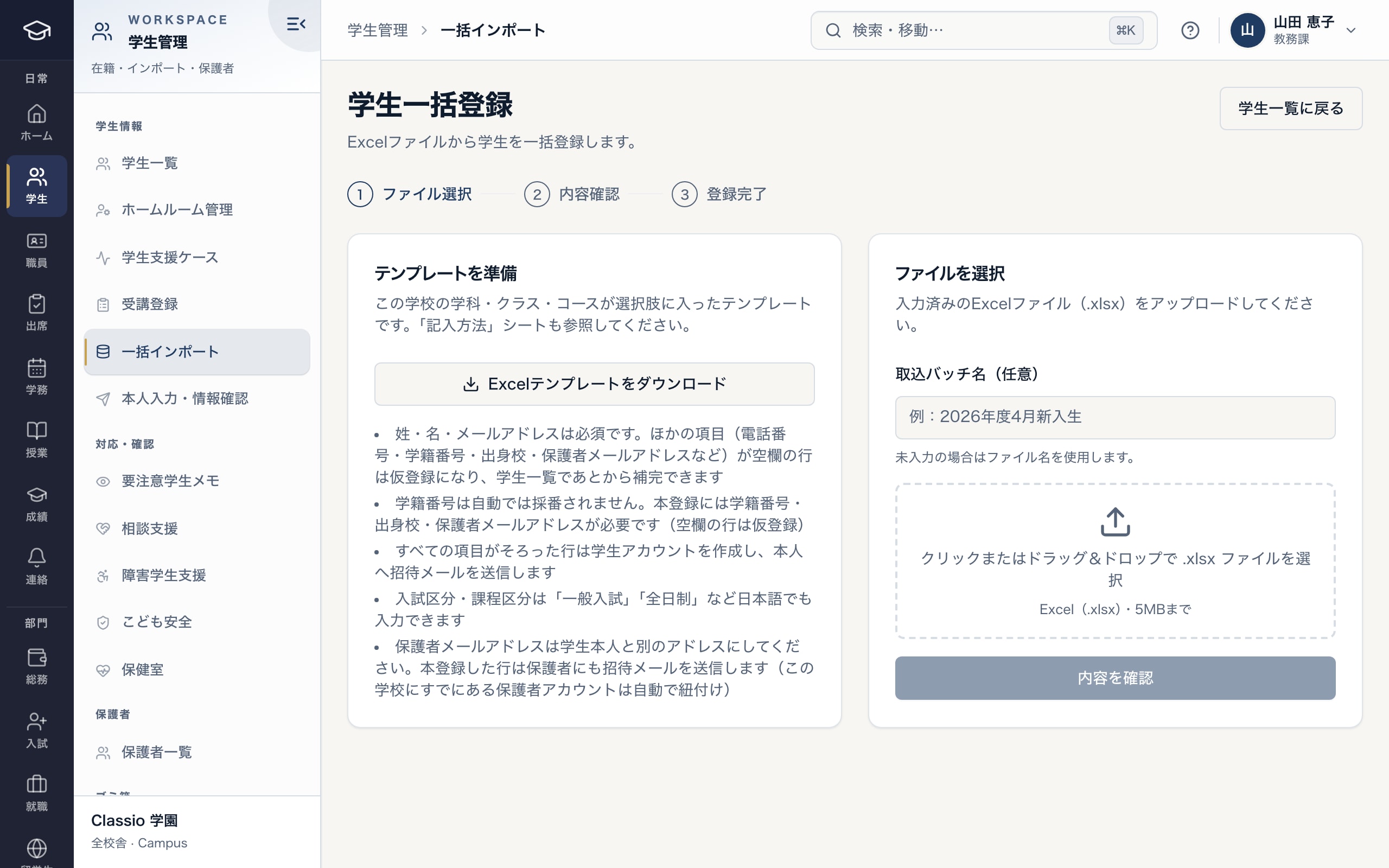
Download the template, check the contents, then register
- Choose file → check → done; nothing is registered while checking
- Template with the school’s departments, classes and courses
- .xlsx, up to 5 MB
Request and approve leave, withdrawal, transfer and graduation
Changes of enrolment status are requested as status changes and applied only after approval; the student edit screen cannot set leave or withdrawal directly. Leave records an expected return date, transfer the new school, and so on.
Leave, withdrawal, dismissal, transfer, suspension and re-admission are approved by academic staff and then finally by an administrator — or along the school’s own approval flow, in which the requester cannot approve. A future effective date is applied automatically on the day.
Withdrawal, dismissal and transfer record expected fee settlement; leave records fees paused for the period. Types that do not apply to a student’s school type or age are shown with the reason.
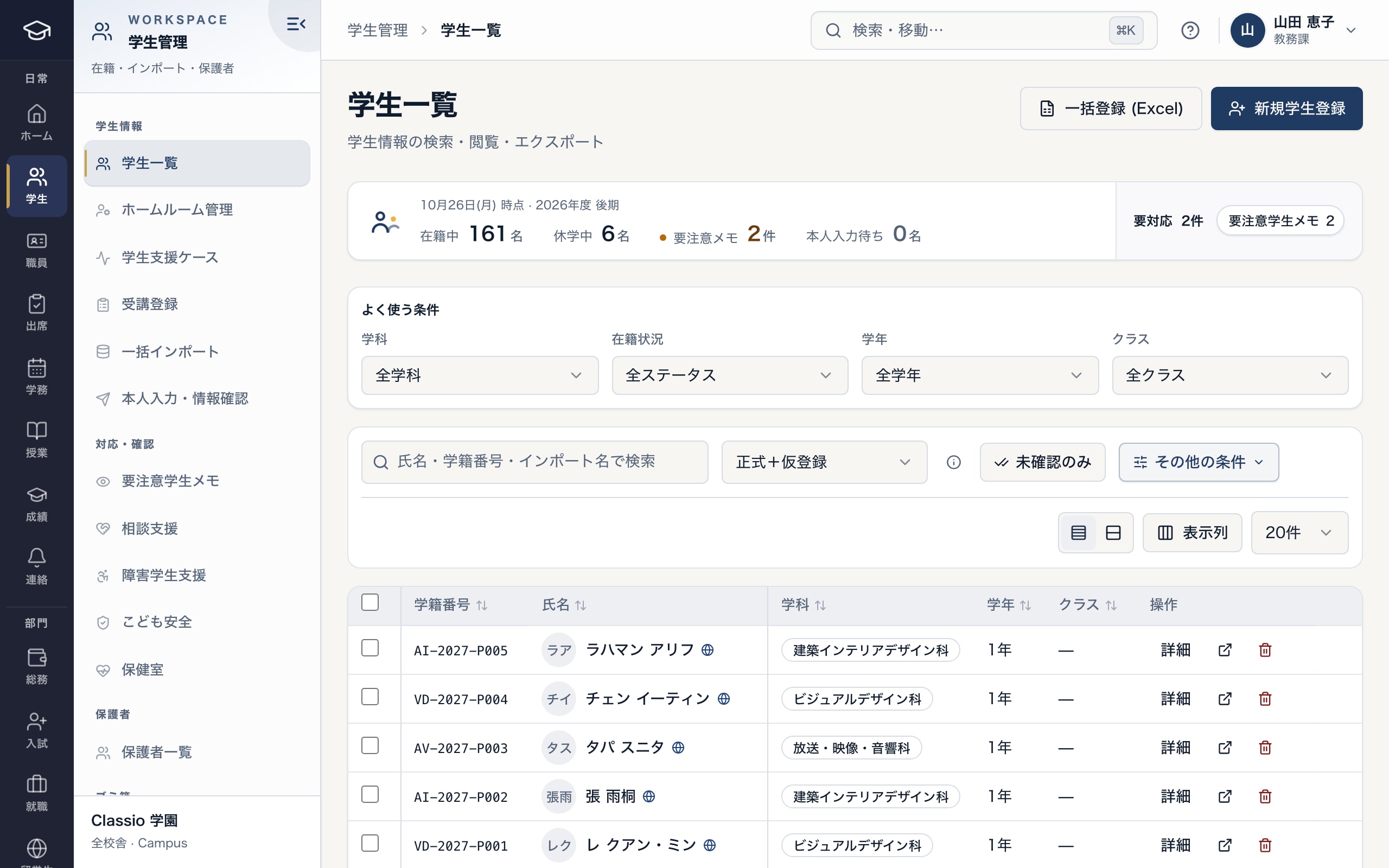
Counts by status, with full and provisional records together
- Enrolled, on leave and awaiting self-entry
- Show full and provisional records
- Excel import and single registration
Guardians, emergency contacts and custody restrictions
A guardian email links to an existing guardian account at the school, or sends a new invitation. Emergency contacts record name, phone and relationship.
Where a protection order or custody arrangement means someone must not collect the child or receive information, record it under custody and disclosure restrictions. Staff responsible for the student see who and what is restricted; the grounds are visible only to administrators, academic administrators and registrars. Restricting disclosure to a linked guardian removes that guardian’s link.
Awkward cases
- Register an accepted applicant
- Register as student from admissions with a student number; a one-time link for identity check and password is sent. The admissions record carries over.
- An Excel row has no student number
- It becomes provisional. Fill it in later with Complete details, or ask the student.
- A student was registered by mistake
- Move the student to the trash and restore later if needed. Deleting provisional rows cannot be undone.
- A student asks to use a preferred name
- A preferred name can be used on rosters and registers; certificates keep the legal name.
- A second status change while one is pending
- Not possible for the same student until the pending one is approved or returned.
Differences by kind of school
- Vocational schools and universitiesYears follow each department’s course length; address and the student’s phone are required. New-student self-entry is available.Vocational schools
- Japanese-language schoolsResidence status and cards connect to international-student management on the same record.International students
- Private K–12Grades run 1–6, 1–3 and so on; address is required. Suspension and leave cannot be requested for children of compulsory school age.Private K–12
- Cram and lesson schoolsShown as pause, leave and rejoin; address and phone are optional.Cram and lesson schools
Which plans include it
Student records are in every plan. New-student self-entry is available in the edition for vocational schools, Japanese-language schools and universities.
See pricingWhat it does not do
- Student numbers are not generated; enter them in the school’s own format.
- The school decides on leave or withdrawal; Classio records the request, approval and effective date.
- Characters outside JIS (外字) are checked against the school’s roster before go-live.
Start from how you work today
See the student record screens in the demo.
No registration: three minutes with sample data in the student list, registration and import screens. Tell us how your roster is kept today and we will suggest how to migrate.