Attendance and absence
Take it, count it, notice early.
Lesson-by-lesson attendance, absence notices, review of 公欠 (approved absence counted as present) and 認定欠席 (excused absence), the school’s own rate threshold, alerts and follow-up — on one record per student.
How attendance flows
A01 Take attendance
Teacher
Register, on-screen QR or printed QR
A02 Report an absence
Student / guardian
Absence notice or approved-absence request
A03 Review approved absences
Office / homeroom
Approval converts the records
A04 Count the rate, raise alerts
Classio
Checked on every change
A05 Assign and follow up
Office / homeroom
Owner and due date, then resolve
A06 Check the record
Student / guardian
Request a correction if wrong
Who acts, in what order. The “Classio” row is what the system does by itself whenever a record changes.
What attendance management means in Classio
Attendance management records who attended, was late or absent in each lesson, counts the rate against the school’s threshold and helps staff reach students early. In Classio the teacher’s register, notices from students and guardians, review of approved absences, the rate and the follow-up on alerts all sit on the same student record.
Last updated: October 26, 2026
Taking attendance: register, on-screen QR, printed QR
Teachers open the register of a class they teach, choose present, late, left early, absent or sick for each student and save in one go. If students are still unrecorded, Classio asks whether to save them as unrecorded or as absent.
The on-screen QR code changes every 60 seconds and each code works for 90 seconds, so a photo sent outside the room stops working almost at once. For online and hybrid lessons, a check-in link can be shared with students who are not in the room.
Rooms without a screen can post a printed QR code per class. It can be scanned from 10 minutes before the lesson until it ends; scans more than 5 minutes after the start are recorded as late, with the minutes. A leaked code can be reissued.
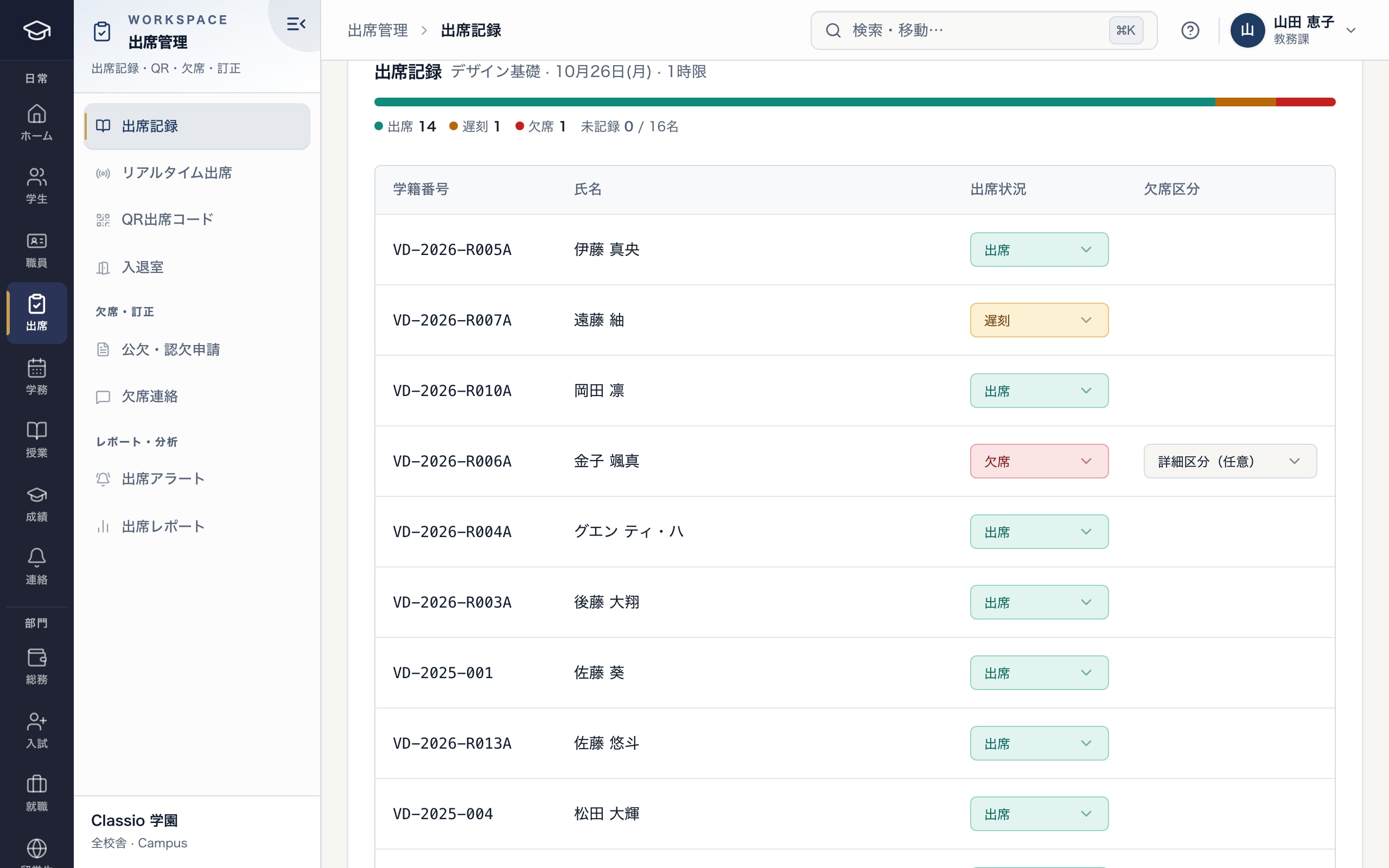
The class register: choose each student’s status, then save
- Counts of present, late, absent and unrecorded; unrecorded students trigger a check before saving
- Present, late, left early, absent or sick for each student
- An absence can carry an optional detail category
Receiving absence notices and approved-absence requests
Students and guardians report absence, lateness or leaving early from their Classio screens, and through LINE when the school has set it up. Notices appear in the absence-notice list and stay on the record as a mark for that day. The rate and per-subject absences are counted from lesson records, not from notices.
For bereavement, suspension from attendance, job hunting and similar reasons, students and guardians file a request; teachers and administrators can also create one.
When an administrator or academic administrator approves it, absent and sick records in that period are converted: 公欠 counts as present, and 認定欠席 (bereavement, suspension, natural disaster, job hunting) leaves both the rate and per-subject absences. Requests for international students cannot be approved until the international office has checked them.
Counting the rate against the school’s threshold
The rate is lessons counted as attended ÷ lessons recorded. Present, 公欠, late and left early count as attended; absent and sick do not. 認定欠席 lessons are left out of the denominator too. A student with no records yet shows “—”, never 0% or 100%.
The threshold comes from the school’s approved rule, or 80% if there is none. Per-subject absences are compared with a limit of the term’s planned lessons divided by a number the school sets (3 by default), with a warning at two thirds of the limit.
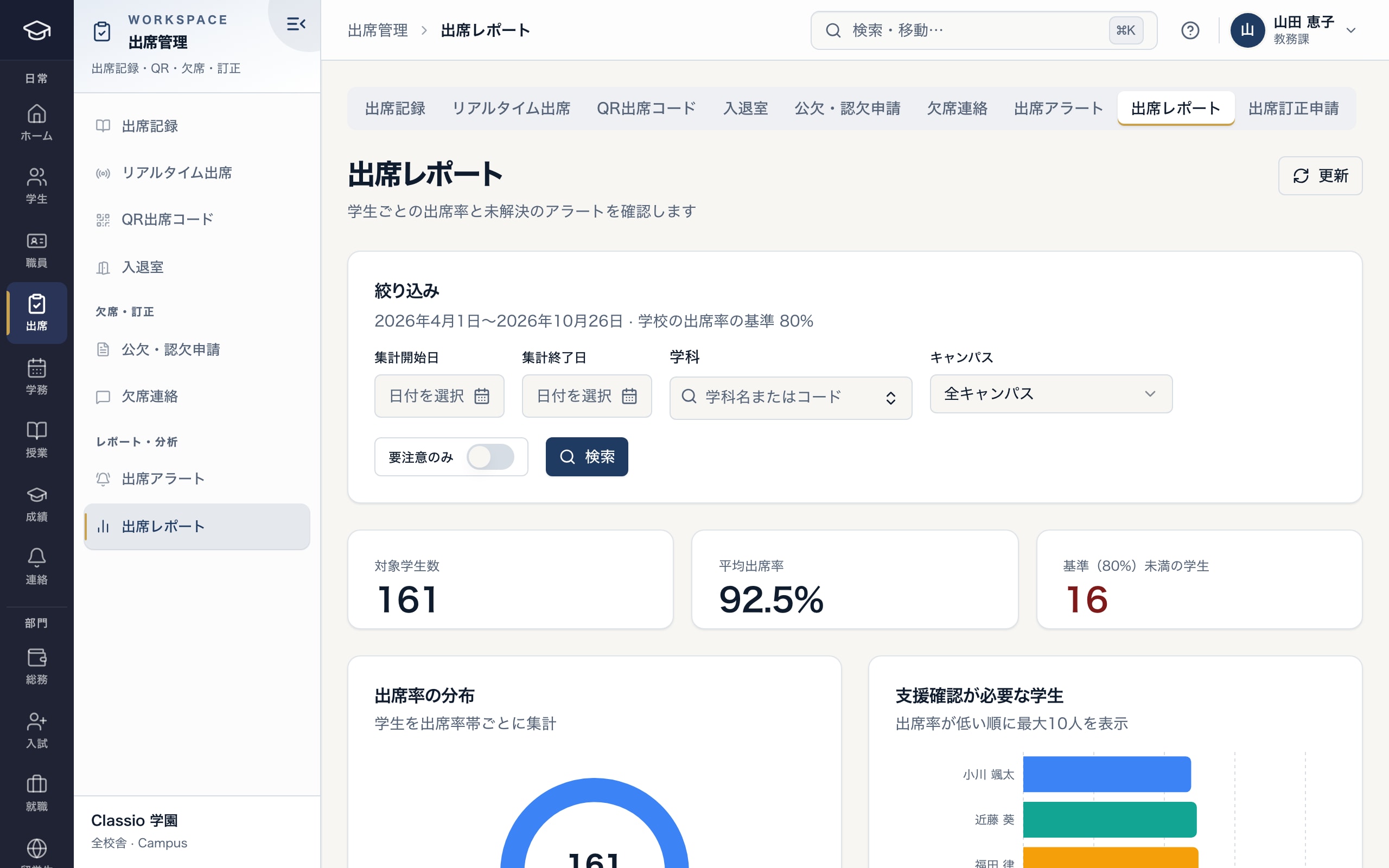
The attendance report: rates by student and who is below the threshold
- The period and the school’s rate threshold
- Students below the threshold
- Students who need follow-up, lowest rate first
Worked example
| Example | Lessons recorded | Counted as attended | 認定欠席 | Absent / sick | Rate |
|---|---|---|---|---|---|
| Student A | 30 | 24 | 2 | 4 | 24 ÷ 28 ≈ 86% |
| Student B | 30 | 22 | 0 | 8 | 22 ÷ 30 ≈ 73% |
| Student C | 0 | 0 | 0 | 0 | — (no records) |
The figures are an illustration. 80% is the default setting, not a legal or immigration threshold.
Noticing a falling rate: attendance alerts
Every time attendance is recorded or changed, Classio checks that student in that class. A rate below the threshold after at least 5 recorded lessons raises a “low rate” alert; three absent or sick lessons in a row raise a “consecutive absence” alert.
Students and guardians are notified when an alert is raised; consecutive-absence alerts go out at once, as a welfare check.
Homeroom and office staff give each alert an owner and a due date, work on it and close it. An alert starts follow-up; it does not decide progression, graduation or immigration matters.
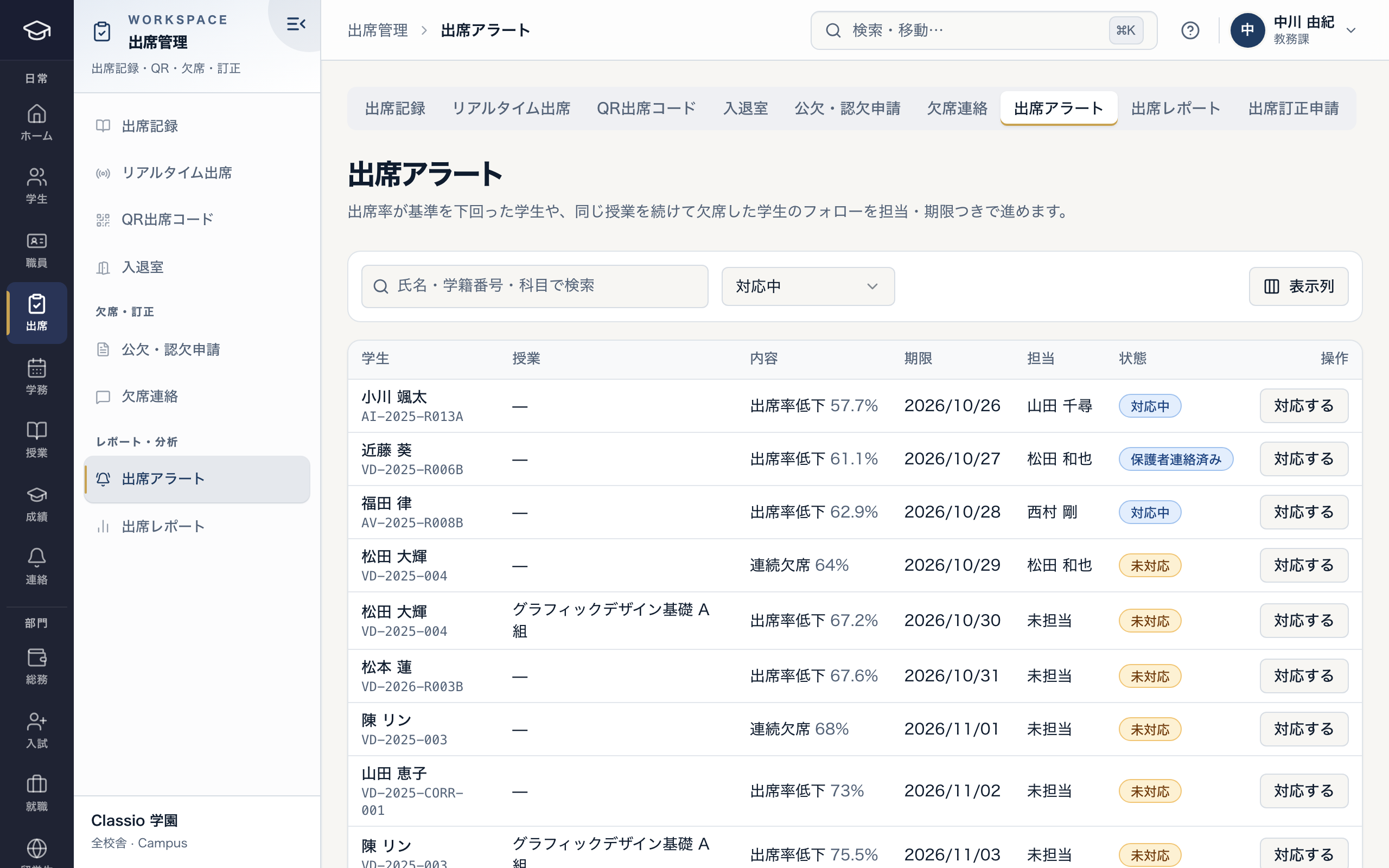
Attendance alerts: assign an owner and a due date, then follow up
- Reason: low rate, consecutive absence and so on
- A due date and an owner for each alert
- Open and in-progress alerts are told apart
When things are not straightforward
- A record was entered wrongly
- When a teacher or administrator corrects it, the rate and alerts are recalculated. Students and guardians can check their own records and request a correction.
- An approved absence comes through after an alert
- Approval converts the records in that period and the rate is recalculated. Records already certified for the month do not change.
- A student’s QR scan failed
- The teacher records it in the register. Saving the register does not overwrite students who checked in by QR.
- A make-up lesson outside the timetable
- Record it only when the lesson actually took place. Cancelled lessons and school closure days cannot be saved.
- Building entry records
- Entry and exit (card or digital student ID at the building terminal) records presence in the building, not lesson attendance.
How it differs by kind of school
- Vocational schoolsRates by lesson and per-subject absences, with alerts before a student falls below the threshold.Vocational schools
- Japanese-language schoolsA falling rate is visible on the same record as residence-card deadlines and support cases.International students
- Private K–12Morning absence notices, the attendance register, suspension and bereavement absences.Private K–12
- Cram and lesson schoolsBuilding entry records and absence-to-make-up are handled separately.Cram and lesson schools
Sources
Regulatory statements follow the scope of the cited documents. External documents do not certify Classio’s behaviour or compliance.
- Regulations for Enforcement of the School Education Act (e-Gov) — Articles 25 and 28: attendance registers and retention
- School Health and Safety Act (e-Gov) — Article 19: suspension from attendance for infectious disease
Sources checked: October 18, 2026
Which plans include it
Attendance is included from STARTER (from ¥19,800/month excl. tax) for vocational schools, Japanese-language schools and universities, and in the private K–12 and driving, drone and skills-training school prices.
See pricingWhat it does not do
- Cards and digital student IDs read at the building entry terminal do not count as lesson attendance.
- Location checking works only when the school turns it on and checks that a scan happened near the lesson’s place; it cannot fully prevent proxy attendance.
- The school sets the rate threshold and absence limits; Classio does not make legal determinations.
Start from how you work today
Try the attendance screens in the demo.
No registration: three minutes with sample data in the register, alerts and report. Tell us how you keep attendance today and we will suggest how to start.