Security and permissions
Who handles your school’s data, where, and how.
Where data is stored, what goes to outside services, roles and what each can see, approvals and the operation log — the facts you need before deciding, with their scope and the date we checked them.
Summary: facts and their scope
Checked: October 26, 2026
| Item | Fact | Scope and notes |
|---|---|---|
| Data location | In Japan (AWS Tokyo Region) | Where classio.jp runs and files are stored. For AI and notifications that use outside services, see “Where data is stored and what goes out” below |
| Separation between schools | Data is separated by school (organisation) and checked on the server | Campus scope is also checked on the server |
| Connections | Encrypted with HTTPS | Between browsers or the app and Classio |
| Counselling records | Stored encrypted; only the school counsellor can read them | Records in student counselling |
| Sign-in lifetime | Signed out automatically after one hour without activity | Every role |
| Personal details | Phone numbers, addresses and similar are masked and shown only on “Show”, which is logged | What each role may see is set per role and can be changed by the school |
| Operation log | Important creations, changes and deletions are logged with when, who and which record | Values such as addresses, phone numbers or answers are not stored in the log |
| Third-party certification | No P-mark, ISMS or similar is held | Items to confirm are explained during onboarding |
Where data is stored and what goes out
School data is stored in Japan (AWS Tokyo Region). Only when the features below are used is the necessary information sent to an outside service.
| Feature | Sent to | What is sent, and when |
|---|---|---|
| Classio AI | AI provider | Set by the school’s policy: no personal data; names replaced before sending (default); real names processed in Japan (PROFESSIONAL and above); or processing abroad with the school’s consent. Sensitive information such as counselling, health or disability is never sent |
| Push notifications | Phone and browser notification services (Apple, Google and others) | The notification text and a link to the screen it opens |
| LINE | LY Corporation (the school’s LINE Official Account) | Notifications to students and guardians who linked LINE, and messages received through LINE |
| Amazon SES (Tokyo Region) | Announcement and invitation emails | |
| Online payment | Stripe | Online tuition and fee payments, when the school uses them |
Roles, permissions and who sees personal details
A user’s role decides which pages appear and what they can do on them. Permissions can be added to a role or explicitly denied, and a denial wins.
Showing or hiding menu items only changes what is displayed; permissions are set separately and checked on the server.
Main roles and what they usually do
| Role | What it usually does |
|---|---|
| Administrator | School-wide settings and work, including users, roles and the audit log |
| Academic administrator | Student registration and status changes, entering and approving attendance and grades, reports; settings mostly read-only |
| Teacher | Viewing their own students and entering attendance and grades |
| International office | Residence and daily-life support for international students |
| School counsellor | Counselling records only; other work pages are hidden |
| Executive | School-wide status and the audit log, read-only in practice |
| Support | Helps investigate problems only within the scope and period the school allows; cannot use announcements or messages |
Who sees which personal details (defaults)
| Role | Categories visible |
|---|---|
| Administrator, academic administrator, registrar | All |
| Homeroom teacher | Contact details of students in their class only |
| Subject teacher | None |
| International office | Contact, address, date of birth, residence details |
| School counsellor | Contact, care needs, family situation |
| School nurse | Contact, date of birth, care needs |
| Finance | Contact, address |
Defaults until the school changes them. Even within a visible category, values are masked as “●●●” and shown only on “Show”, which is logged.
Important actions are approved by someone else
Requests such as student status changes, leave and fee reductions follow the approval chain the school sets; where none is set, a standard chain applies (for example, status changes go to the academic head, then the principal).
The person who submitted a request cannot approve or reject any step of it. Changing a chain saves a new version; requests already in progress keep the version they started with.
Grades move through entry, submission, approval and locking, and only locked grades are official. Certificates are issued only after someone other than their author has checked them.
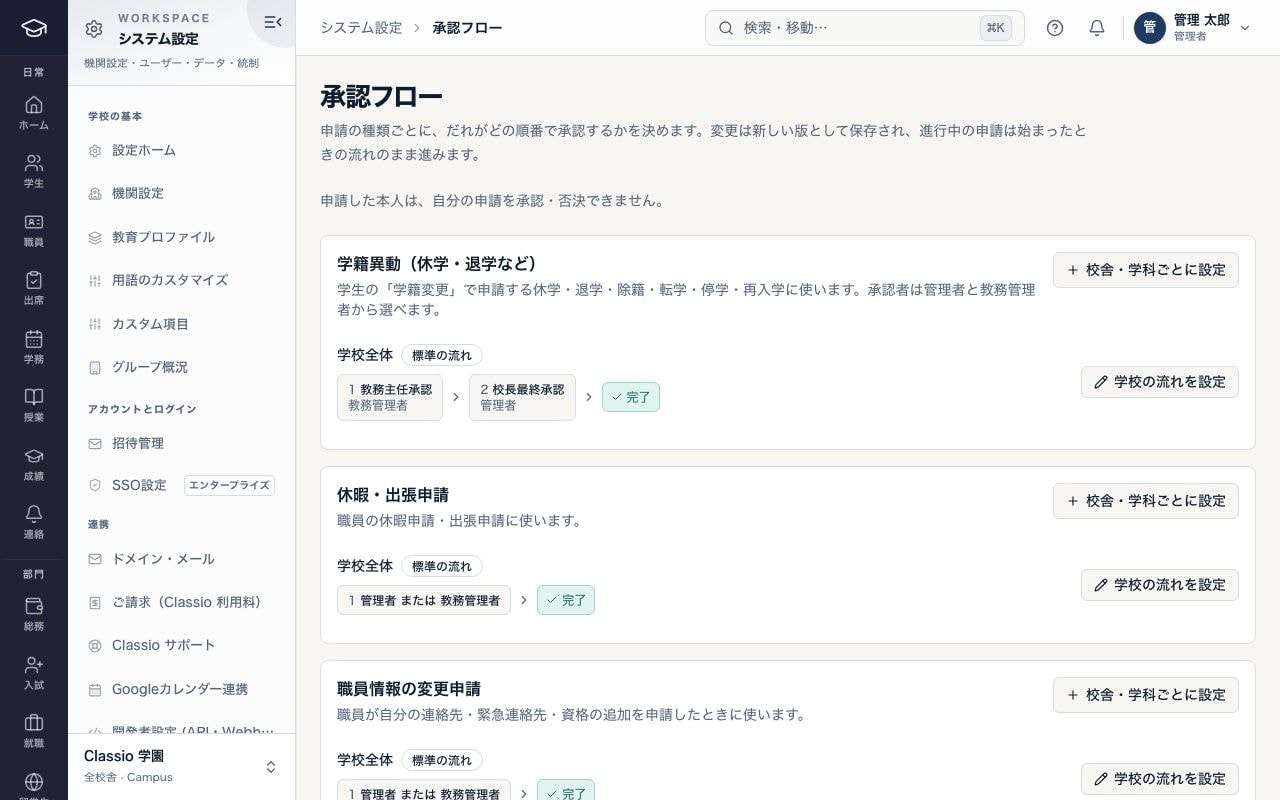
Approval chains: who approves each kind of request, and in what order
- The person who submitted a request cannot approve or reject it
- Standard chain for status changes: academic head, then principal
- Set school-wide, or by campus and department
The operation log (audit log)
Important creations, changes and deletions are logged with when, which user and which record. Administrators can filter by user, record type, action and period, read times in Japan time and export to CSV.
The log keeps the names of the fields sent and the record’s number or status — not values such as addresses, phone numbers, answers or notes.
Viewing personal details with “Show” is recorded too, and the school’s administrators can review those records.
Accounts and sign-in
Users are signed out automatically after one hour without activity, in every role.
Staff, students and guardians create their accounts from the school’s invitation. Google, Apple and LINE accounts can be linked to an existing account and used to sign in.
Not yet published (explained during onboarding)
- Backup generations and the expected time to restore
- An availability target (SLA)
- Results of an external security assessment
- How data is exported and deleted at the end of a contract
- Where two-step sign-in with an emailed code is available
A checklist for your own review
Items often asked when reviewing a service provider. Tick them, print the page and use it for your internal review. Ticks stay on this screen only and are not saved.
Start from how you work today
We will answer your security questions.
Send the items you need to confirm and we will tell you the scope and current status, and help you prepare documents for internal approval.