Timetable and registration
Build the timetable, take registrations, connect them to lessons.
Place lessons by hand, by solver or from Excel with clash checks, enrol required subjects in bulk, and run elective registration periods with review, first-come or lottery and a credit cap. Approved registrations become the attendance and grade rosters.
From timetable to roster
U01 Build the timetable
Academic office
By hand, solver or Excel
U02 Check for clashes
Classio
Teachers, rooms, students
U03 Enrol required subjects, open a period
Academic office
Elective registration
U04 Choose electives and submit
Student
Clashes and limits shown
U05 Approve, reject or waitlist
Reviewer
Office, homeroom teacher or either
U06 Update the roster
Classio
Attendance and grades follow
Who acts, in what order. The “Classio” row is what the system does by itself.
Timetables and registration in Classio
Timetabling and course registration means placing lessons without clashes between teachers, rooms and students, and recording who takes which class. In Classio the timetable, bulk enrolment in required subjects and elective registration all work on the same class records, and registered students go straight onto the attendance and grade rosters.
Last updated: October 26, 2026
Build the timetable: by hand, by solver or from Excel
Administrators add lessons to the weekly grid and drag to move or swap them. Every save checks that teachers, rooms and students are not double-booked and explains any clash; Clash check reviews the saved timetable in one go.
Auto-generate places lessons using the working days, lessons per day and automatic room choice you set, respecting teacher, student and room clashes, room capacity and teachers’ available days. It is a rule-based solver, not AI. The preview lists lessons it could not place, and if any cannot be placed it writes nothing.
Excel import takes .xlsx up to 500 rows and 5 MB. Validate shows clashes and errors with row numbers, and one error means nothing is imported.
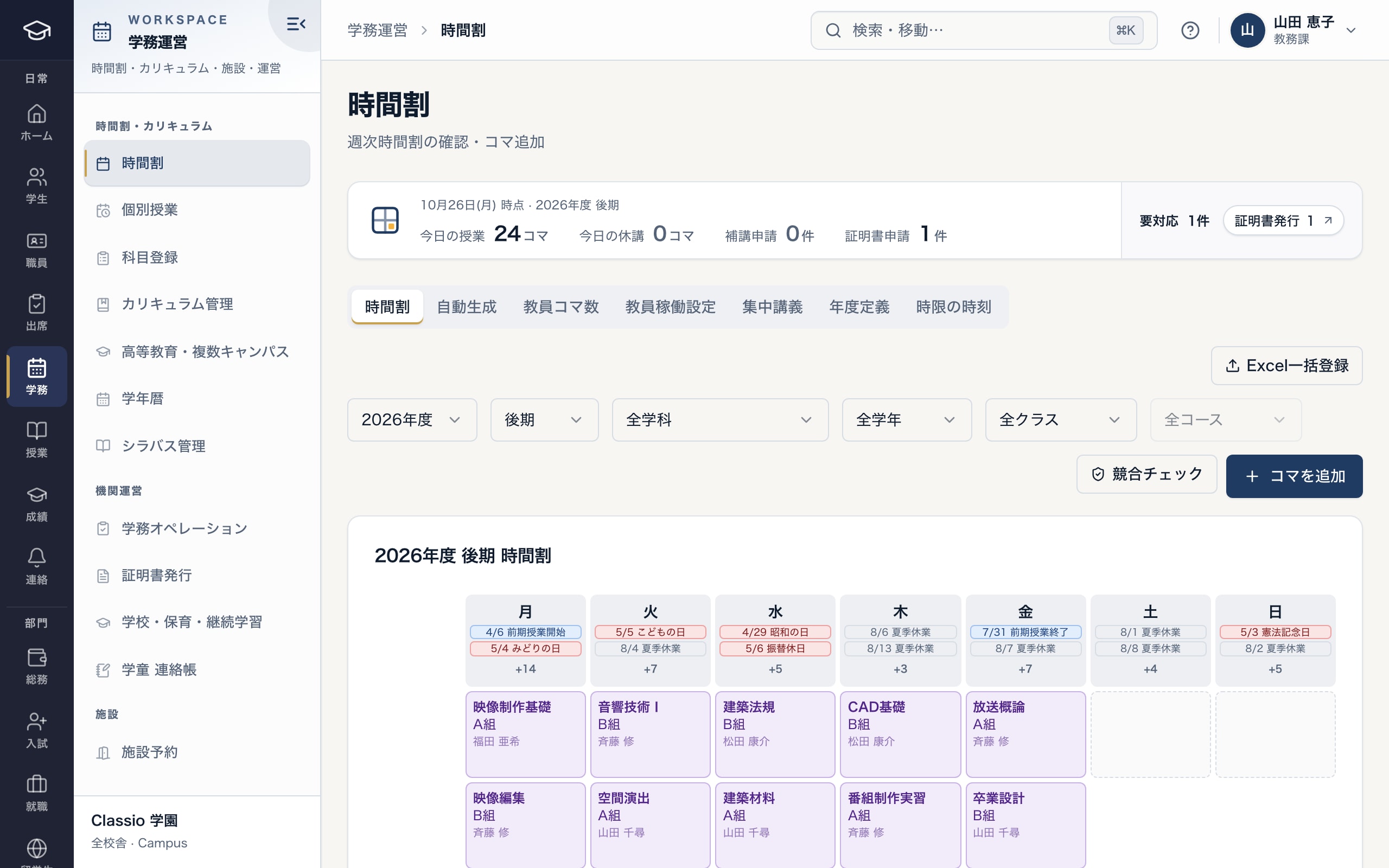
The weekly timetable, with clash checks as lessons are placed
- Switch between the grid, auto-generate, teacher loads and intensive courses
- Excel import, validated before anything is saved
- Check the saved timetable for clashes
- The week, filtered by department, grade and class
Enrol required subjects by department and year
Bulk-enrol required subjects puts every enrolled student of the chosen department and year into the required classes for the chosen year and term. Subjects with more than one class, or that would exceed capacity, are skipped and listed for manual assignment.
Enrolments are written to the audit log, and the office adds or removes students here after the registration period. Students with attendance or grades are kept with a drop date rather than deleted.
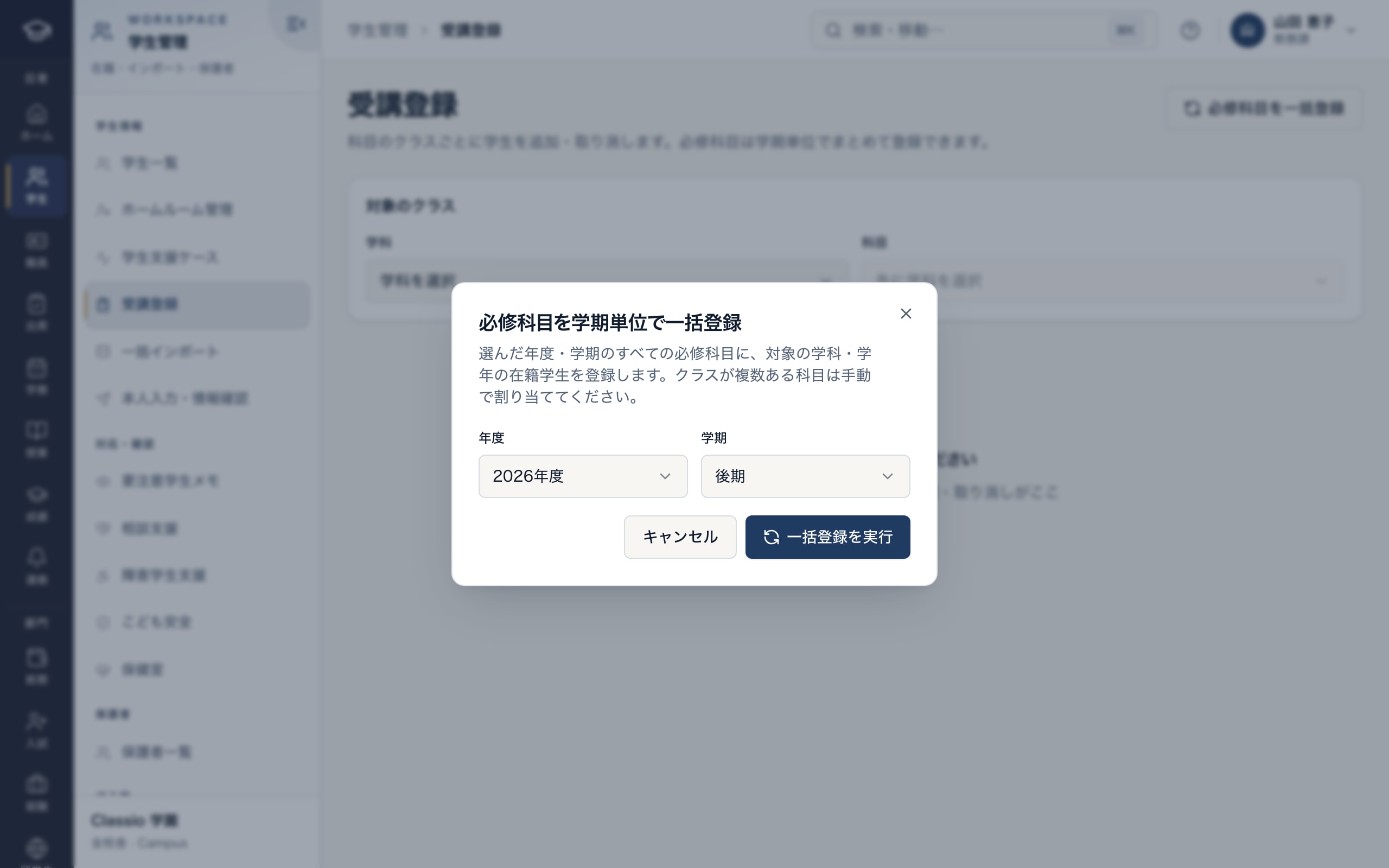
Choose year and term, and enrol students in all required subjects at once
- Choose the year and term
- Subjects with more than one class are assigned by hand
- Enrolments are written to the audit log
Elective registration: review, first-come or lottery, and a credit cap
The office creates a registration period per year and term and moves it from draft to open, locked and closed. Students can submit only between the opening and closing times; while locked, changes stop but review continues. Periods do not close themselves after the closing time, so the office locks or closes them.
Each period uses review, first-come or lottery. First-come gives a seat on submission or a waitlist place; a lottery runs once after locking, numbers the waitlist and fills freed seats in order. A credit cap of 1–80 credits can be set per period.
The school chooses the reviewer — the academic office, the homeroom teacher or either — and whether review is per subject or per whole submission. Homeroom teachers review only their own students and never their own entries. Students are notified of approval, rejection or waitlisting.
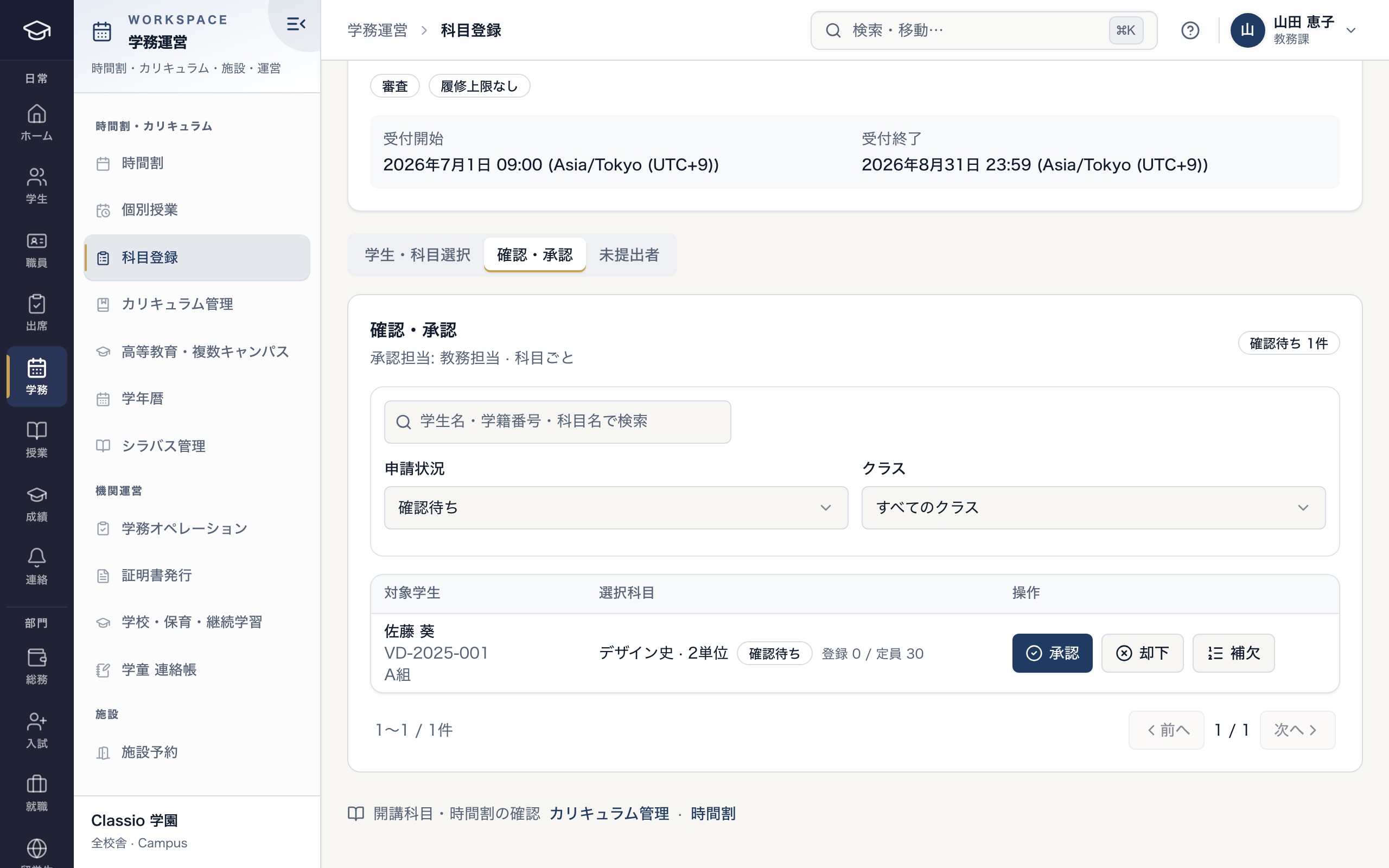
Elective requests reviewed by the school’s chosen reviewer and unit
- Allocation (review, first-come, lottery) and credit cap, set per period
- Reviewer, and per-subject or whole-submission review
- Approve, reject or waitlist
Approved registrations become the rosters
Approval, a lottery win, a first-come seat or a waitlist promotion all enrol the student in the class. Attendance rosters, QR check-in and grade entry are built from these enrolments, and students see the class in their own timetable.
Students cannot cancel an approved class themselves; they contact the school and the office removes it.
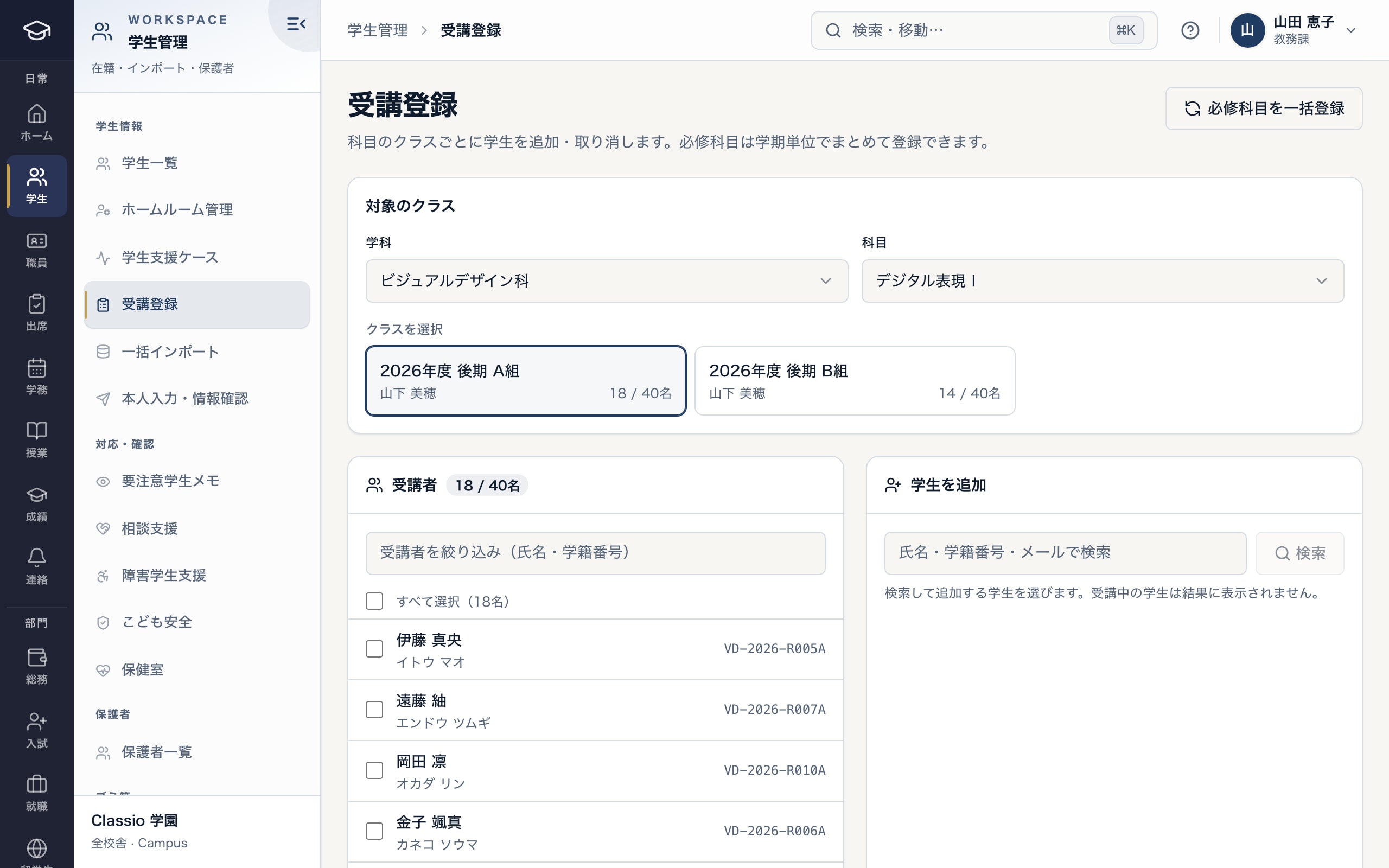
The students enrolled in each class; attendance rosters and grade entry are built from this list
- Class, with enrolled students and capacity
- Enrolled students: the roster for attendance, QR check-in and grades
- After the registration period, the office adds students here
Awkward cases
- Two chosen classes overlap
- The screen warns before submitting, and submission is refused with the clashing class named.
- More applicants than seats
- Under review, full classes cannot be chosen; first-come waitlists the rest; a lottery numbers the waitlist and promotes as seats free up.
- Changes after the period
- The office adds or removes enrolments with the same clash and capacity checks; changes are audited.
- Let accepted applicants register early
- A period can allow accepted applicants to register (off by default).
- Individual lessons outside the timetable
- Requested and approved on their own screen; whether they count toward attendance is a school setting, off by default.
Differences by kind of school
- Vocational schoolsMostly required subjects: bulk enrolment and department timetables.Vocational schools
- Universities and junior collegesMany electives: periods, lotteries and the credit cap.Universities
- Private K–12Three-term years are supported; each school chooses its term system.Private K–12
- Cram and lesson schoolsHandled with lesson agreements, bookings and make-ups rather than a timetable.Cram and lesson schools
Which plans include it
Course registration and enrolment are in every plan. Timetable building, the solver and Excel import are included from STARTER for vocational schools, Japanese-language schools and universities.
See pricingWhat it does not do
- The solver is rule-based and writes nothing if any lesson cannot be placed; adjust the conditions and preview again.
- Timetable Excel import takes .xlsx only and imports first and second terms; third terms cannot be imported from Excel.
- Registration periods do not close themselves; the office locks or closes them.
Start from how you work today
See the timetable and registration screens in the demo.
No registration: three minutes with sample data in the timetable, the solver settings and registration review. Tell us how you build the timetable today and we will suggest how to bring it in.