Certificates
Certificates made from confirmed records, checked by two people.
Six certificates — enrolment, transcript, expected graduation, graduation, attendance and fee payment — from a student’s or guardian’s request through eligibility checks, a frozen preview, approval by another member of staff, release and a QR check.
How a certificate is issued
C01 Request
Student / guardian
Type and purpose
C02 Check eligibility
Classio
Enrolment status, locked grades…
C03 Make the preview
Registrar staff
Student details, number and date frozen
C04 Approve and release
Approver
Not the preparer or requester
C05 Download the PDF
Student / guardian
Once issued
C06 Check by QR code
Recipient
Valid or revoked
Who acts, in what order. The “Classio” row is what the system does by itself.
Certificates in Classio
Issuing a certificate means taking a request, producing the document from the school’s records and handing it over without mistakes. In Classio the request, eligibility check, preview, approval and release are one flow, and someone other than the person who made the preview approves it before it is issued.
Last updated: October 26, 2026
Take requests: the student and guardian screen, and batch issue
Students and guardians request a certificate from the Certificates screen with its type and purpose. Up to three requests of the same type can be open at once. They follow progress on the same screen and download the PDF once it is issued; a rejection shows its reason and sends a notice.
Guardians can request certificates for children in their custody. For a child aged 18 or over, they can handle only enrolment and fee-payment certificates.
When a whole class needs one, use Batch issue: choose up to 100 students on the same campus, preview them all, then submit for review.
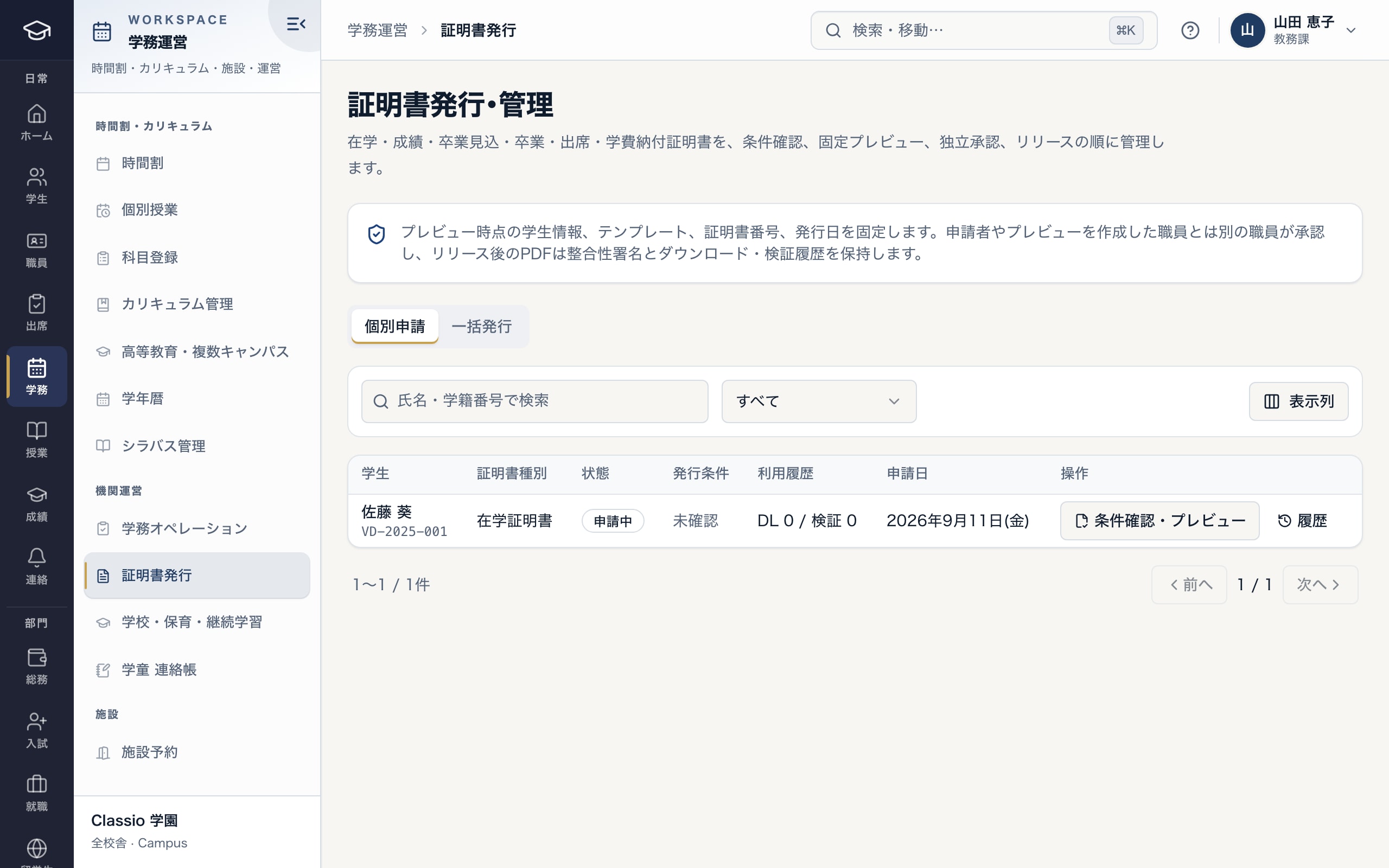
Each request’s status and the Check & preview button
- The preview freezes the content; staff other than the requester and preparer approve it
- Status of each request
- Check eligibility and make the preview
Which certificates, and when they can be issued
For each certificate, Classio checks that it may be issued. A request that fails does not take a certificate number or produce a preview, so withdrawn or ineligible requests leave no gaps in the numbering.
Certificates and their conditions
| Certificate | What Classio checks |
|---|---|
| Enrolment | Enrolled or on leave |
| Transcript | At least one approved and locked grade |
| Expected graduation | Enrolled or on leave, with an expected graduation date |
| Graduation | Graduation status and date are final |
| Attendance | Attendance records exist |
| Fee payment | Paid or waived fee records, and nothing overdue |
Every certificate also checks that the student record can be issued from. In real use the school’s issuer and signatory names must be set.
Someone else approves it
When an administrator, academic administrator or registrar presses Check & preview, Classio freezes the student details, certificate number and issue date as of that moment. Later changes to the record do not change the preview.
Approval and rejection are done by someone other than the preparer and the requester; a rejection needs a reason. The approver then presses Release, the certificate is issued and the PDF becomes available.
Certificate requests also appear in the School operations queue, beside status changes, approved absences and monthly attendance sign-off.
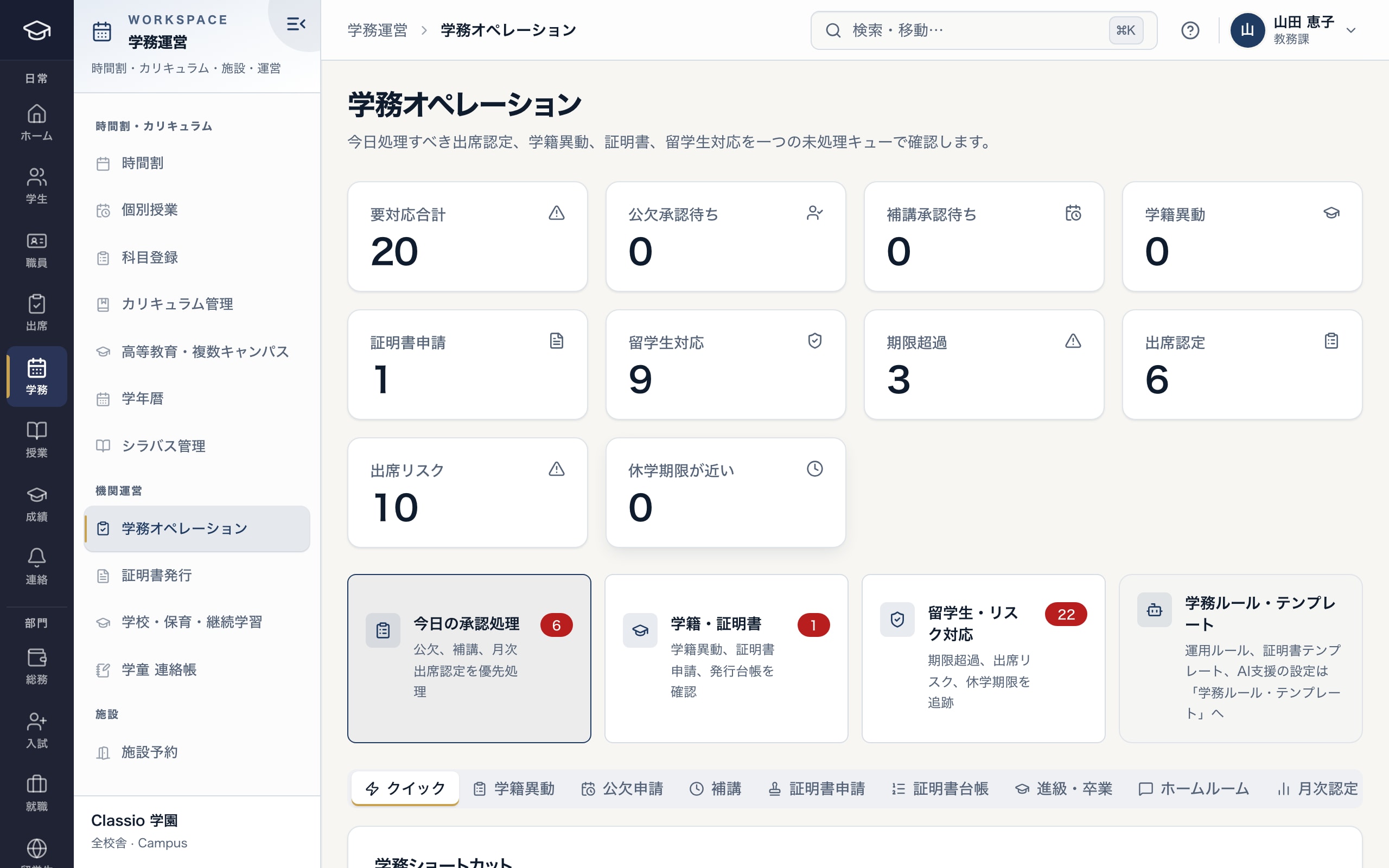
Certificate requests sit in the same queue as the rest of the office’s work
- Open certificate requests
- Status changes, certificate requests and the issue register together
The recipient checks it by QR code
Each issued PDF carries a QR code. Scanning it opens a check page that says whether the certificate is valid or revoked. For a valid one it shows only the name, certificate type, issue date and time, issuing school and serial number.
The check page also compares the document with the PDF Classio stored at issue, to confirm it has not changed. An issued certificate can be revoked with a reason, and issued or revoked ones can be reissued through a reissue request. Downloads and checks are kept in the History.
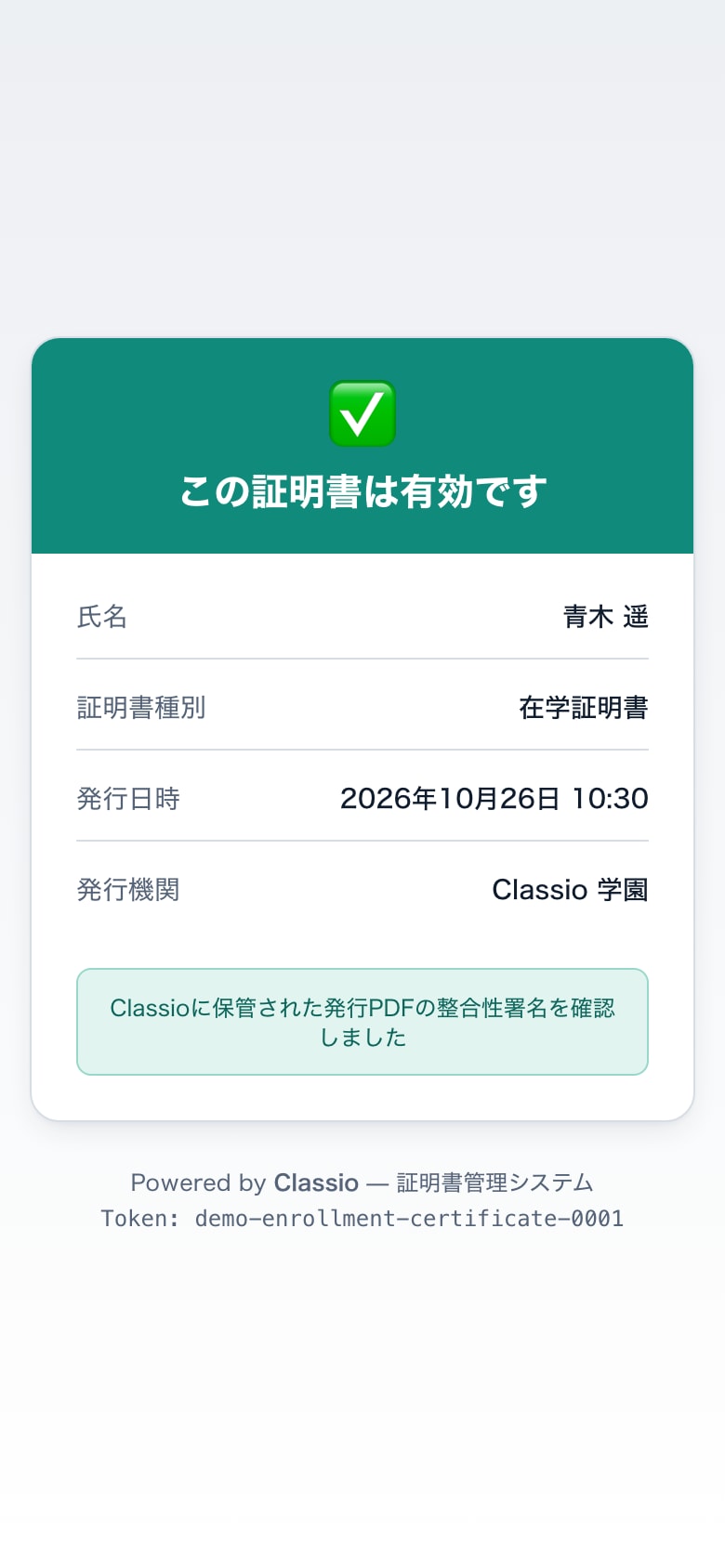
Whoever scans the QR code checks on the spot whether the certificate is valid
- Valid, revoked or not issued, at a glance
- The issued PDF’s integrity signature is checked too
- Name, certificate type, issue date and issuer
Awkward cases
- The request does not meet the conditions
- The check runs before the preview and lists what is missing. No number is taken, so you can fix the record and check again.
- A mistake is found after issue
- Revoke it with a reason and reissue it. A revoked certificate shows as invalid when its QR code is checked.
- Only one person can approve
- The approver must differ from the preparer and the requester, so one person cannot issue alone. Decide who approves before you start.
- A guardian asks for an adult student’s transcript
- For students aged 18 or over, guardians can handle only enrolment and fee-payment certificates; the student requests the transcript.
- The whole class needs one
- Use Batch issue for up to 100 students on one campus, preview them all and submit; someone other than the preparer and submitter approves.
Differences by kind of school
- Vocational schoolsTranscripts and expected-graduation certificates, in demand during job hunting.Vocational schools
- Universities and junior collegesTranscripts and expected-graduation certificates from locked grades and expected graduation dates.Universities
- Japanese-language schoolsAttendance and enrolment certificates used for residence procedures.Japanese-language schools
- Driving and training schoolsGraduation and completion certificates are handled in their own screens.Driving schools
Which plans include it
Certificates are included from STARTER for vocational schools, Japanese-language schools and universities, and in the private K–12 price.
See pricingWhat it does not do
- The check page confirms the document matches the PDF Classio issued; it is not a public digital signature.
- The school checks and decides the layout and wording of its certificates.
- Self-service certificate kiosks and in-store issuing are not supported.
Start from how you work today
See the certificate screens in the demo.
No registration: three minutes with sample data in the request list and the School operations queue. Tell us how you issue certificates today and we will suggest how to start.