In this article
- School basics
- 設定ホーム
- 機関設定
- 教育プロファイル
- 用語のカスタマイズ
- カスタム項目
- グループ概況
- Accounts and sign-in
- 招待管理
- SSO設定
- Integrations
- ドメイン・メール
- ご請求(Classio 利用料)
- Classio サポート
- Googleカレンダー連携
- 開発者設定 (API・Webhook)
- Rules and approvals
- 学務ルール・テンプレート
- 承認フロー
- 請求・在籍ルール
- 自動化ワークフロー
- Data import and export
- データ取込・出力
- 他システムからの乗り換え
- 取込照合センター
- 導入ワークスペース
- Personal data and records
- 個人情報の閲覧範囲
- 監査ログ
- 匿名ベンチマーク
- Contract
- プランと利用状況
- ローンチ確認
This area brings together school-wide settings and the work of rollout, data and governance. It is used mainly by Administrators; Academic administrators, Registrars and Executives see only the pages related to their work. Which pages you can see is determined by your role and permissions, and depending on your plan or module settings, some pages may not appear or may appear marked with a plan name. For how to proceed with setup, see The order of initial setup at implementation.
School basics
Screen
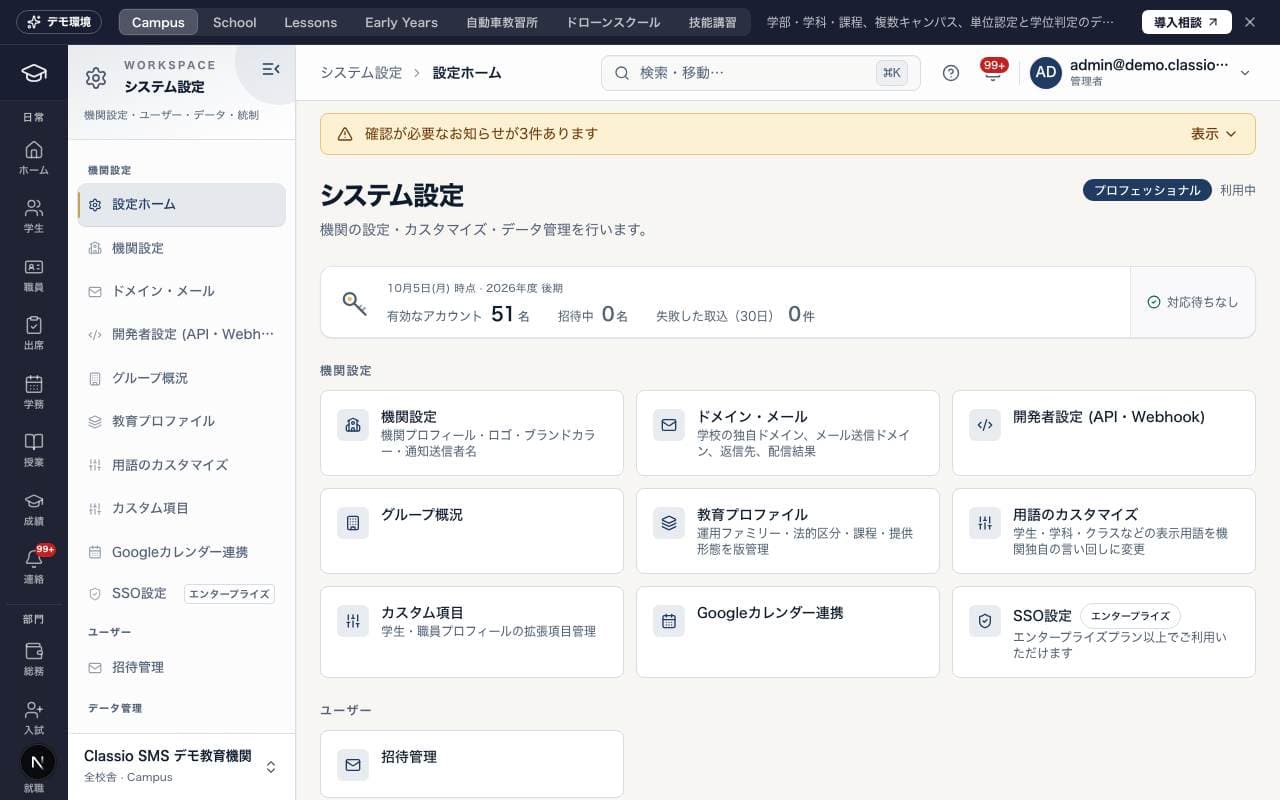
設定ホーム
The entrance to the Settings area. The settings pages you can use are listed as cards with descriptions.
Use the search box to find a setting by name or description. Recently used shows the settings this browser opened recently.
Administrators and executives also see the current plan and contract status, and pages outside the plan show that they are available on a given plan or higher (〇〇プラン以上でご利用いただけます).
Screen
機関設定
Manage the official institution name used on certificates and elsewhere, school and campus names, the portal display name, logo, brand color and notification sender name, the retention period for student records, and the student registration policy. Only Administrators can make changes.
Each school's founding body (national, public or private) decides which status changes are offered.
The school code (the 13-character code MEXT assigns to each school) is used by the education data standard export.
Screen
教育プロファイル
Set the operating family, legal category, programs, delivery mode and so on as versions. This is separate from the pricing plan, and activating a new version does not automatically convert existing student or subject records.
School type template (学校種のひな形): choosing college of technology or Japanese-language institution fills in starting values. Every field stays editable.
With the school type college of technology, grades become main course years 1–5 and advanced course years 1–2; with Japanese-language institution, the Japanese-language school periodic report becomes available.
Screen
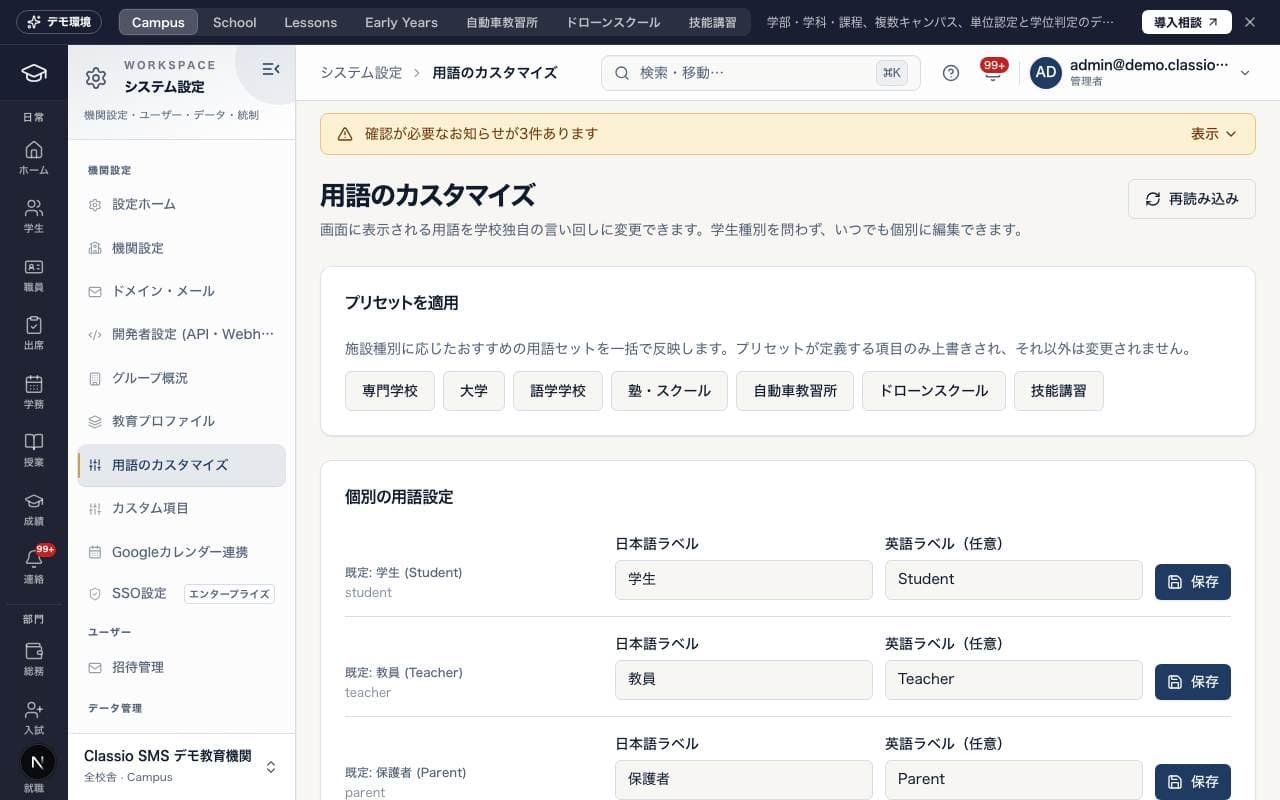
用語のカスタマイズ
Change the terms shown on screen, such as 学生 (student), 学科 (department) and クラス (class), to the wording your school uses. You can also apply a preset for your type of school all at once. For details, see Change the words shown on screen to match your school.
Screen
カスタム項目
Add your own fields (text, number, date, choice and so on) to student and staff profiles. The heading on screen is Custom fields (カスタムフィールド). Disabling a field keeps any data already entered.
Screen
グループ概況
Compare enrollment, withdrawal rate, unpaid rate and attendance rate across multiple schools (or classrooms) belonging to the same operating organization. Figures are calculated for each school, and data is not shared between schools. Administrators can create a group and add other schools where they are also an administrator.
Accounts and sign-in
Screen
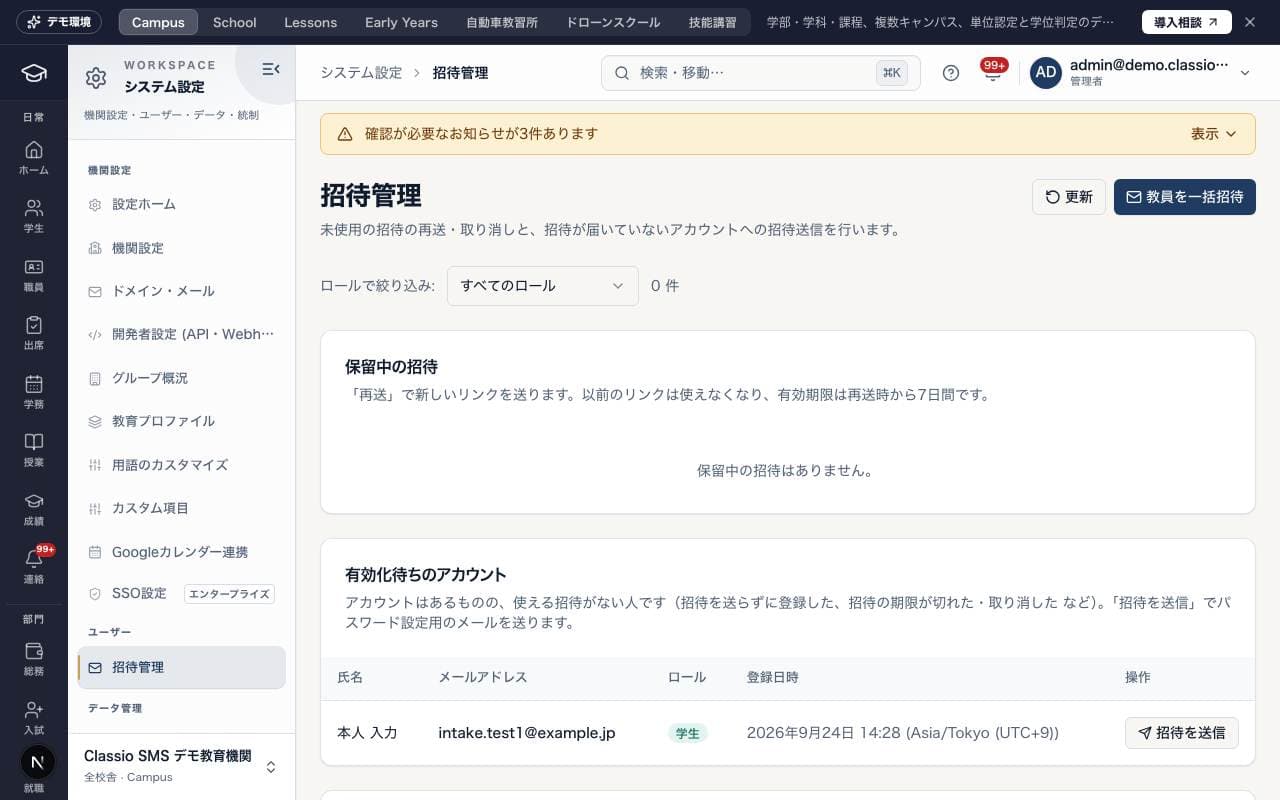
招待管理
Check which invitations have gone out and send them again to people who have not joined.
See invitations that have been sent, have not been used yet and have not expired; use Resend (再送) to send a new link, or revoke them.
Accounts awaiting activation (有効化待ちのアカウント) shows people who have an account but no usable invitation (for example, registered without one, or whose invitation expired or was revoked); send them an invitation email with Send invitation (招待を送信).
Cohort invitation URLs for students can also be created here.
For details, see Invite staff and students, and check invitation status.
Invitation links open at the inviting school’s address.
Screen
SSO設定
Settings that let people sign in with the authentication system your school uses (GakuNin Shibboleth, SAML 2.0 or OIDC). Available on the Enterprise plan, and set up by an Administrator.
Start authentication at your school sign-in page; completion returns to that school.
Integrations
Screen
ドメイン・メール
Set the sender for email sent in the school's name and the reply-to address for each purpose (office, accounting, admissions, emergency contact and public relations), and check delivery results. A reply-to address starts being used once the link in the confirmation email is opened. The school's URL (custom domain) is also handled here.
An active custom domain is also used for school invitations and workspace links.
Screen
ご請求(Classio 利用料)
See your Classio invoices, payment status and what is still open, and view or print the qualified invoice. Notices arrive 3 days before the due date and 1, 7, 14 and 30 days after it if unpaid. For administrators and finance staff.
Card checkout returns to this school’s invoices page.
Screen
Classio サポート
Ask Classio support about using Classio, problems, billing or contracts, and read the replies. Mark a request urgent when work has stopped: support is alerted at once (target 4 hours). Normal requests are answered within 24 hours.
Screen
Googleカレンダー連携
Connect the school's Google account to show today's events and staff on leave on the dashboard. Events are read from Google each time they are shown and are not stored in Classio.
The first connection is read only. To write appointment bookings, press Write events (予定を書き込む) and allow creating, changing and deleting events in Google. Until then the page says a reconnect is needed.
Choose a calendar under Write bookings to Google Calendar: a new booking adds an event and a cancellation removes it. A cancelled slot or a new place is reflected too.
Events describe only the type and the booker's display name. Adding the student's name, the booking note and the booker's email is a switch that is off by default.
Bookings are accepted even when Google cannot be reached, and the write is retried automatically. When failed bookings are shown, press Retry failed bookings.
Google connection returns to this school’s settings page.
Screen
開発者設定 (API・Webhook)
A screen for Administrators to manage the API keys and webhooks used to connect with external systems. A key's secret is shown only once, when it is issued, so keep it somewhere safe.
Webhook destinations must use public HTTPS on port 443. Internal-network destinations and redirects are rejected.
Rules and approvals
Screen
学務ルール・テンプレート
A screen that brings together the school's operating rules, certificate templates, a library of rules and templates, and Classio AI assistance settings. Day-to-day processing is done in Academic operations (学務オペレーション).
Screen
承認フロー
Decide who approves each kind of request, and in which order. Administrators change flows; academic administrators can view them. See Decide your school's approval flows (who approves, and in what order).
Used for student record changes, staff leave, automation approvals and requests started on Approvals (承認依頼)
Each step sets the roles that can approve, a named approver, a delegate (代理) and a deadline
Changes are saved as a new version; requests in progress keep their flow
Screen
請求・在籍ルール
Change the school rules used for billing and for enrolment decisions, with a start date. See Change billing and enrolment rules.
Billing rules (請求ルール): monthly due day, partial-payment default, convenience-store deadline, family-discount rounding
Enrolment rules (入学・在籍ルール): address and phone for full registration, promotion and graduation thresholds, leave ending soon
Charges already issued and evaluations already made do not change
Screen
自動化ワークフロー
Build workflows that automate routine work by combining triggers, conditions and actions. You can use a dry run (ドライラン) to test without actually processing anything, and require human approval before a run. Available on the Professional plan or higher.
Data import and export
Screen
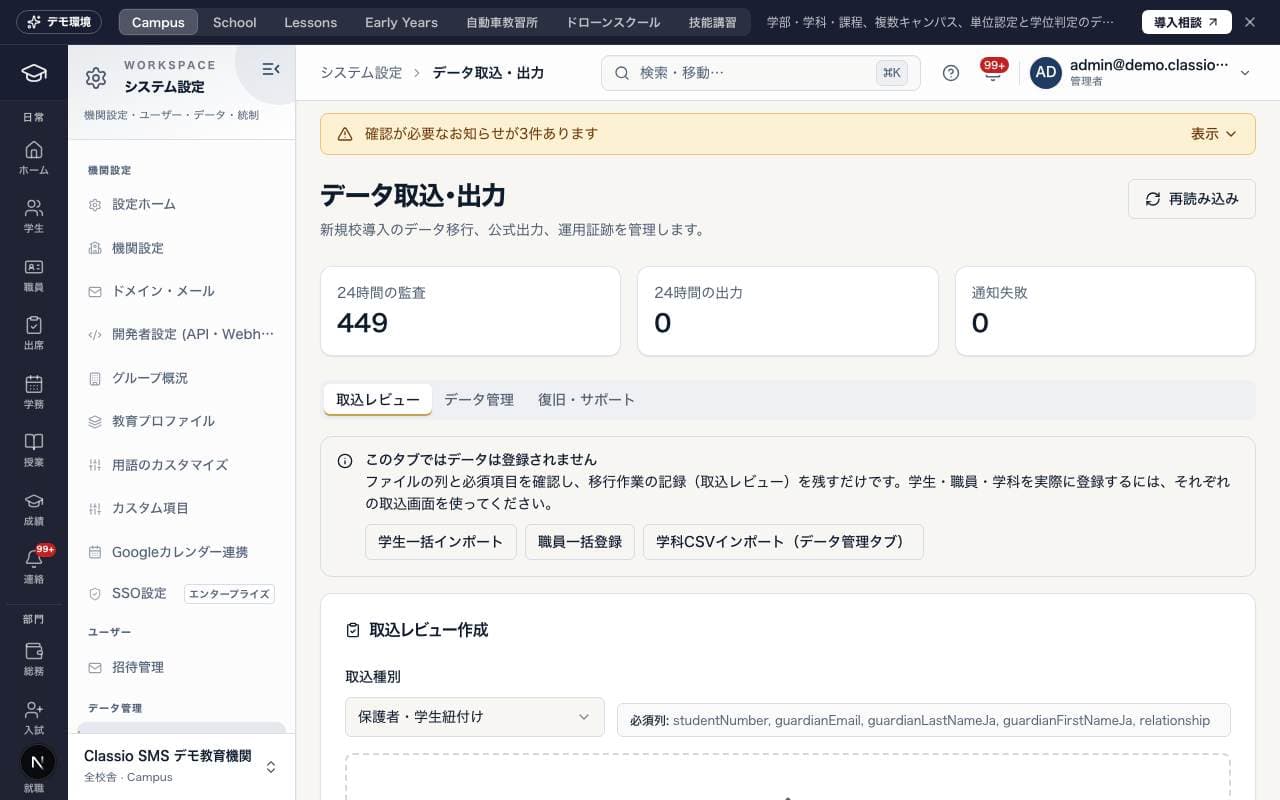
データ取込・出力
There are three tabs: Import review (取込レビュー), which checks the required columns of a CSV file and keeps a record (no data is registered here); Data management (データ管理), which handles department CSV import and the import and export history; and Recovery & support (復旧・サポート), for checking failed notifications and imports that need attention. Students and staff are actually registered on their respective bulk registration screens. For details, see Prepare and check imports of existing data, and view export records.
Screen
他システムからの乗り換え
Import an Excel or CSV export from your previous system by mapping its columns to Classio fields. See Switch from your previous system (students and opening balances).
Students (学生): mapped rows go through the same checks, provisional records and invitations as the bulk student import.
Opening balances (移行時残高): amounts owed and credit as of the cut-over day, imported after you review a validation report.
Imports & credit (取込履歴・前受金): roll back a balance import or apply credit.
Save a column mapping under a name to reuse it next time.
Screen
取込照合センター
A screen for reconciling, for each import job, the number of source records against the number registered, and the handling of exception rows. Once all exceptions are resolved, check the contents and record the acceptance sign-off.
Screen
導入ワークスペース
Manage rollout milestones, from basic school settings through data migration and training to the go-live decision, in a single register. Record the status, deadline and evidence of completion for each item, and reconcile counts for each import here as well.
Personal data and records
Screen
個人情報の閲覧範囲
Decide which roles can see which categories of students' and guardians' personal data. Only administrators can open it; changing it needs the System management permission. See Access to personal data and the access log.
Access rules (閲覧範囲): tick or clear categories per role and press Save (applies from today) (保存(今日から適用)) to save a new version. Rules cannot be opened beyond their limit.
Back to defaults (初期設定に戻す) restores the rules used before the school changed them; Change history (変更履歴) keeps every version.
Rules that always apply (常に適用されるルール) lists the fixed rules, such as lists never showing contacts and protected addresses being for administrators only.
Access log (閲覧記録): every show, emergency access and setting change, with date, staff member, student and purpose.
Screen
監査ログ
Search the history of who did what and when, and export it as CSV. Only Administrators can use it. For details, see Check the history of actions in the Audit log.
Screen
匿名ベンチマーク
Compare your school's totals with anonymous totals from similar schools that meet set conditions. Taking part is optional, and other schools' names and individual data are not shown. Only Administrators can use it.
Contract
Screen
プランと利用状況
For administrators and executives: check the current plan and contract status, usage, and the features available on your plan. To discuss an upgrade, use Discuss an upgrade (アップグレードを相談する). For details, see How pages outside your plan or modules appear, and who to ask.
Administrators also see the documents Classio sent about the subscription fee.
Group invoices (when billing is consolidated to the operating company)
Credit notes (返還請求書): the qualified return invoice issued when part or all of a fee is returned. Open and print it with Document (書類)
Screen
ローンチ確認
A screen for Administrators to check, before going live, that required settings, integrations and data preparation are all in place (the heading on screen is Launch readiness (ローンチ準備)).
Was this article helpful?