In this article
This area covers grades and learning outcomes. Teachers enter grades, and Administrators and Academic administrators approve and finalize them. Students check their own grades, work and badges, and Guardians check their child's grades and progress in certification tests. The pages you see depend on your role, and some pages may not appear depending on your plan or module settings.
Grades & assessment (成績・評価)
Screen
成績・資格
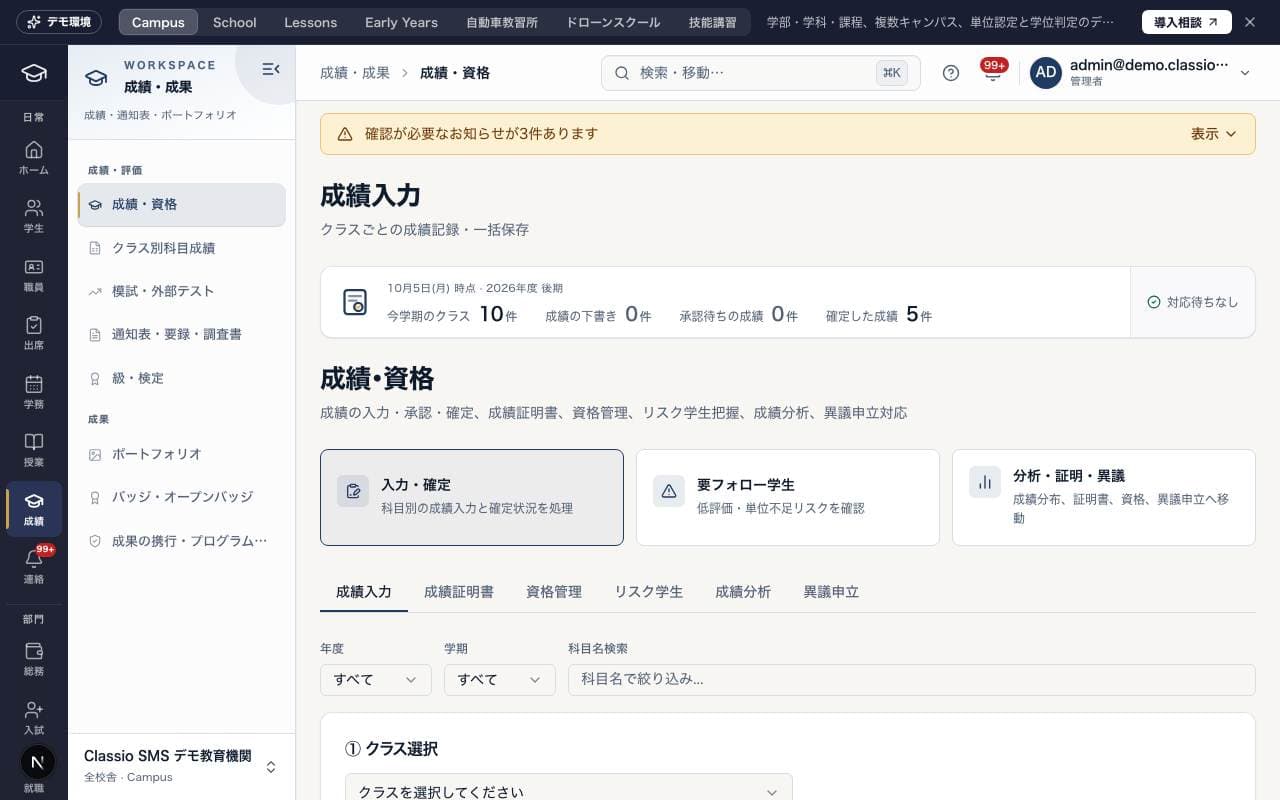
The grades screen. For the flow from entry to finalization, see Enter and finalize grades.
Staff: the tabs Grade entry (成績入力), Transcripts (成績証明書), Qualifications (資格管理), At-risk students (リスク学生) and Grade analytics (成績分析); Administrators and Academic administrators also see Appeals (異議申立).
Transcripts and Qualifications show as soon as you choose a student; At-risk students and Grade analytics load on open and when you change the year.
Students and Guardians: final grades — GPA, credits earned and number of courses, then each course's grade and the teacher's comment by year and semester. Guardians can switch between children.
For a course with a curriculum placement, credits are the placement's credits (decimals allowed). Grade entry's class line, the transcript and its PDF use the same value.
The public demo shows sample grades and qualifications. Entry, approval, locking, qualification registration and exports are unavailable.
Screen
クラス別科目成績
A screen that shows students as rows and subjects as columns, so you can check assessments, scores and missing entries across a whole class. Use it to find entries that have been missed.
Choose a homeroom to see it. Needs attention only (要確認のみ) keeps students with a fail or a missing entry.
Import grades (成績取込): choose the subject, then choose a CSV file or paste its contents, preview and import.
The public demo is read-only; imports and exports are unavailable.
Screen
模試・外部テスト
A screen for recording mock exam (模試) and external test results and checking how standard scores (偏差値) change over time. Students and Guardians register results with Add result (結果を追加), and once staff check the details and press Mark as checked (確認済にする), the result becomes Checked (確認済). CSV import is also supported. Guardians see the child chosen in the sidebar. Deleting a result asks for confirmation first.
Screen
受験プラン
A screen for deciding weekly study time per subject from mock exam results and target standard scores (偏差値) for each target school. For the steps, see Build an exam plan from mock exam results and share it.
Staff: save target schools and a target score per subject to see the latest score, trend, gap, projection at the exam date and subject priorities. Schools can be imported from the career plan (進路希望).
Weekly study time: start from Use calculated split (計算した配分を使う) or an AI draft, then save. The split also appears as a study plan in Learning logs (学習記録), next to this week's log.
Sharing and printing: Share with student and guardians (本人・保護者に共有) shows the plan to them, without the staff note. Print meeting sheet (面談シートを印刷) gives an A4 sheet.
Students and Guardians: view the exam plans shared with them.
Screen
観点別評価・通知表
Viewpoint grades and report cards for elementary, junior high and high schools.
Viewpoint grades: teachers grade the three viewpoints (knowledge and skills / thinking, judgement, expression / engagement in learning) A/B/C for each of their classes and set the overall grade; a guide from the sum is shown.
Comments: the homeroom teacher writes and submits; administrators and academic administrators approve or return them with a reason.
Report cards: check the homeroom's cards and publish once every general comment is approved. Publishing locks grades and comments and notifies guardians. Print gives one A4 sheet per student with seal boxes.
Behaviour record: the homeroom teacher marks ○ per item. Year-end marks go to the cumulative record and lock once published. Change the items in Settings.
Term dates: in Settings, enter each term's start and end. They are used to count attendance.
Paper format: in Settings, match the printed card to your school — title, school name, crest, principal, seal boxes, a guardian box and a closing line.
Draft with AI: in a comment, Draft with AI writes a draft from the viewpoint grades, attendance, clubs and your notes. Names are hidden before sending and the draft isn't saved.
Screen
通知表
Guardians and students see the report cards the school has published: viewpoint grades, overall grades, attendance and approved comments.
Screen
通知表・要録・調査書
A screen that assembles the data for report cards (通知表), cumulative guidance records (指導要録) and school reports for admissions (調査書) from grades, attendance and health room visits. For the steps, see Create report card, cumulative record and application transcript data.
Choose the document, student and school year, press Generate (生成), check the contents, and export as CSV or print. Viewpoint grades, approved comments and the behaviour record are included.
If a document's format isn't approved yet, press Draft the Classio standard format; once another administrator or executive records their acceptance reference and approves it, it can be issued.
Screen
級・検定
A screen for defining levels and certification test (級・検定) stages and checking pass records. Checked passes are issued a badge and a verification link.
Administrators and Academic administrators list levels from the easiest up with Add certification (検定を追加) or Edit (編集), and can choose a badge for each level.
Guardians and Students see their progress, and when they report a pass in an external certification test, staff check it. Share a verification link with Copy link (リンクをコピー).
Outcomes (成果)
Screen
ポートフォリオ
A gallery of the work your school's students have published. Only signed-in members of your school can see it.
Search, filter by department or type, or show school picks only.
Open a work to see its images, video, files and reflection.
Career staff and administrators also see students with few works and can send them a reminder. See Comment on student work, pick and hide works.
The public demo allows browsing works and records. Editing, commenting, featuring, file downloads and student notifications are unavailable.
Screen
マイ作品
The screen where Students add their work and decide what to publish and share.
New works are visible only to the student and their teachers until published.
Share sets give a link for the works chosen for each application.
See Build your portfolio and show it to the right people for the steps.
Screen
バッジ・オープンバッジ
The screen for creating badges (open badges) and issuing them to students.
Administrators and Academic administrators create, edit, retire and revoke badges; Teachers (their own students only), Career advisors and Administrators issue them.
Students see My badges (マイバッジ) as valid, expired or revoked and can share them by link.
The public page never shows a revocation reason. See Create badges and issue them to students.
The public demo shows badges and holders without creation, issuance or revocation.
Screen
学習成果の共有
The screen where learners choose which school-confirmed achievements to share.
Students and Alumni choose recipient, items and expiry, and can withdraw a share at any time; Guardians see what was shared with them.
Administrators, Academic administrators and Registrars issue achievements from records such as badges, and another staff member approves them. Career advisors see what was shared with the school.
Was this article helpful?