In this article
In the Students (学生管理) area, you register students, manage enrollment information, follow up with the students you are responsible for day to day, and manage guardians. Administrators, Academic administrators and Registrars use it to manage the student list, and Teachers use it to check their assigned students and homeroom class and review guidance records. The menus you see depend on your role.
Student information (学生情報)
Screen
学生一覧
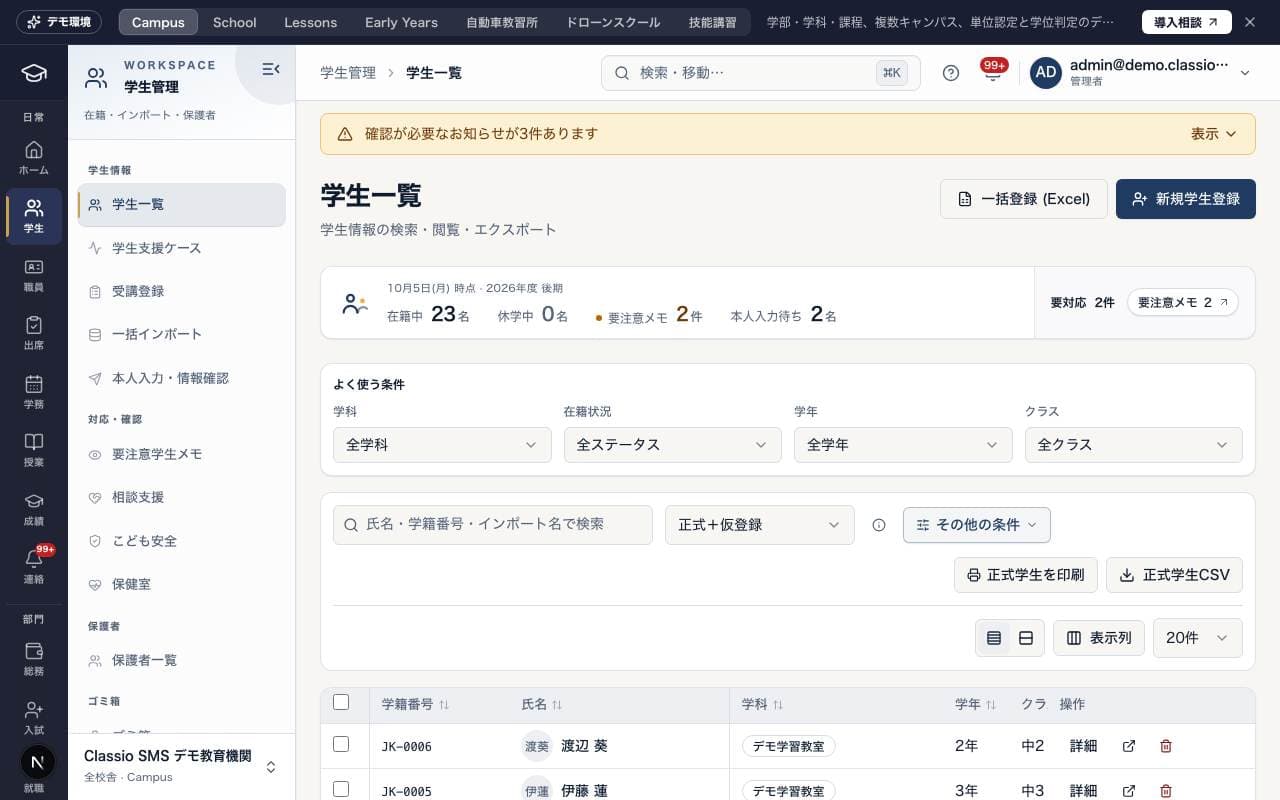
The student list for searching, viewing and exporting students. Filter by department, enrollment status, grade, class and more, and depending on your permissions, use New student registration (新規学生登録), Bulk registration (Excel) (一括登録 (Excel)), CSV export and printing. Students whose information was incomplete in a bulk import appear in the same list as provisional registrations (仮登録).
Students registered from their own form show Not confirmed (未確認) next to the name until the school checks them. Filter with Not confirmed only (未確認のみ), tick rows and press Mark as confirmed (確認済みにする); each student gets a notification email (nothing for them to do).
Use the column chooser to add Last sign-in (最終ログイン, when the person last signed in) and Last active (最終アクセス, when they last used Classio, including people who stay signed in). Times are shown in Japan time.
In the combined view (正式+仮登録), tick provisional rows to use Ask selected provisional students to fill in (選択した仮登録に本人入力を依頼) and delete. These apply only to the provisional rows you ticked, separately from actions for official students.
Leave, withdrawal, transfer, graduation and similar changes are requested as a status change (学籍異動) on the 学籍変更 tab of the student page. Once approved, the status changes on the effective date. See Request and approve leave, withdrawal, transfer, graduation and other status changes.
On the student page, 保護者 holds the contact order, custody, living arrangement and workplace of each guardian, and 引き渡し・情報提供の制限 holds pickup and information restrictions. See Record pickup and information restrictions.
Lists never show phone numbers, addresses, dates of birth or support needs. On the student page's プロフィール and 保護者, values stay hidden until you press Show (表示), which is recorded. See Access to personal data and the access log.
The top of the student page shows the name, student number, department and year, with attendance rate, attendance alerts, enrolment date and expected graduation. Pressing an attendance figure opens 出席.
Needs attention (確認が必要なこと) at the top counts overdue fees, attendance alerts, failed courses, overdue assignments, documents to check or expiring, status changes in progress and residence card expiry — only for sections you can open. Press one to open that section.
Edit class and name (所属・通称を編集) changes the preferred name, class, course and attendance number in place.
The student page is grouped into 基本, 学習, 進路・活動, 手続き・事務 and 記録. Wide screens show the list on the left, narrow screens a row of tabs; the open section stays in the URL.
Which sections you see depends on your role. Sections for features your school does not use appear only to administrators and executives, with a lock, explaining what the feature does and how to start using it.
Edit all items (すべての項目を編集) opens the edit page in a new tab, in the same five steps as registration (本人情報, 住所・連絡先, 学籍, 留学生・配慮, 確認して保存). You can save from any step.
確認して保存 shows each change before and after. Press an item that still needs input to jump to it. 続柄 (relationship) is chosen from the same list as in registration.
If scholarships cannot be loaded in the fee details, retry is offered instead of indicating that no scholarship exists.
Public-demo student records expose selected sample profile, attendance, grades, enrollment, qualification, task, career, placement, portfolio and fee sections. Personal-data reveal and settings are unavailable.
Screen
担当学生
The student list for Teachers, showing only students in the classes you teach and in the homeroom class (department and year) you lead. Depending on school settings and your individual permissions, you can Request student registration (学生登録を申請) from here.
You can show only the contacts and addresses the school's access rules allow. In an emergency, use Emergency access (緊急時の閲覧). See Access to personal data and the access log.
The student page shows only the sections teachers use (profile, history, guidance notes, attendance, grades, courses, qualifications and so on).
Screen
担任クラス
A screen for checking the roster of your homeroom class and attendance on a chosen day. Choose the class and date, then choose a student to open their details. If your homeroom class does not appear, ask an administrator to check the homeroom teacher setting in Homeroom management (ホームルーム管理).
Screen
ホームルーム管理
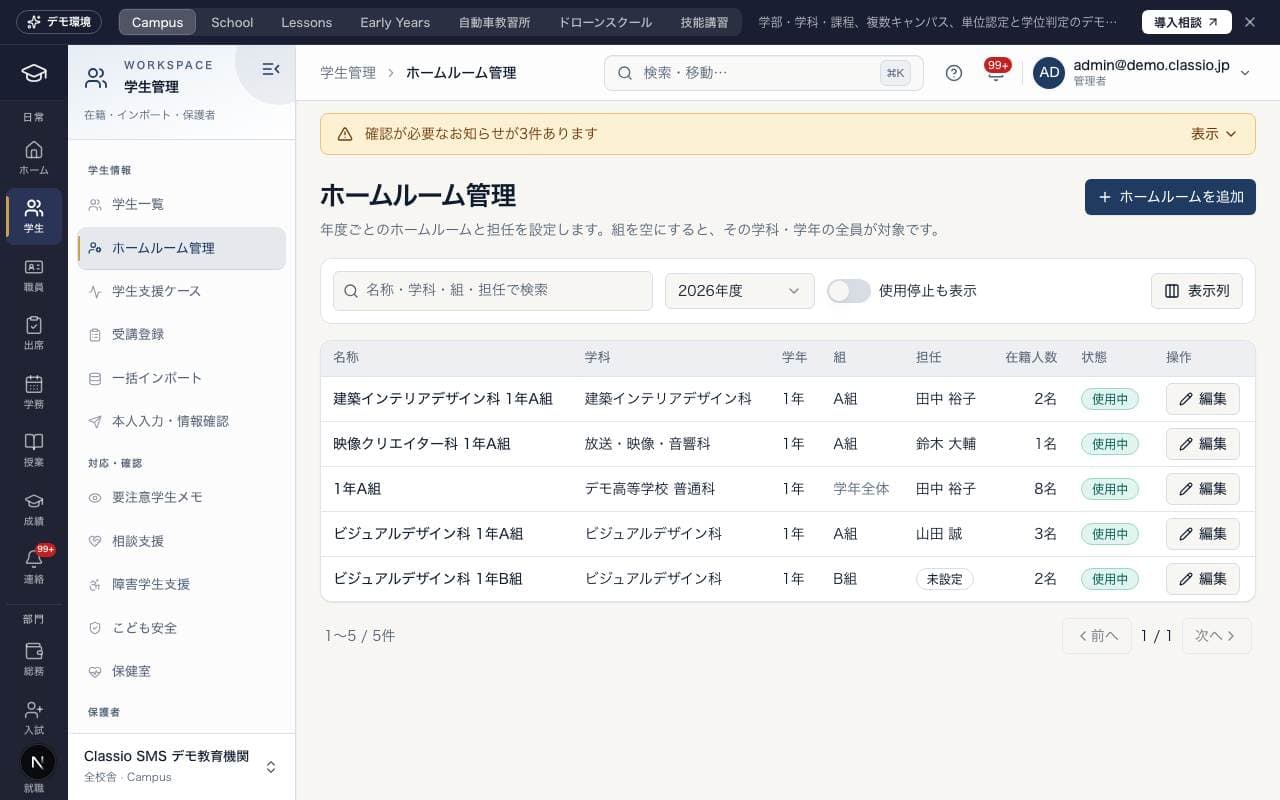
Set up each academic year's homerooms and homeroom teachers. Add homeroom (ホームルームを追加) sets the department, year, class and teacher; Edit (編集) changes them.
With the class set to Whole year (学年全体), every enrolled student in that department and year is included. Choosing a class includes only the students in that class.
Only one homeroom per academic year, department, year and class can be active.
The homeroom teacher must be an active staff member with the Teacher (教員) role. The list shows when a teacher is not set or is no longer active.
Turn off Active (使用中) for a homeroom that is no longer used. Show inactive (使用停止も表示) lists it again.
Screen
学生支援ケース
A screen that creates support cases from set conditions such as attendance, fees, residence support and counseling follow-up, and tracks them through assignee, deadline, actions and outcome (the heading on screen is Student risk support loop (学生リスク支援ループ)). Update the case status and record what was done with Add support action (支援行動を追加). For details, see Student support case.
Open a case and press Create draft (下書きを作成) under Reasons and next steps (理由と次の一手) to draft why it is a case and what to do next, from attendance, fee and lesson signals only.
Names and the school name are masked before AI; counseling, residence and health details are never sent. Nothing is saved.
When AI is not available, its limit is reached, or the student is excluded from AI processing (AI処理の対象外), the rule-based explanation is shown.
Use as next step (「次の対応」に入れる) saves the edited text to the case.
Screen
受講登録
A screen for adding students to, or removing them from, each subject's class sections. With Bulk-register required subjects (必修科目を一括登録), you can register all enrolled students in a chosen department and grade for the term's required subjects at once. Removing a student from a class keeps their attendance and grade records.
Screen
一括インポート
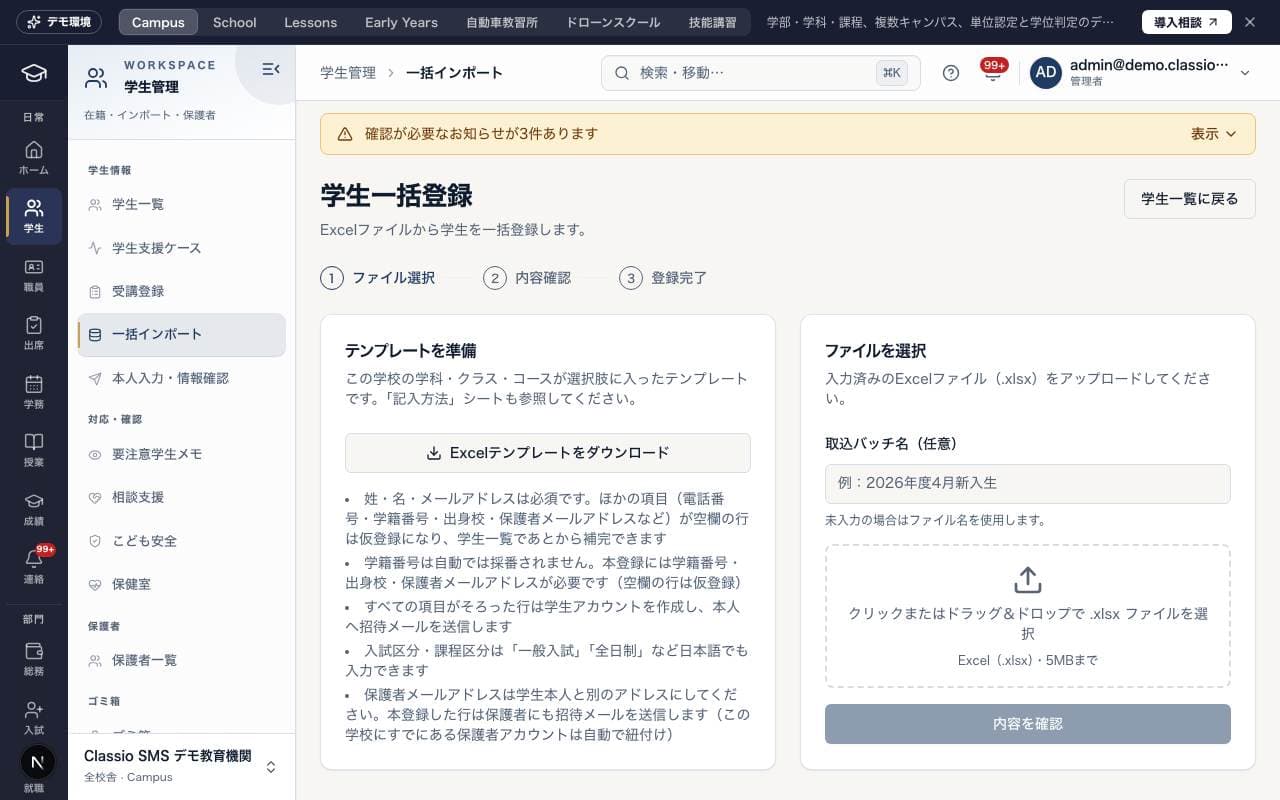
A screen for registering students at once from an Excel file (the heading on screen is Bulk student registration (学生一括登録)). Fill in the template, upload it, check the results with Check contents (内容を確認), and then register. For details, see Register students in bulk from Excel and complete provisional registrations.
Screen
本人入力・情報確認
A screen for asking new students to enter their own student information, and asking current students to confirm their registered information each year. The student chooses a sign-in password at the end and can sign in right after sending; the school's check comes afterwards. This feature is for universities, junior colleges, colleges of technology (高専) and vocational schools (専門学校). For details, see Student self-entry.
Students fill in only what they know themselves. The school decides the student number, department, year, type of entry and similar fields; the student sees them under Filled in by the school (学校が入力する項目) with the value, or "The school will fill this in" when empty.
When the school's fields are already complete, the student is registered the moment they send the form and shown as Not confirmed (未確認). You then choose Mark as confirmed (確認済みにする) or Cancel registration (登録を取り消す).
Otherwise the request becomes School to fill in (学校側の入力待ち). The student can sign in but sees only the Getting ready for enrolment (入学準備中) page. Use Fill in school fields (学校側の項目を入力) on the row; the student then starts using Classio automatically.
A School to fill in request can be cancelled with Cancel request (取り消す). The student's account and answers are deleted, which cannot be undone, and the student gets a cancellation email.
For a registration that is still Unconfirmed, the guardian invitation state (Invitation sent, Accepted (linked), Send failed, Expired or None) is shown with the email address partly hidden. After Cancel registration (登録を取り消す) the request shows as Cancelled (取り消し済み) and is not counted as Registered.
Previous school and the guardian's email are needed for registration, so students are always asked for them whatever the settings. Once the student is registered, the guardian is sent an invitation email that names the student, and is linked to the student by accepting it.
Requests sent before this change show Awaiting registration (old method) (登録待ち(旧方式)). They work as before: registering sends the student an account-setup email, and you can still return them.
Check the fields listed under 書類と照合する項目 against the residence record or residence card.
Actions and review (対応・確認)
Screen
要フォロー
A screen for Teachers that predicts which students' attendance rate is likely to drop, based on attendance trends over the past 8 weeks (the heading on screen is Attendance risk forecast (出席リスク予測)). Specify a department and the attendance rate to treat as a warning, run the analysis, and check students marked Action needed (要対応) or Watch (要注意).
Screen
科目登録確認
A screen for accepting students' elective course registrations, reviewing and approving them, and locking them once finalized. Choose a registration period, and approve or reject student submissions on the Review & approve (確認・承認) tab. Registration periods and approval rules are set by Administrators and Academic administrators.
Screen
指導記録
A screen for reviewing guidance and meeting records for students within the scope of your permissions in one place. Records are added on the Guidance records (指導記録) tab of the student details screen. Records marked Private (非公開) can be seen only by the person who wrote them and Administrators.
Screen
要注意学生メモ
A screen where homeroom teachers and others record students they are concerned about in school life, shared among staff for the term (the heading on screen is Students to watch (teacher notes) (要注意学生(担任メモ))). These are manually entered records, separate from the automatically detected support cases. Notes are not deleted; when the term changes, the previous term's notes drop off the list.
Screen
相談支援
A screen where School counselors and School social workers manage counseling room cases and requests for counseling. Other staff see only the support plans shared by the counseling room and the requests they sent themselves; the content of sessions is not shown. It may not appear depending on your plan or module settings.
At universities, junior colleges, colleges of technology (高専) and vocational schools it reads Student counseling office (学生相談室) and Counselor (カウンセラー), and Mood check-ins are presented as something students record for themselves.
For a student without a homeroom teacher, teachers of the student's department are suggested as guidance recipients.
A guardian of an adult student can book only with the student's consent. Record consent (in writing or in person) or its withdrawal on the case. Guardians of students under 18 can book without it.
Screen
Disability support
At universities, junior colleges, colleges of technology (高専) and vocational schools, this screen handles reasonable accommodations (合理的配慮) from request to review. What you see depends on your role.
Disability-support staff designated by an administrator: requests, constructive dialogue, a decision per accommodation (provided, partly provided, not provided), accommodation letters, reviews and appeals. Each opening is recorded.
Course teachers: only the accommodation letters (配慮依頼文書) for their own courses. Letters list the agreed accommodations only, never a diagnosis or details of a disability.
Administrators: designate or remove disability-support staff under Designated staff (担当の指定).
Screen
Child safety
A screen for managing deadlines for procedures, training, the annual survey, consultations and more under the Act on Preventing Sexual Violence Against Children (こども性暴力防止法, the Japanese DBS). Only the responsible persons, staff in charge and auditors designated in Settings (設定) can see the records. Criminal record confirmation documents (犯罪事実確認書) themselves and their contents are not stored in Classio.
Screen
給食・アレルギー
School lunch and food allergies for elementary, junior high and high schools.
Today's checks: students with an allergen in the day's menu. The homeroom teacher checks the meal matches the register (allergen removed, substitute, own lunch, watch) and presses Confirm; a weaker handling than registered can't be recorded.
Menus: the lunch staff, the school nurse, administrators or the academic office record each day's menu and its allergens.
Allergies: recorded from the doctor's form; only administrators and academic administrators remove one.
Screen
部活
Clubs for elementary, junior high and high schools.
Administrators and academic administrators create clubs and assign advisors.
Advisors manage members, the schedule (practice, matches, events) and attendance; cancelling notifies members and guardians.
Each week is checked against the national guideline (2+ rest days a week, about 2 hours on weekdays and 3 at weekends) and shows a notice when exceeded (a guide only).
Screen
保健室
A screen for recording health room check-ins, check-outs and health checkups. The school nurse (養護教諭) and administrators record check-outs and health checkups.
A homeroom teacher (担任) can record a visit at any time, for when the nurse is away. The nurse (or an administrator if there is none) is notified.
A teacher sees only the records of students in the class they lead, and never the nurse's internal note.
When the outcome is Left early (早退) or Advised to see a doctor (受診勧奨), guardians are notified automatically.
The school nurse and administrators can void (取消) a visit recorded by mistake. It is kept, but hidden from teachers and families and left out of counts.
Guardians (保護者)
Screen
保護者一覧
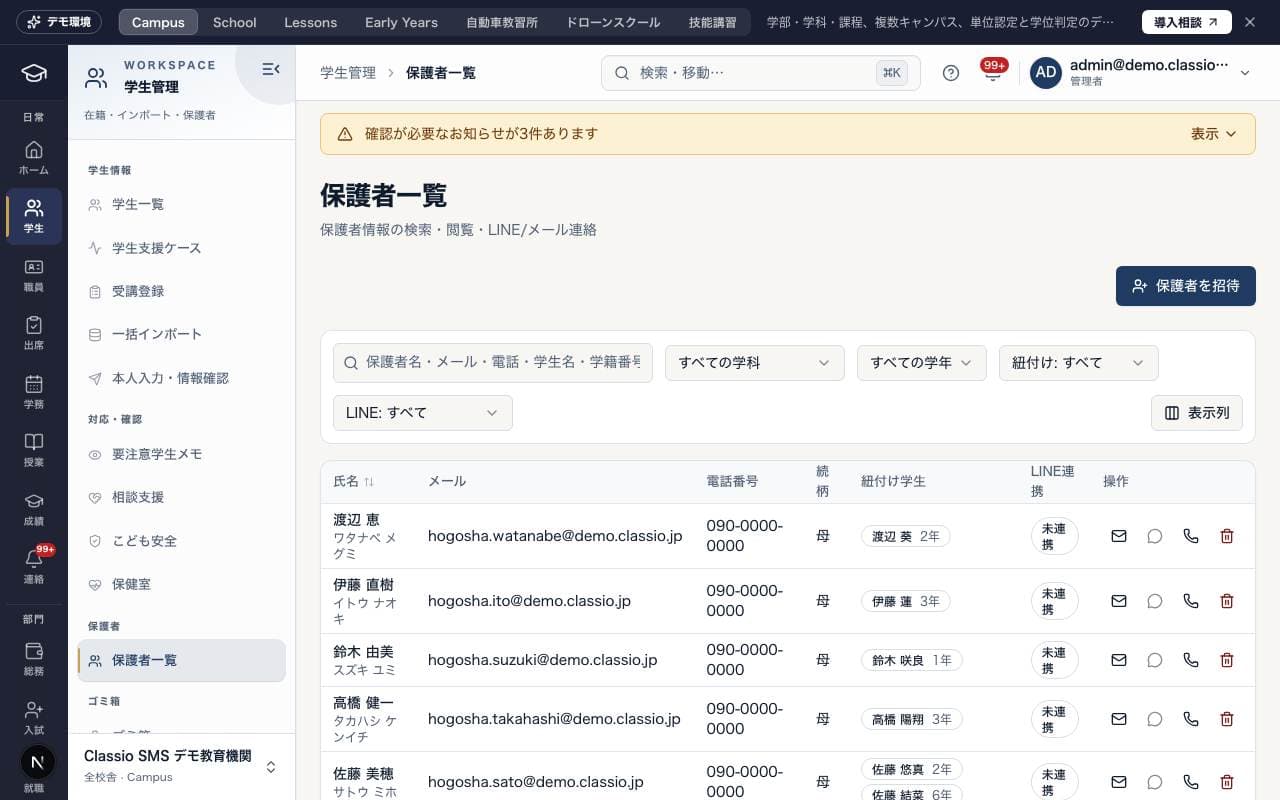
A screen for searching and viewing guardians and contacting them by email or LINE. When you specify the student and the guardian's email address in Invite guardian (保護者を招待), guardians who already have an account at the school are linked immediately; otherwise an invitation email is sent. A guardian with an information or contact restriction for that student cannot be linked.
The list has no phone column. Pressing 電話 shows that guardian's number and records it. See Access to personal data and the access log.
Trash (ゴミ箱)
Screen
ゴミ箱
The screen where deleted students, teachers, office staff and guardians are kept. Restore (復元) returns them to all lists and totals, and Delete permanently (完全削除) deletes them together with related data in a way that cannot be undone. Only Administrators can use it. For details, see Move students, teachers and guardians to the trash, and restore them.
Was this article helpful?