In this article
The Home (ホーム) area is the first area you use after signing in. Staff check today's situation on the dashboard and process incoming requests on the Requests & approvals (申請・承認) screens. Students, Guardians, Alumni and Recruiters each see their own portal. The menus you see depend on your role.
Screen
Dashboard
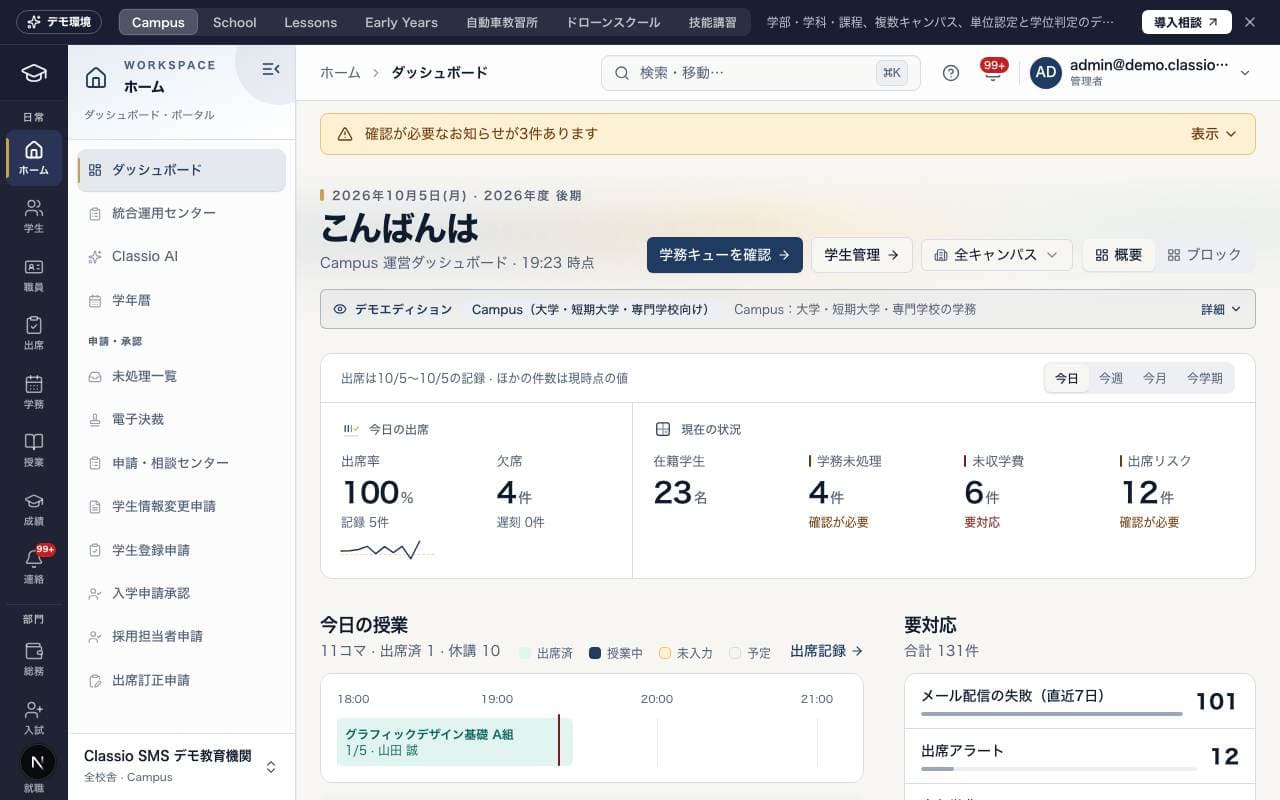
The home screen that brings together today's classes, items needing action, students to keep an eye on, key indicators and more. For details, see Switch the dashboard view and rearrange blocks.
Staff: switch between the Overview (概要) and Blocks (ブロック) views; in the Blocks view you can reorder or hide blocks.
Students and Guardians: today's items, unpaid bills, unread notifications and notices come first. Blocks with nothing to show are left out. Brothers and sisters on the same bus share one row in Today's bus (今日のバス).
If outstanding bills cannot be loaded, retry is offered instead of saying nothing is owed. Bill types unavailable at the school are not requested.
Screen
統合運用センター
A screen for operations staff that shows in one place items needing action, items waiting on outside parties, overdue items, external integration failures and data quality. Check the status on tabs such as Work queue (業務キュー), Integrations (外部連携) and Data quality (データ品質); people with permission can mark items complete or retry them.
Screen
Classio AI
Public demos use real AI with a displayed session allowance. Chats belong only to that demo session. Do not enter personal information. Starting another chat or reloading does not reset attempts. An AI assistant that looks at school data to help you understand the situation, draft documents and translate. Staff and students can use it. Information about counseling, health, disabilities and child protection is not sent to the AI. The AI never sends, saves or updates records.
Students can ask about their own timetable, attendance, finalised grades and assignments, get study help, and ask how to use Classio. Other students' information is never used. Up to 20 questions per student per day.
Administrators turn student use on or off with Students can use Classio AI (学生もClassio AIを使える) in AI settings (on by default). Students marked 「AI処理の対象外」 cannot use it.
From the AI settings at the top of the screen (P0–P3), administrators can turn on the four Families (AI) features. All are off by default; all except fee questions need P1 or above.
Translate notices and messages into each family's language (English, Chinese, Korean, Vietnamese).
Let AI answer guardians' routine LINE questions only from your classroom FAQ, handing anything else to staff.
Let AI read LINE absence or late messages the rules cannot read. The guardian confirms what it read before anything is recorded.
Let AI read LINE fee questions (e.g. "How much next month?") the keyword rules cannot read. AI only decides the kind of question and the month; amounts come from the fee records.
Write the FAQ with Edit the Family FAQ (保護者向けFAQを編集) in the same settings. Try a question (試しに質問する) shows what a guardian would get.
Questions about health, injury, bullying and the like, about a specific child, or not in the FAQ are not answered by AI. They arrive in Messages as LINE questions (LINEからのご質問), and administrators and academic administrators are notified.
Both hide names, email addresses and phone numbers before sending to the AI, and each use counts against your AI allowance.
The This month (今月) box at the bottom left shows your own use this month and your school's status (plenty left, running low, limit reached). How it counts (数え方) explains what counts as one request.
The school's counts, cost this month and top-up packs are shown to administrators, academic administrators and executives. Top-up packs and plan changes are requested by an administrator with system management permission. If you run short, ask your administrator.
Classio chooses the AI model. You can see its name under the current settings (現在の設定) in AI settings. A more capable model may use several requests of your allowance per question; AI settings then shows how many.
Budget usage shows confirmed, reserved and provisionally settled amounts to administrators and leaders; staff see their own count. These amounts are not invoices.
Each call to the AI is sent only if its own maximum cost can be reserved. If the budget runs out partway through a question, the answer so far is kept and it stops there. A call whose usage is unknown settles automatically at its own maximum after 15 minutes; later verified usage can return the difference.
Lowering the budget stops further calls to the AI; amounts already used stay counted. School functions outside AI continue normally.
Per edition, you can also ask about today's classroom (教室の今日) and lesson reports, timetables and cancellations, grades and report card comments, the driving school and today's nursery. These appear only for schools and roles that can use the screen.
Answers about individual students need an AI setting of P1 or above. Today's nursery gives counts only; names and allergy details are never sent to the AI.
Draft with AI (AIで下書き) inside screens: replies in Messages, the meeting record on the meeting preparation sheet, the daily note (連絡帳), reasons and next steps for a support case, and payment reminders in Unpaid follow-up (未納フォロー). The draft only fills the text box; staff send or save it.
No draft is made when the material touches health, injury, bullying or similar topics, or for a student excluded from AI processing (AI処理の対象外).
If a student excluded from AI processing is named (name or student number), the turn is stopped, including checks of earlier messages. Remove that content and start a new conversation.
Sensitive information about an identifiable person (health, injury, disability, counselling …) is never sent. Words like hospital or medicine stop a message only when the conversation names someone anywhere, or uses an honorific (さん, くん), a word like あの子, うちの子 or 息子, or a pronoun (she, 彼女). Group words alone (生徒, 保護者, 先生, 3年2組) do not stop it. Your text goes back into the message box with the stopped words marked.
Words about abuse, self-harm or suicide always stop, except prevention phrases such as 自殺予防, 自傷予防 or いじめられた時の相談先 when the conversation names no one. Students are pointed to their homeroom teacher (担任) and the counseling room or nurse's office. Nobody is notified.
Administrators can add phrases your school uses often (e.g. 保健委員会) under “Phrases AI chat should not stop on” in AI settings. Words about abuse or self-harm cannot be added.
AI settings also shows how many questions were stopped per word in the last 30 days. Fewer than 3 is shown as “Fewer than 3”, and who tried to send them is never recorded.
Screen
Academic calendar
A screen for viewing school events, holidays, exam periods and vacation periods by month. Administrators and Academic administrators add, edit and delete entries, and Teachers can view them. Each entry can be set as a No attendance required (出席不要) day.
The public demo shows the academic calendar without adding or changing events.
Screen
教員業務
The work screen for Teachers, showing today's classes and the number of classes with incomplete attendance or grades not yet finalized. You can start work for each class from Record attendance (出席を記録) or Go to grade entry (成績入力へ).
Screen
Student portal
The portal for Students. Check your attendance rate, today's timetable, grades, fees, certificate requests and more, and request certificates or complete fee procedures from Next steps (次に進める手続き).
Screen
Parent portal
The portal for Guardians. Check your child's attendance, recent grades, fees and notices from the school, contact teachers and change notification settings. If you have more than one child, you can switch which child is shown.
Screen
卒業生ポータル
The portal for Alumni. Update your profile, such as your employer, reply whether you will attend events, answer surveys and apply for mentoring. It may not appear depending on your plan or module settings.
Screen
採用担当業務
A screen for approved company Recruiters. You can check job postings and applications, and candidate students who match. On the Contact requests (連絡申請) tab, you can check the review status of your requests to contact students (under review, approved or rejected) and notes from the school. School staff do the review; once a request is approved, a message thread is created and you can communicate with the school from Open message thread (メッセージスレッドを開く).
Screen
Multilingual start
A screen for Students and Guardians that shows, in the language they choose, the deadlines and procedures they need to check now. The display language can be Japanese, English, Chinese (Simplified), Korean or Vietnamese.
See Finding your way around Classio for switching schools or duties. Changing schools opens that school’s address.
Requests & approvals (申請・承認)
Screen
Pending overview
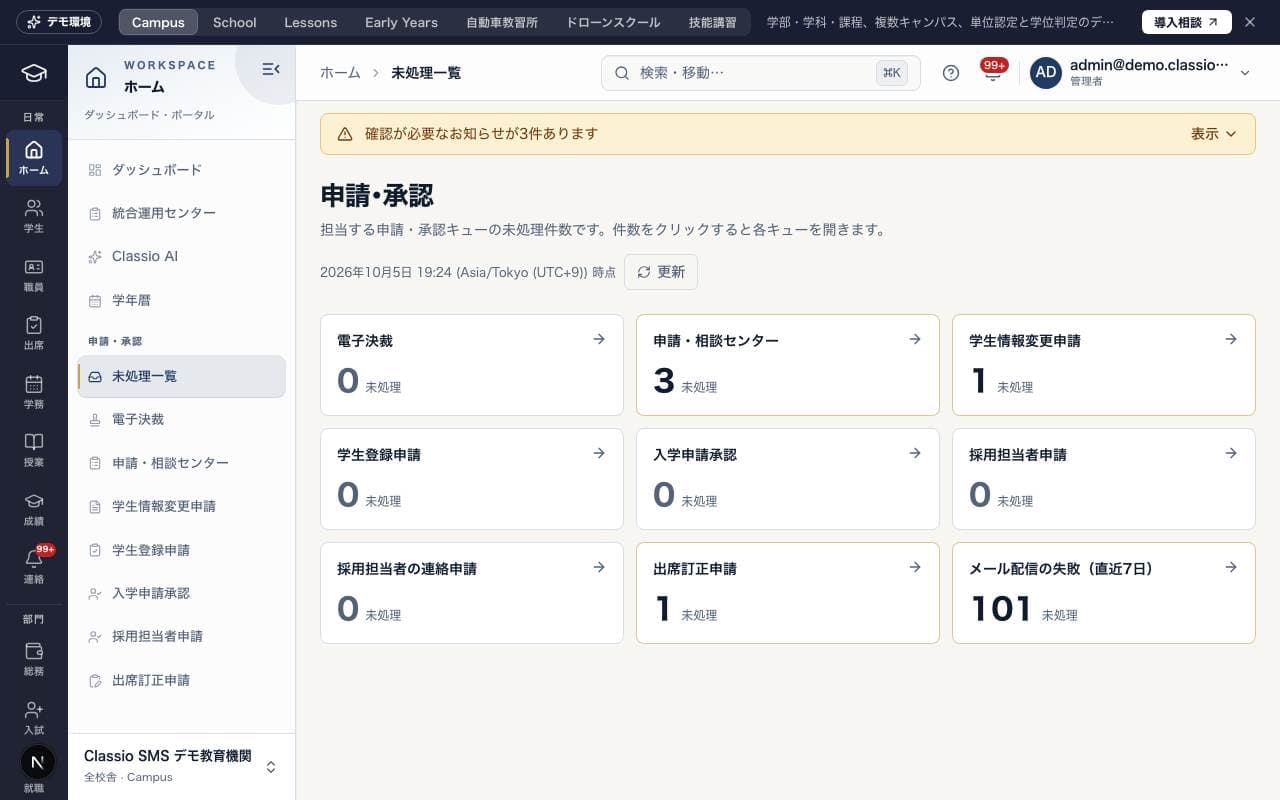
A screen showing the number of pending items in each request and approval queue you handle (the heading on screen is Requests & approvals (申請・承認)).
Queues with pending items come first. Press a queue to open its processing screen. On a phone the queues are a list with the count on the right.
Only screens your role can open are shown.
Recruiter requests (採用担当者申請) is the number of Recruiter accounts awaiting approval.
Recruiter contact requests (採用担当者の連絡申請) is the number of requests from Recruiters to contact students that are awaiting review.
Screen
電子決裁
A screen for approving requests in order along an approval route. Staff leave requests are also approved here. It may not appear depending on your plan. For details, see Electronic approval.
On the Awaiting approval (承認待ち) tab, Approve (承認), Reject (否決) or Delegate (委任) requests at your step; on the Create flow (フローを作成) tab, draft a new approval flow
Kinds for which the school has set an approval flow follow that flow (Decide your school's approval flows (who approves, and in what order))
You cannot approve a request you started
Screen
申請・相談センター
A screen for receiving and handling requests and questions from Students and Guardians, by category. Set the assignee, priority and status, and manage replies and outcomes in a single history. The request categories shown depend on your role.
Screen
学生情報変更申請
A screen for reviewing change requests from Students and Guardians for contact details, address, emergency contacts and so on. Approve and apply to official record (承認して正式記録へ反映) updates the student's official record. Every action requires an explanation or reason, which is shown to the requester.
Screen
学生登録申請
A screen for checking student registration requests submitted by Teachers. Approve and invite (承認して招待) registers the student and sends them an invitation email. Reject (却下) notifies the requesting teacher along with the review note. Teachers who submitted requests see the review status of their own requests.
Screen
入学申請承認
A screen for checking enrollment applications that students made themselves (self-registration) and choosing Approve (承認) or Reject (却下). Used by Administrators and Academic administrators.
At schools that use student self-entry (universities, vocational schools and similar), approving sends the student a link to the entry form. Once the student fills it in and chooses a password, they can sign in right away.
At other schools, approving registers the person as a student and sends an invitation email for setting a password.
On rejection, the application data is deleted and a notification email stating the reason is sent.
Screen
採用担当者申請
Review requests from company Recruiters to use the system (the heading on screen is Recruiter management (採用担当者管理)).
When approving, you either create a new company or link the Recruiter to an existing one.
On the Suspended (expired) (停止中(期限切れ)) tab, you can extend access by 12 months.
On the Requests to contact students (学生への連絡申請) tab, you Approve (承認) or Reject (却下) Recruiters' requests to contact students, with an optional note. On approval, a message thread between the Recruiter and school staff is created, and the student's contact details are not disclosed to the Recruiter. The note is also shown to the Recruiter.
Requests that have been reviewed cannot be changed. Academic administrators see only the Requests to contact students tab.
Screen
Attendance corrections
A screen for reviewing attendance correction requests from Students and Guardians and applying approved results to attendance records. Start review (審査を開始), Request evidence (証拠を依頼), Approve and apply (承認して反映) and Reject (却下) all require an explanation, which is shown to the requester. Teachers see only requests for the classes they teach.
Public demo visitors can browse the sample home. Record editing and personal settings are unavailable; use the enquiry link at the top to discuss Classio.
Was this article helpful?