In this article
This area brings together communication between the school and Students, Guardians and staff. Staff use it to send notices and track who has confirmed them, and to send out meeting slots and surveys; Students and Guardians use it to read notices, ask for counseling, make bookings and submit requests. The pages you see depend on your role, and some pages may not appear depending on your plan or module settings.
Screen
Notices & safety checks
This screen is for sending and receiving notices. For details, see Sending bulletins and running safety checks.
Staff: choose recipients and delivery channels from Create notice (お知らせを作成) and send it; for notices that require confirmation, track each recipient's confirmation status.
Guardians and students: notices from the school, newest first. Notices that need confirming (確認が必要) are shown at the top; open one, read it and press I acknowledge (確認しました). Filter with Unread (未読) and Needs confirming (確認が必要).
The public demo shows notices without creation, read receipts, acknowledgements, reminders or survey actions.
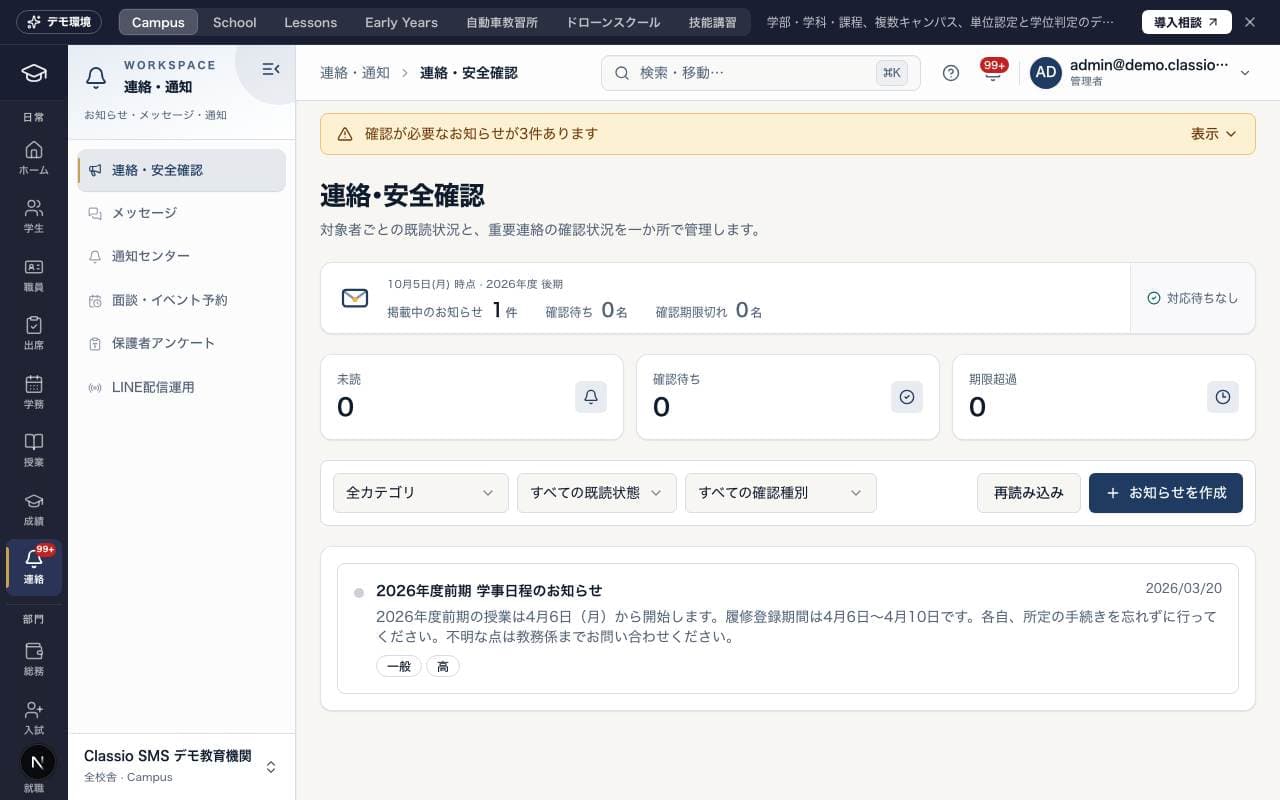
Screen
Messages
This screen lists your conversations. Each shows the other people's names (or its subject) and the last message. A conversation opens at the newest messages, and you reply from the input box (⌘/Ctrl+Enter also sends on a computer).
Start a conversation from New message (新しいメッセージ). Guardians and students can choose their homeroom and class teachers; teachers, the students of their homeroom and classes and those students' guardians; office staff, other staff and students or guardians found by name.
Writing to someone you already have a one-to-one conversation with continues that conversation.
If you have unread messages, the count is shown; opening the conversation marks them read. Earlier messages are under Show earlier messages (以前のメッセージを表示).
If your school has turned on automatic translation (Families (AI)), messages from someone who uses another language are shown machine-translated. Show original (原文を表示) switches to the original text.
LINE questions (LINEからのご質問) are guardians' questions the automatic LINE answers handed to staff. Reply to them here.
In conversations with guardians or students, staff can use Draft a reply with AI (AIで返信の下書き). Add the points you want to make and a draft from the latest messages fills the input box. Check it before sending.
Names, the school name and contact details are hidden first. It is not available when the conversation touches health, injury or similar topics, or a student excluded from AI processing.
In the Classio app, new messages arrive as app notifications you can reply to or mark as read. A reply that could not be sent comes back into the input box when you sign in again and open the thread. Using the Classio app
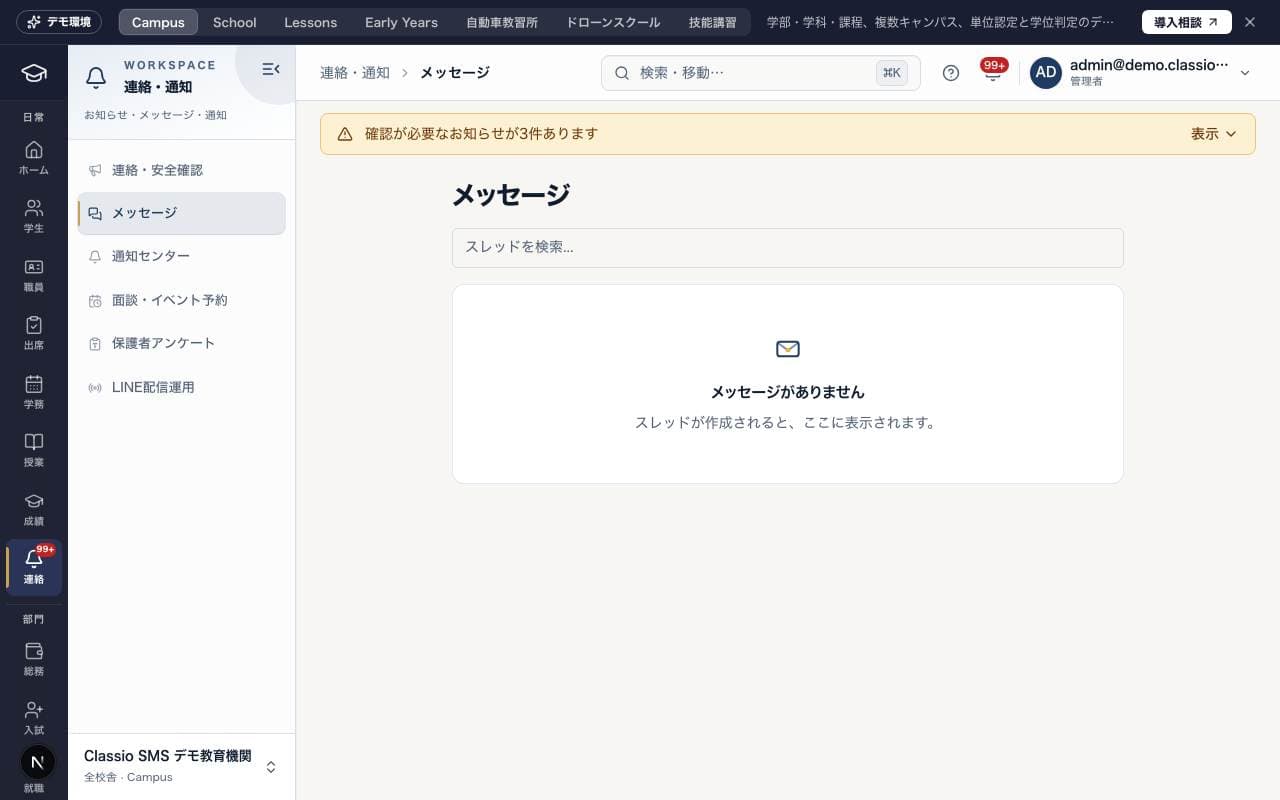
Screen
Notification center
This screen lists notifications sent to you, newest first and grouped by day.
Tap a notification to mark it read and open the related screen. Unread (未読) shows only unread ones, and Mark all read (すべて既読) marks them all. Urgent notifications are marked Urgent (緊急).
In How you get notifications (通知の受け取り方) you can change notifications on this device (app notifications in the Classio app), LINE and email, and quiet hours.
When staff open it in a browser, Administrators and Academic administrators also see the Delivery log (配信ログ) and Institution settings (機関設定) tabs. In the app, open them from Delivery status and school notification settings (配信状況と学校の通知設定).
The number on the 連絡 icon in the left rail is this screen's unread count. When there are unread notifications, pressing the icon opens this screen. The 通知センター menu item shows the same count.
School notification links open the sending school’s pages.
Screen
Counseling room
The screen where Students and Guardians book a session with the school counselor. Choose an available time, or apply from I'd like to arrange the time with the counseling room (日時は相談室と決めたい). Booking details are seen only by the counseling room and are not shown to homeroom teachers or other staff.
At universities, junior colleges, colleges of technology (高専) and vocational schools the menu reads Student counseling office (学生相談室).
An adult student decides under Guardian involvement (保護者の関与) whether their guardian may book. While it is off, the guardian cannot book a consultation about that student.
Screen
Accommodations
The screen where students at universities, junior colleges, colleges of technology (高専) and vocational schools ask for reasonable accommodations (合理的配慮) in classes and exams.
Choose Ask for accommodations (配慮を申し出る) and describe your difficulties and what you would like. Supporting documents are optional.
After talking it through, each decision and its reason are shown. If you disagree, choose Appeal (申し立てる); someone other than the original decider reviews it.
Turn on Tell my teachers (授業の教員に伝える) to share only the decided accommodations with your course teachers. Turning it off withdraws letters already sent.
Screen
Child safety
The screen where Students and Guardians can let the classroom's staff contact know they want to talk, without writing what it is about. This is also where they answer surveys run by the classroom and find public places to get help outside the classroom.
Screen
Meetings & events
This screen handles booking slots for meetings and events. Staff create slots from dates and time ranges with Create slots in bulk (枠を一括作成), and check bookings and who has not booked yet. Guardians and Students choose an open slot to book; to change a booking, cancel it and book again.
When an administrator has set up writing to Google Calendar, bookings, cancellations, cancelled slots and new places are reflected in the chosen calendar.
The staff booking list shows each booking's state (in Google Calendar, waiting, failed) and the reason for a failure. Guardians and Students do not see it.
Screen
Guardian surveys
This screen is for sending surveys to a chosen audience and checking response status and results. Staff create a draft with Create survey (アンケートを作成), and recipients are notified when it is published. You can also send reminders to those who have not responded and export responses as CSV.
Screen
Testimonials
This screen handles testimonials from Guardians and Students. Guardians and Students can post a testimonial with consent to publication using Post a testimonial (声を投稿), and can withdraw consent at any time. Staff approve and publish posts and can copy the code for embedding them on the website.
Screen
LINE配信運用
This screen is for managing LINE delivery operations. Check the deliverable rate based on LINE linking, consent and opt-out status, and assign, resend or escalate failed deliveries. You can also check the number of LINE messages sent each month.
Requests & records (申請・確認)
Screen
申請・相談
The screen where Students and Guardians submit requests and questions to the school from one place, and check progress and replies. Choose a type from New request or question (新しい申請・相談) and submit it.
Screen
学生情報の確認・変更
The screen where Students and Guardians check the contact details, address, guardian information and other details registered with the school. If something has changed, use Request a change (変更を申請) and select only the items to change; the official record does not change until the request is approved. Changes such as address or residence status (在留資格) require supporting documents.
Was this article helpful?