In this article
This area is for recording attendance for each class, handling absence and correction procedures, and checking attendance status. Teachers and academic staff use it to enter attendance, issue QR codes, review officially excused absences (公欠) and check reports; International office staff use it to check officially excused absence requests from international students; and Students and Guardians use it to check attendance and request corrections. The pages you see depend on your role, and some pages may not appear depending on your plan or feature settings.
Screen
Attendance records
Record attendance for each class. Teachers and administrators choose a class and record present, late, left early, officially excused absence (公欠), sick absence (病欠) or absent, using daily entry or weekly bulk entry, and then save.
The roster shows the records for the selected date and period, and only students whose attendance status you have chosen are saved.
If any students are still Not recorded (未記録), you are asked whether to save them as not recorded or as absent.
With QR attendance, the QR code a student scans opens the Attendance check-in (出席チェックイン) screen.
Students and Guardians see their own attendance records and attendance rate over recorded sessions, and can use Request a correction (訂正を申請) before the deadline (view only at schools that do not use corrections).
Students also see how to check in with the class QR code.
Saving the roster keeps the records, and the method, of students who checked in by QR.
For the steps, see Record class attendance (manual entry and QR attendance).
The public demo opens a read-only attendance report; attendance records cannot be changed.
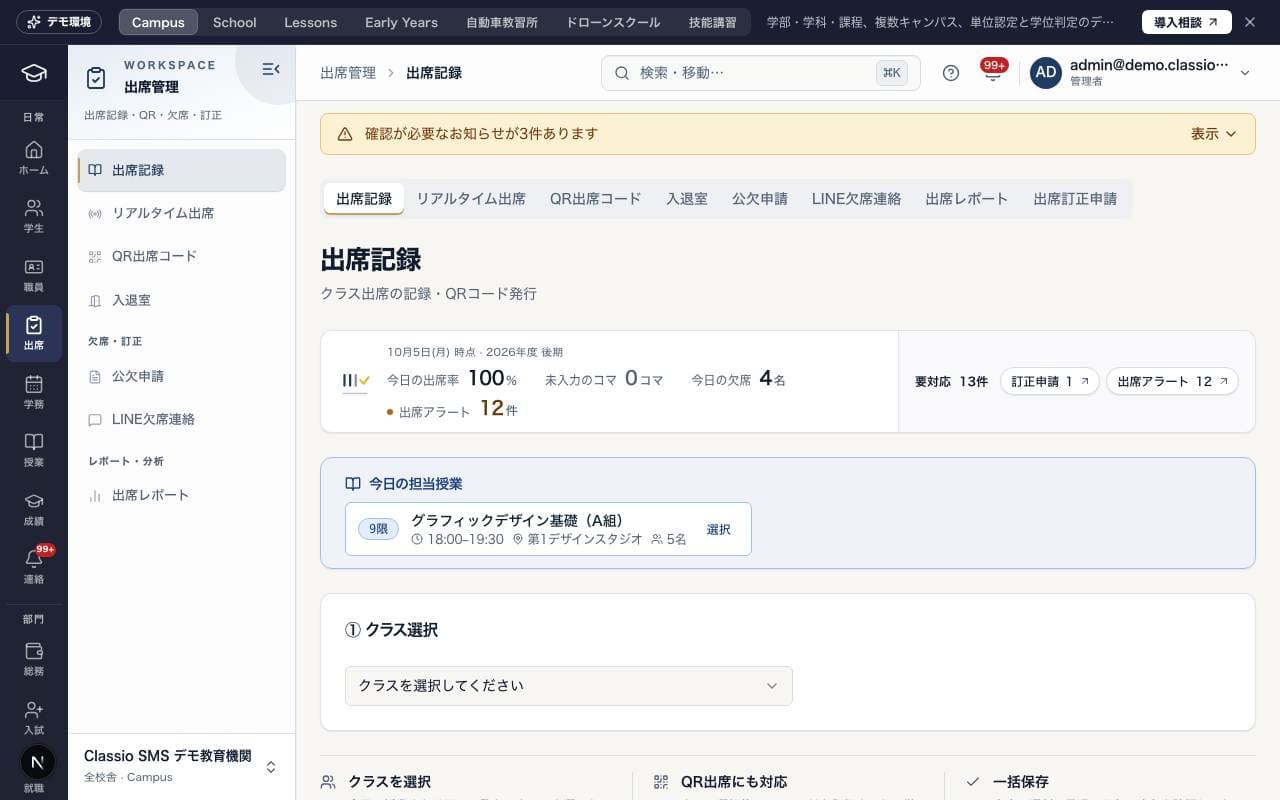
Screen
リアルタイム出席
When you choose a class, its attendance status is shown and updates automatically.
As QR check-ins arrive, the count and attendance rate update while the screen stays open.
Students with nothing recorded yet show as Not checked in (未チェックイン), not as absent.
Screen
QR出席コード
Choose a class and period and press Issue (発行) to display the attendance QR code for students to scan.
The code is valid for 5 minutes; the screen shows the time until it changes and how many students have checked in, including attendance already recorded for that day and period.
Changing the class or period clears the code shown. Press Issue (発行) again.
Show full screen (全画面で表示) displays it large enough to hold up in class. The screen stays on while it is shown.
Kiosk mode (キオスク表示) is a full screen that only ends with the staff PIN (in the app also Face ID / fingerprint), for an iPad left in the classroom. Using the Classio app
Teachers can issue codes only for the classes they teach.
Attendance QR codes open this school’s check-in page.
The public demo is a class-and-period preview. Scanning its code cannot record attendance; issuance, expiry, live counts and kiosk mode are unavailable.
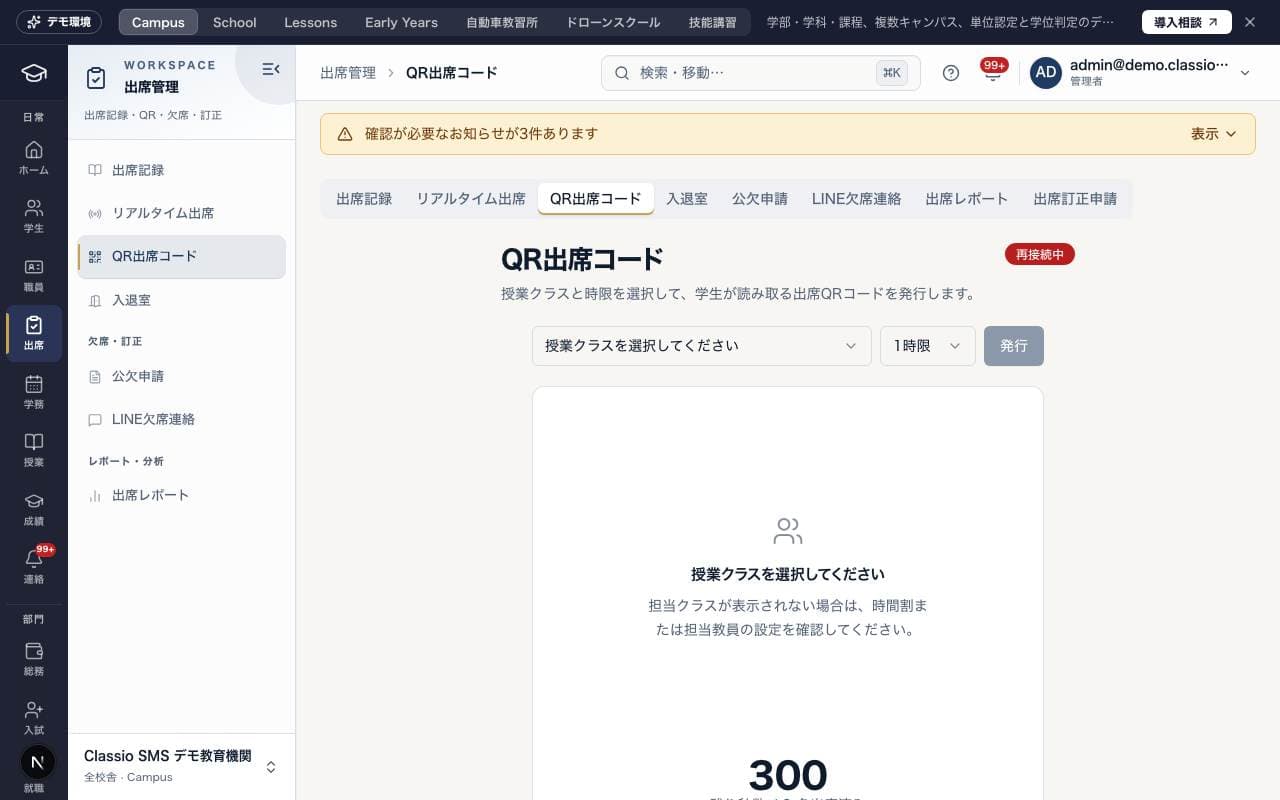
Screen
入退室
A device placed at the school reads arrival/departure cards or digital student IDs, records arrivals and departures, and notifies guardians. This is handled separately from class attendance records. It has the tabs Scan on device (端末で読み取り), Today's arrivals & departures (本日の入退室) and Arrival/departure cards (入退室カード).
In the Classio app, Scan with camera (カメラで読み取る) uses the phone's camera to read cards one after another (on iPhone too). The result is shown after each card. Using the Classio app
Kiosk mode (キオスク表示) fills the screen, keeps it on and only ends with the staff PIN. Set the direction and device name first.
Screen
給食・アレルギー
Guardians and students see the school's lunch menu by month. Days with an allergen registered for the child are shown in red.
Screen
部活
Guardians and students see the next four weeks of their clubs. Cancelled activities are shown in red with the reason.
Screen
Health-room visits
For Students and Guardians, this shows health room check-in and check-out records and the outcome (returned to class, left early, or advised to see a doctor). Nothing is shown if there have been no recent visits.
Absences & corrections (欠席・訂正)
Screen
公欠申請
Create officially excused absence (公欠) requests and check, approve or reject them. Search the list by name or student number and filter it by status. Teachers handle requests for students they teach, their homeroom and members of clubs they advise.
Flow: create → (international students only) International office check → an Administrator or Academic administrator approves or rejects. A comment is required to reject.
Labels: In review (審査中) waits for review; Awaiting international office (留学生担当確認待ち) cannot be approved until the International office presses Confirm as international office (留学生担当として確認).
On approval, absent and sick records in the period become excused absences (counted as present). The student and guardians are told of approval or rejection (comments are not sent).
A mistaken approval can be undone from Details (詳細) → Undo approval (承認を取り消す); the records go back to what they were.
For details, see Create and review officially excused absence requests.
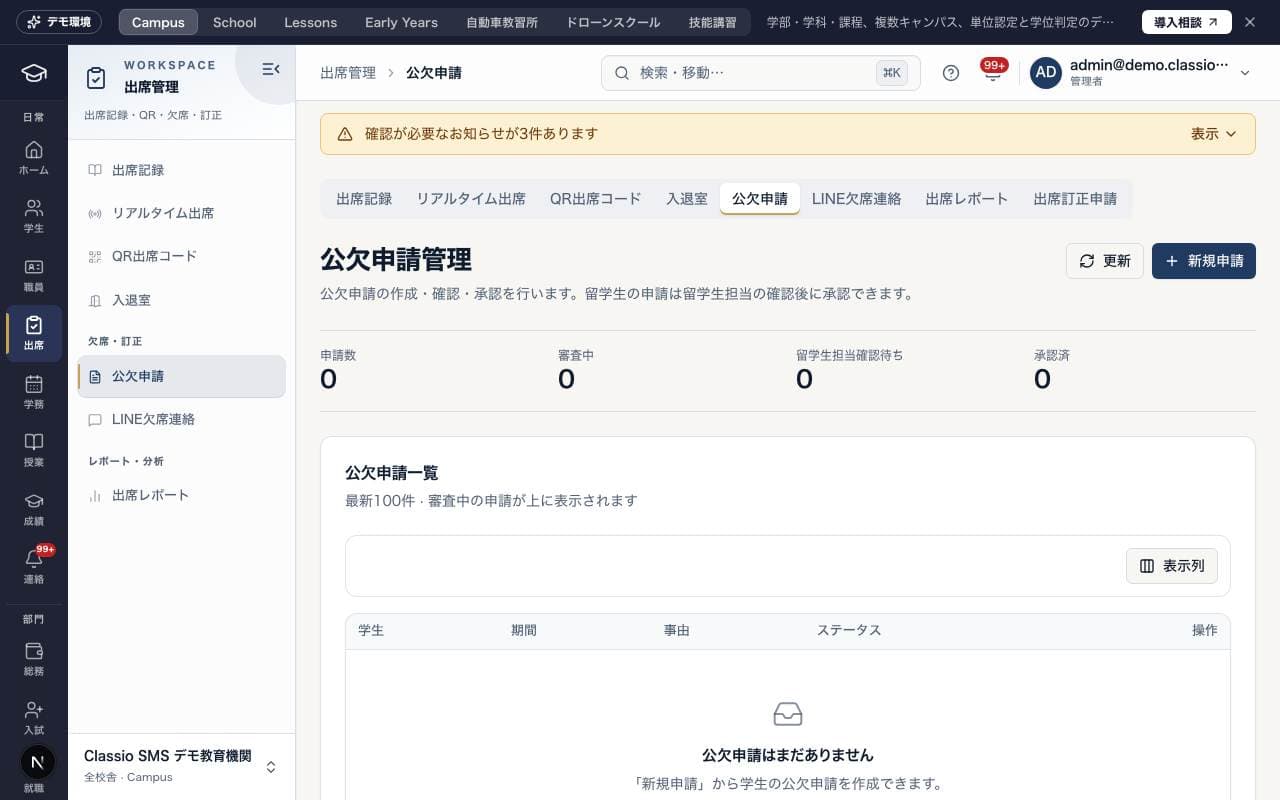
Screen
欠席連絡
Absence, late-arrival and early-leave notices from guardians and students.
From the web and the app: listed by day; the homeroom teacher and the academic office are notified. Acknowledge (確認) shows "Seen by school" on the guardian's screen, optionally with a reply. Teachers see their homeroom and taught students.
From LINE (administrators and academic administrators): the latest 200 notices; Approve (承認) marks one as handled.
Screen
欠席連絡
Guardians (and students) send an absence, late arrival or early leave to the school here. Choose the type, date and reason; it marks that day's attendance and notifies the homeroom teacher. Late and early leave need a time. A report can be cancelled until the school has seen it, and the school's reply shows here.
Screen
Attendance corrections
This screen shows the review status of attendance correction requests made by Students and Guardians, and the school's response. New requests are created with Request a correction (訂正を申請) on a lesson in Attendance records (出席記録). Staff review requests under Attendance corrections (出席訂正申請) in Requests & approvals (申請・承認).
Reports & analysis (レポート・分析)
Screen
出席レポート
The page opens with results for all dates. Filter by period or department and press Search (検索) to see each student's number of classes, attendances and attendance rate, along with unresolved alerts. You can export the results as CSV. For how the attendance rate is calculated, see How attendance rates are counted, and attendance alerts.
The public demo shows sample aggregates without file exports.
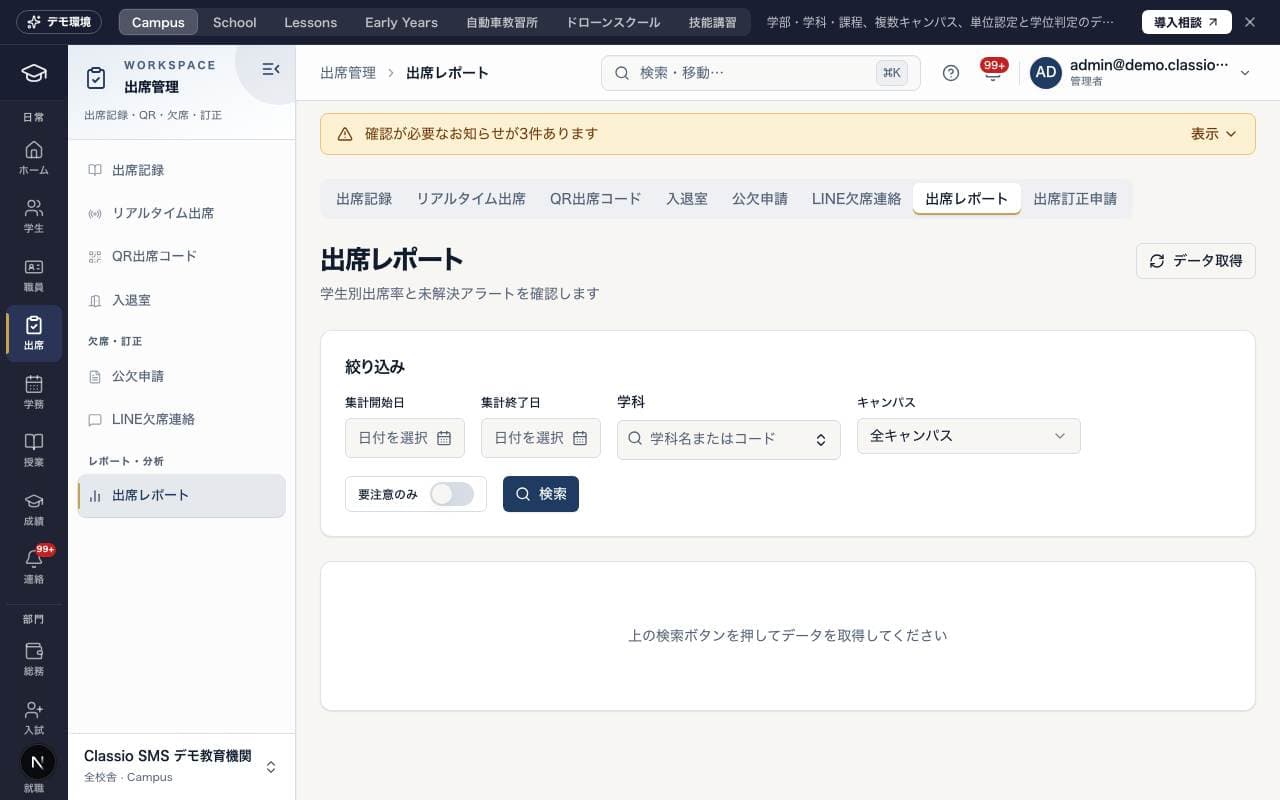
Was this article helpful?