In this article
This area is for checking school-wide figures in one place and exporting them in the format you need. It is used mainly by Administrators, Academic administrators, Registrars and Executives; Teachers and Career advisors see only the totals related to their own work. The pages you see depend on your role, and the area may not appear depending on your plan or module settings.
Screen
レポート
A screen for checking attendance, grade, employment, enrollment and fee totals, filtered by school year (年度) and department. Administrators and Academic administrators can also use tabs such as MEXT reports (MEXT帳票), IR & accreditation (IR・認証) and Scheduled reports (定期レポート), as well as CSV export (CSVエクスポート); Teachers see only the Attendance (出席) tab, and Career advisors see only the Employment (就職) tab.
Attendance forecast (出席予測) under Frequently used outputs opens the Attendance risk forecast (出席リスク予測) tab of Risk analysis (リスク分析).
Other roles opening this screen see a notice that they do not have permission instead of totals.
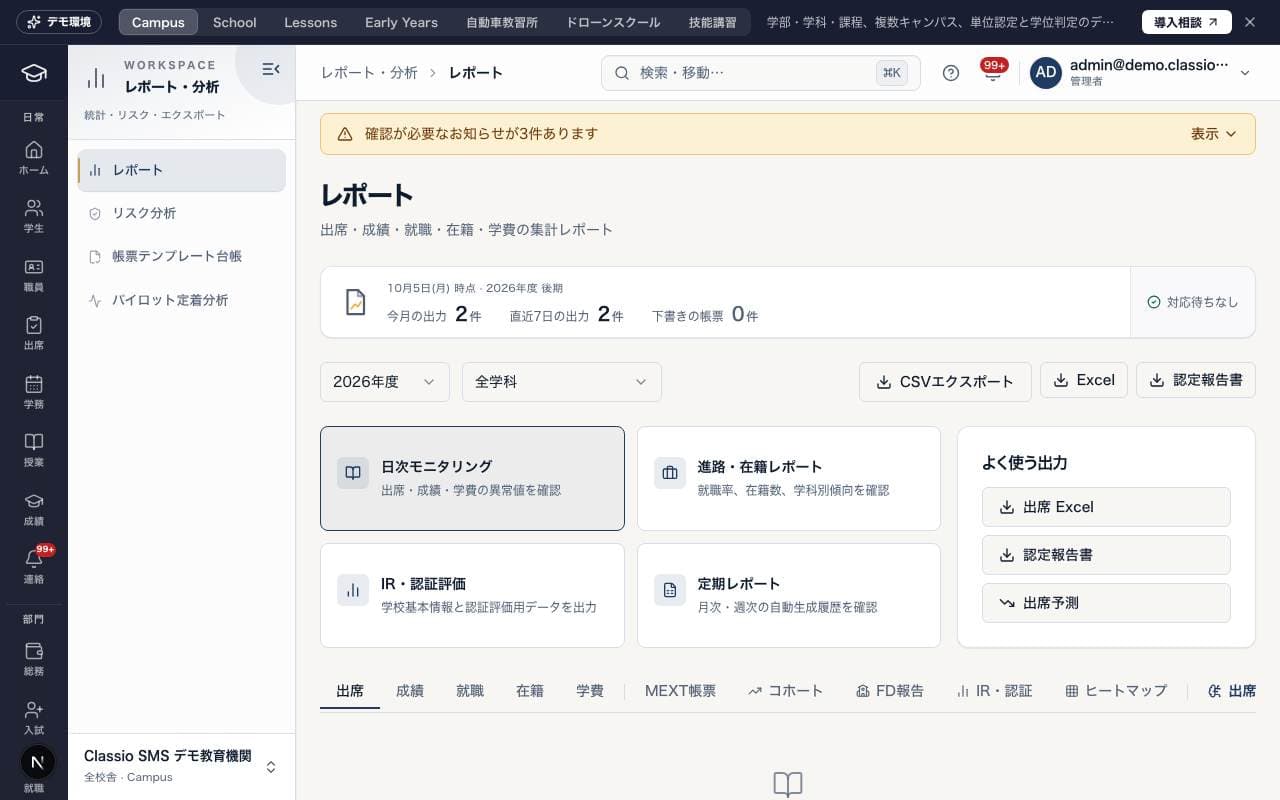
Screen
リスク分析
Check overall risk combining attendance rate, grades and fee status (the Risk score (リスクスコア) tab), and forecasts of falling attendance (the Attendance risk forecast (出席リスク予測) tab). Support for individual students is recorded in Student support cases (学生支援ケース).
Attendance covers April through March of the selected school year. Grades cover all recorded periods; current unpaid fees subtract waivers. Counts and charts summarize the current page. Failed loads offer retry.
Screen
帳票テンプレート台帳
A register for managing templates for official forms and other documents, registering and approving each version. Create a draft with Add template version (テンプレート版を追加), and an approver other than the author enters their acceptance reference and presses Approve and activate (承認して有効化).
Screen
日本語教育機関 定期報告
Shown only to Japanese-language education institutions (education profile school type 日本語教育機関). It assembles the base data for the periodic report filed every June.
Certified courses (認定課程): register the departments that are certified courses (purpose, course name, capacity, lesson hours, target framework level).
Teachers (教員): record each teacher's category (主任教員, 本務等教員, 教員) and the transitional measure for teachers not yet registered. The registration number and date go on the teacher page under Qualifications (資格).
Destinations (進路): enter where students who graduated or withdrew in the previous fiscal year went, and their framework level at leaving.
Periodic report (定期報告): choose the report year, press Assemble (集計する) and save the CSV. It is base data counted under the MEXT guide's definitions, not the portal's own form.
Screen
教育データ標準の出力
Exports school, student, staff, teaching licence, daily attendance and elementary / junior high grade data as CSV with the item names of the MEXT education data standard (5.1). Used by Administrators and Academic administrators.
Enter the school code in Institution settings (機関設定). Grade, sex and nationality are converted to the standard's codes.
Addresses, contacts, family, residence card numbers and sensitive information are not exported. The Field mapping (項目の対応表) tab lists every item that is not exported and why.
First approve the mapping under Template approval (様式の承認), by an administrator other than the one who drafted it. Every preview and download is logged.
Screen
パイロット定着分析
A screen for checking adoption in the early stage of rollout over the last 7, 30 or 90 days. It shows setup completion, staff using the system each week, invitation completion rate, unresolved data exceptions, usage by role and more side by side.
Was this article helpful?