In this article
This area covers the foundations of teaching, such as the timetable, curriculum, academic calendar and syllabi, and day-to-day academic work such as changes in student status (学籍異動) and certificates. It is used mainly by Administrators, Academic administrators and Registrars; Teachers use the timetable and syllabi, and Students and Guardians use it to check the timetable, certificates and daily notes. The pages you see depend on your role, and some pages may not appear depending on your plan or feature settings.
Nursery card checkout started in the school workspace returns to that school.
Timetable & curriculum (時間割・カリキュラム)
Screen
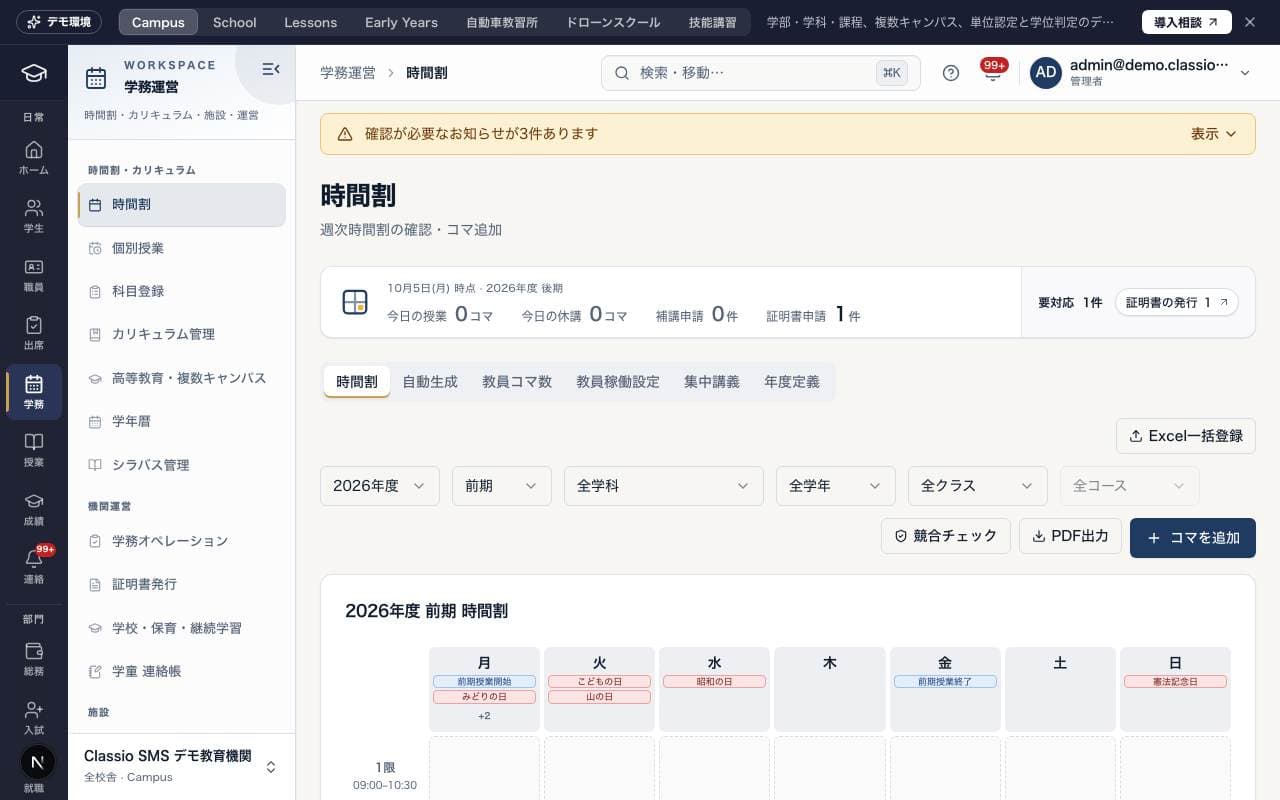
時間割
A screen for viewing the weekly timetable and adding or moving periods. Administrators and Academic administrators also see the tabs Auto-generate (自動生成), Teacher periods (教員コマ数), Teacher availability (教員稼働設定), Intensive courses (集中講義) and School year definition (年度定義). Students see this week's days and the chosen day's classes (time, room, teacher); on a day without classes, the next class is shown.
If school-year or class choices cannot be loaded, use the retry action rather than continuing with an empty list.
The public demo shows the timetable without adding or moving slots, configuration, generation or exports.
Screen
個別授業
Register one-to-one and small-group private lessons and manage them through confirmation, rescheduling, cancellation and attendance recording. You can also check the date and time in both the teacher's and the learner's time zones, and any overlap with the regular timetable. Students reply to lessons they are invited to with Join (参加する) or Decline (辞退する).
Screen
科目登録
A screen for accepting course registration (科目登録) for elective subjects. An administrator creates a registration period and opens it, students or staff choose subjects and submit, and staff approve or reject them in Review & approve (確認・承認). For details, see Course registration.
Screen
カリキュラム管理
A screen for organizing subjects and class sections by department and connecting them to class groups, the timetable and course registration. Use the Departments & subjects (学科・科目), Class groups (受講グループ) and Grades & classes setup (学年・クラス設定) tabs to add subjects and manage class sections and enrolled students. Each department can also hold the maximum years of study and maximum total leave from your school regulations, used for warnings on status changes.
In Grades & classes setup each department can choose its kind of grade (following the school type by default) or make its own list (for example 1年生, 2年生, 3年生, 専攻生). The same grades are used in student registration, editing, the student list, bulk import, promotion and every screen that targets students by grade.
At a college of technology the grades are main course years 1–5 and advanced course (専攻科) years 1–2. The advanced course is a separate admission, so promotion from main course year 5 never moves a student into it.
Screen
高等教育・複数キャンパス
A screen for universities, junior colleges and graduate schools to check and manage program regulations, enrollment in major, minor and concurrent programs, joint course offerings, award decisions, and the division of responsibility with external systems.
Screen
学年暦
Public demos show existing calendar events; adding, editing and deleting are unavailable. The academic calendar for viewing and managing school events, holidays, exam periods and vacation periods by month. Each entry can be set as a No attendance required (出席不要) day.
Screen
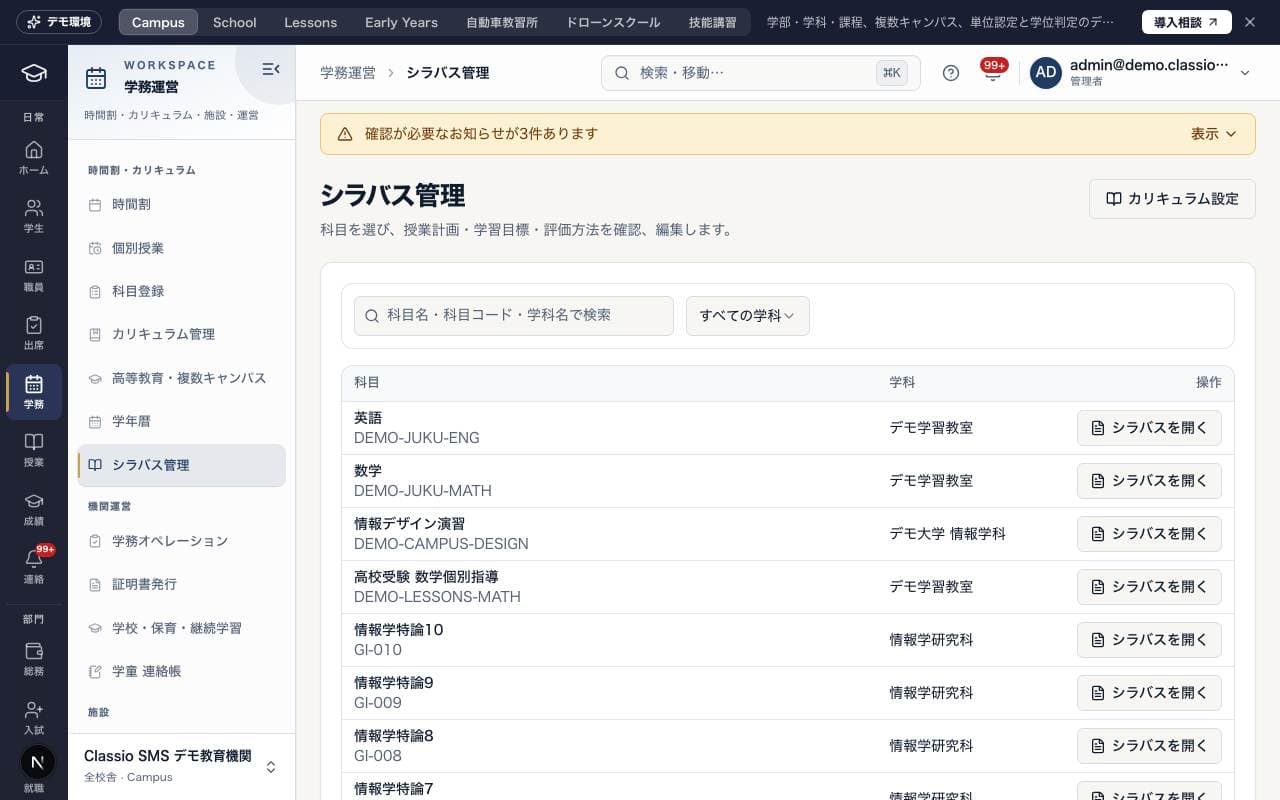
シラバス管理
Choose a subject and edit the syllabus's basic information, lesson plan and grading criteria. Set the grading weights so they add up to 100%. After saving, the syllabus can be exported as PDF or published; publishing is done by an Academic administrator.
School administration (学校運営)
Screen
学務オペレーション
See the academic work to be handled today, such as officially excused absences (公欠), make-up classes (補講), monthly attendance certification (月次出席認定), student status changes, certificate requests and international student cases, in a single pending queue. Registrars see student status changes and the certificate register, and International office staff see international student cases. For monthly certification, see Monthly attendance certification.
Approve or reject status changes on the 学籍異動 tab. Changes with a future date show as approved and apply on that date. New requests are made from the student's 学籍変更 tab. See Request and approve leave, withdrawal, transfer, graduation and other status changes.
Screen
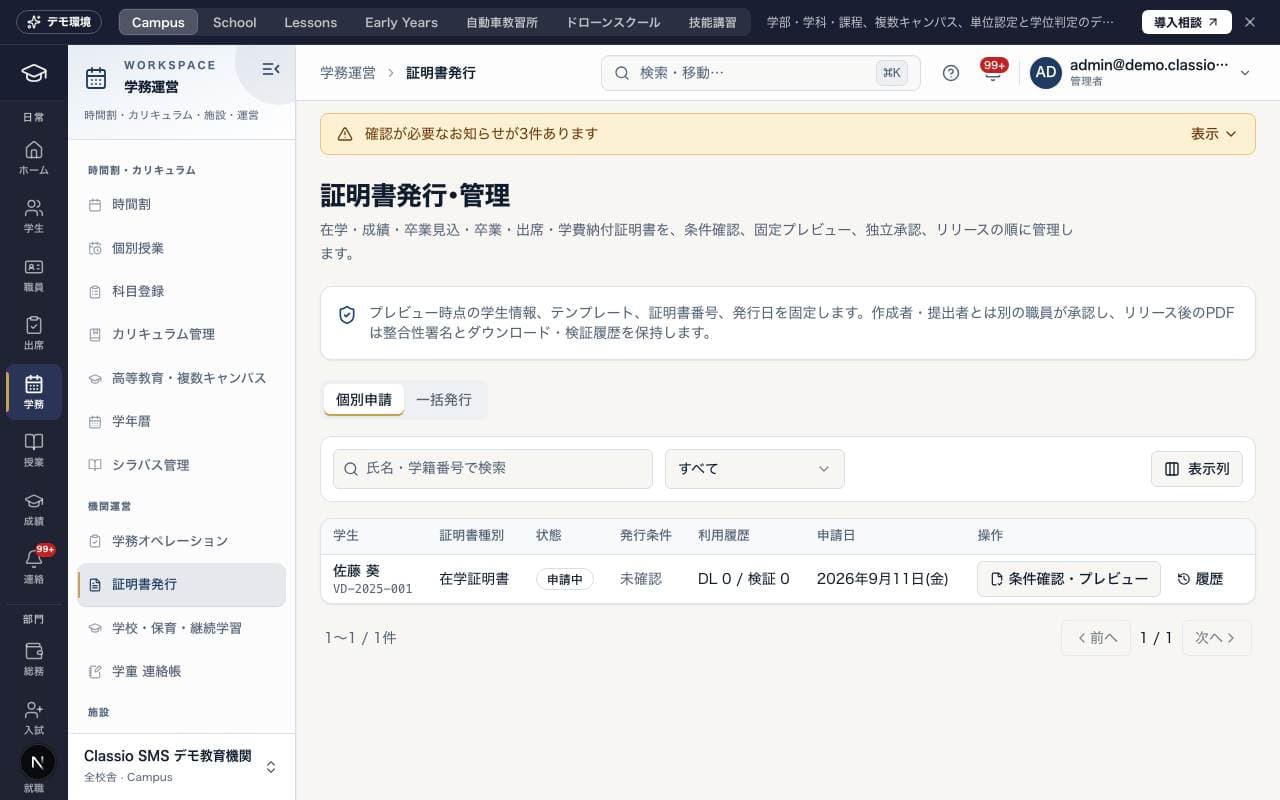
証明書発行
Issue and manage certificates of enrollment, academic transcripts, certificates of expected graduation, graduation, attendance and fee payment, in the order eligibility check, preview, approval and release. Students and Guardians check the status of their own requests and receive issued certificates as PDF. For the steps, see Request and issue certificates.
Screen
電子決裁
The electronic approval (電子決裁) screen for student matters. Draft approval flows, and check items awaiting approval and how approvals are progressing.
Screen
学校・保育・継続学習
Manage operating rules, enrollment status decisions and childcare and after-school care slots for each school, childcare and continuing learning facility. Taking part in learning does not automatically count as legally required attendance or toward a degree.
Naps, meals, allergies and incidents of nursery children cannot be recorded here. Record them in Nursery records (保育記録): nap checks, meals, near misses and incident reports.
Screen
学童 連絡帳
Daily notes (連絡帳) for after-school care (学童) staff. Write how the child was today for each arrival/departure record, and press Publish (公開する) to send it to the guardian through LINE. You can also export subsidy statements as CSV.
Draft with AI (AIで下書き) in the editor drafts Today's activities from the day's arrival, meal and nap records and your notes. Staff save and publish it.
Names and contact details are hidden first, and allergy or health details are never sent. Notes about illness, injury or similar get no draft.
What you are writing is kept on this device as a draft; Restore draft (下書きを復元) brings it back. A save made offline is sent when the connection is back.
Screen
保育記録
Nursery records (保育記録) for kindergarten, nursery and certified-centre staff, one tab per record.
Today (今日): children here now against staff on duty under the staffing ratios, and nap checks (every 5 min for age 0, 10 min from age 1 by default; turn a child found face down onto their back before recording).
Meals & allergies: the menu's allergens are matched with each child's allergies; a second staff member checks a matching child's removed or substitute meal.
Near-misses & accidents: submitting notifies the head and lead teachers; serious accidents show the municipal reporting deadlines.
Journal, care plans and year-end records: approved by the head or lead teacher after submission.
Extended care: calculated from arrival and departure times and confirmed by administrators or finance, who then create each child's monthly invoice, issue it to the payer and record payment.
Paying nursery fees online: when the school's tuition account is active, guardians can pay by card or at a convenience store from the contact-book page. Payment shows automatically.
Year-end records print on A4 from Open print view.
The child record's 支給認定 section holds the eligibility category (type 1, 2, 3 or the new types 1–3), standard or short care hours and the valid period. The head or lead teacher records it. Guardians see today's meals and nap on the daily-note page.
Screen
連絡帳・入退室
For Guardians and Students, shows the child's arrivals and departures and daily notes. You can also reply to daily notes.
Facilities (施設)
Screen
施設予約
Choose a facility such as a classroom or studio, check its bookings for the week, and book it from Book (予約する) by entering the purpose, date and time. Bookings are shown with a status such as under review or approved.
Was this article helpful?