In this article
In the Staff (職員管理) area, you build the staff directory, record shifts and clock-in/clock-out times, and request leave. Staff are registered by Administrators and Academic administrators, and shifts, time records and leave requests are used day to day by all staff, including Teachers.
Staff (職員)
Screen
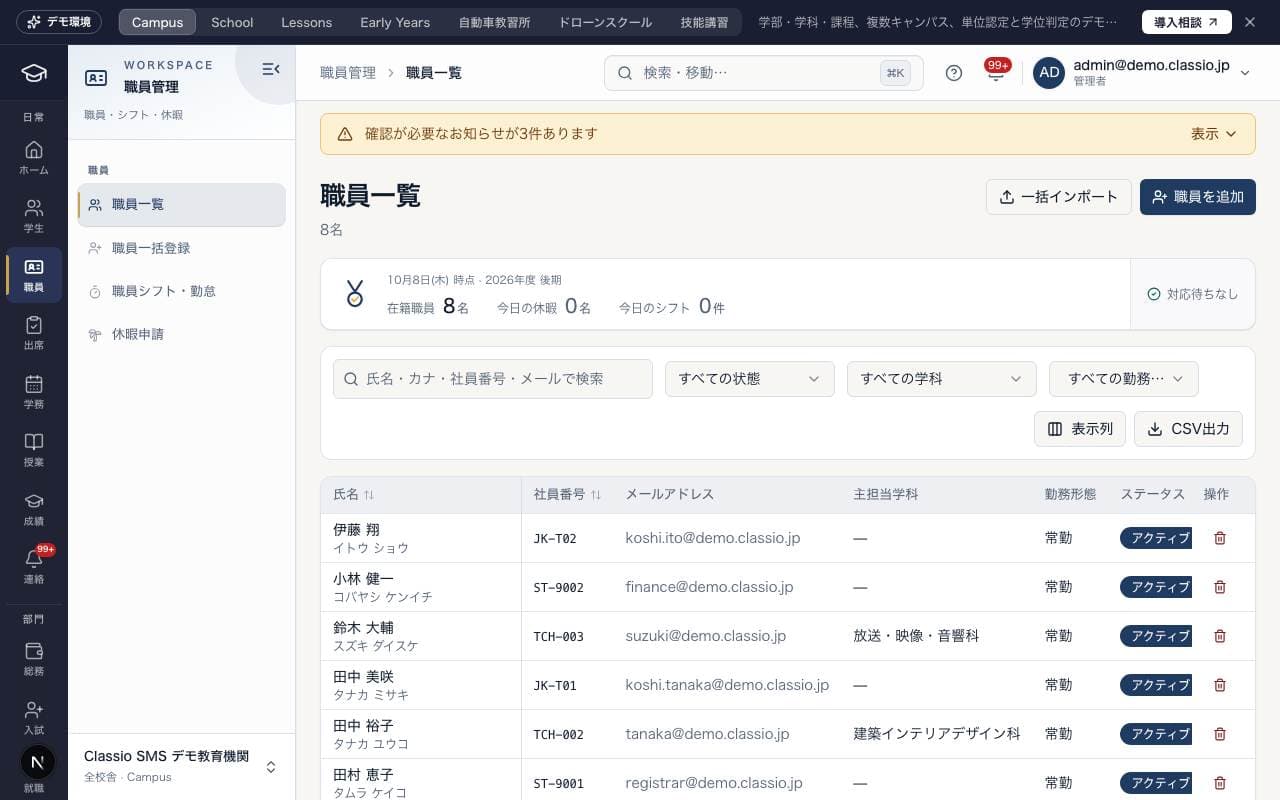
職員一覧
The staff directory. Search by name, employee number (社員番号) or email address, and filter by status, department or employment type. When you register people one at a time from Add staff member (職員を追加), an invitation email for setting a password is sent. Used by Administrators and Academic administrators.
Last sign-in (最終ログイン) is the date the person last signed in, and Last active (最終アクセス) is when they last used Classio, including people who stay signed in (Japan time). Both can be sorted.
Click a name to open the teacher page: employment type, status (active, on leave, parental leave, left), start and end dates and emergency contact.
On the staff page, Roles (役割) adds or removes roles such as Teacher, Academic administrator or Registrar, and Departments (所属学科) changes the departments and the main one. Only administrators with role management can change roles.
The teacher page also records teaching licences and other qualifications, and a training record. Universities can add academic rank, core faculty and researcher numbers; schools can add school duties (校務分掌).
If Add staff (職員を追加) is given only non-teaching duties and not Teacher, the person is registered as office staff (事務職員).
The public demo exposes the staff list only. Individual employment records, creation, imports and exports are unavailable.
Screen
Office staff
Records of office staff such as administration, finance, admissions, registry and facilities. As for teachers, you keep the employment type, employment status, hire and leave dates, emergency contact, qualifications and training history.
Search by name, kana, employee number, office or email, and filter by account status, duty and employment status. Last sign-in (最終ログイン) and Last active (最終アクセス) are shown in Japan time.
Add office staff (事務職員を追加) registers someone with their office and duties (at least one; the first is the main duty) and sends the invitation email. Only administrators with role management can add staff or change duties.
Bulk import (一括インポート) registers many at once from Excel (the duty column is required; Teacher cannot be given).
People who teach are registered as teachers in the Staff list (職員一覧). Administrators can move a record that is no longer needed to the Trash (ゴミ箱).
The public demo exposes the office staff list only, without individual records or editing.
Screen
職員一括登録
Register up to 500 staff members at once from an Excel file and send invitation emails. Download the template, fill it in, check for errors with Check contents (内容を確認), and then register. It may not appear depending on your plan.
The role (役割) column can give roles other than Teacher (administrators with role management only).
Rows with only non-teaching roles are errors; register them with the Office staff (事務職員) bulk import.
Screen
職員シフト・勤怠
Manage shift planning, clock-in and clock-out records, and monthly working-time totals (for reference) together. Teachers clock in and out with the Clock in (出勤) and Clock out (退勤) buttons or the QR code on the classroom device, and administrators and others register and finalize shifts and check monthly totals.
Classroom QR codes open this school’s clock-in page.
Screen
休暇申請
A screen for requesting leave (paid, sick, special, unpaid or business trip). Requests go to Approvals (電子決裁), and the requester is notified when an Administrator or Academic administrator approves or rejects them. Requests under review can be withdrawn.
Was this article helpful?