This area covers everything from billing fees to recording payments, handling overdue payments, scholarships, direct debit and exporting journals to accounting software. Administrators, Academic administrators and Finance staff use it to manage invoices and payments, and Students and Guardians use it to check and pay their own fees, register for direct debit and order group purchases. The pages you see depend on your role, and some pages may not appear depending on your plan or feature settings.
Screen
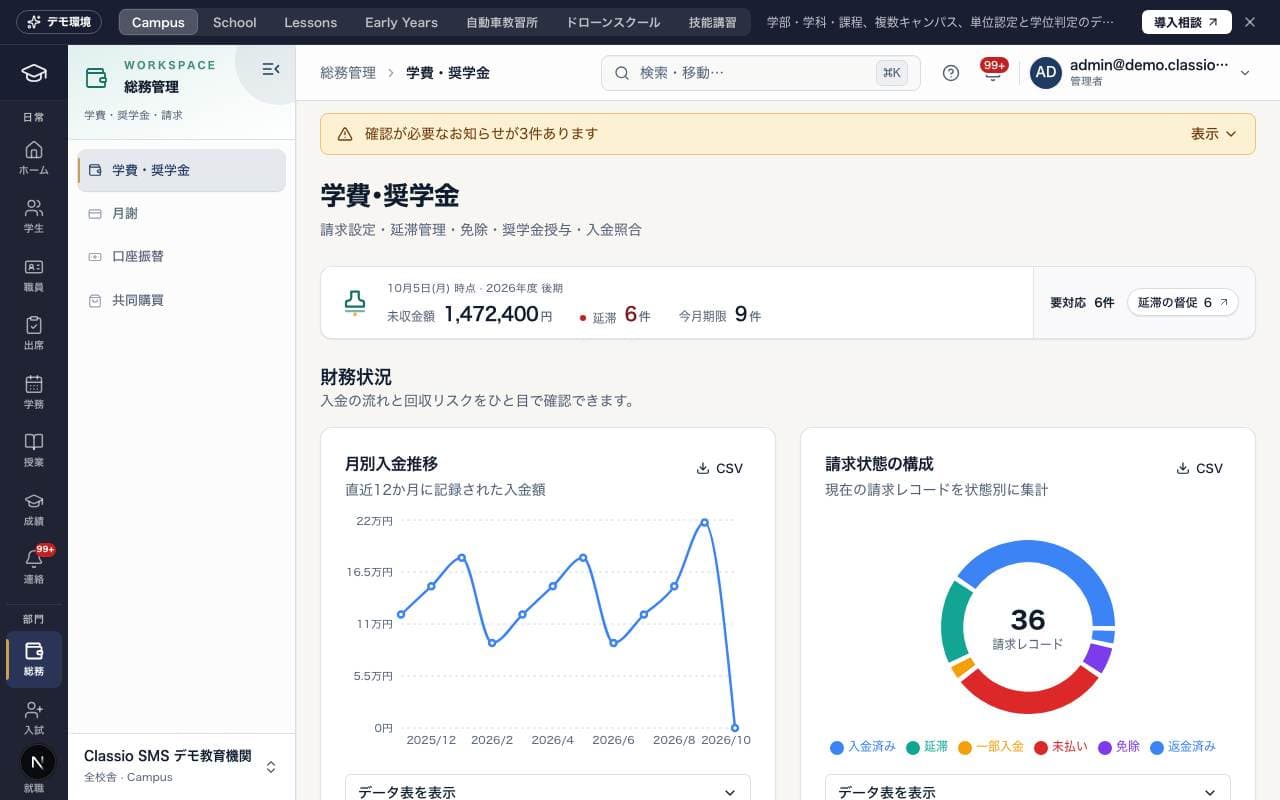
Tuition & scholarships
This screen handles fee bills and payments. For notices before and after the due date, see How fee due-date notices and payment reminders work.
Staff: the tabs Overdue list (延滞一覧), Matching (照合), Billing settings (請求設定), Scholarships (奨学金) and Payment records (入金記録) cover bills, overdue payments, waivers, scholarships and payment matching.
Students and Guardians: the amount due and the next due date, each child's bills and Payment history (これまでのお支払い). Past-due bills are marked Overdue (期限超過).
Pay a bill on the spot with Pay by card (カードで支払う) or Pay at a convenience store (コンビニで支払う).
The fee type Opening balance (移行残高) is an amount owed carried over from the previous system (Switch from your previous system (students and opening balances)). Record payments for it like any other bill.
Lesson-contract tuition is a student fee too. A guardian registered as the payer of the contract can also see and pay their child's invoices.
Card checkout started in the school workspace returns to that school.
The public demo shows overdue balances, reconciliation, billing templates, scholarships and payments. Issuing bills, payment actions, reminders, waivers and exports are unavailable.
Screen
月謝
This screen lists monthly invoices. Create this month's invoices with Generate monthly fees (月謝を生成), edit amounts and due dates in bulk, and send payment demands (催告) to families with unpaid fees.
Students with a lesson contract are billed from the contract (agreed price, family discount and employer share). Other students get a copy of the source month's invoices with the same fee type and amount.
A student billed from a lesson contract does not also get last month's tuition copied, and a student who already has tuition for the month gets no contract invoice. Invoices that already exist are not created again, so running it twice never bills twice.
Invoices created by other features (school collections, group purchases, seasonal courses, certificate fees, nursery fees, opening balances and similar) are never copied; the preview lists them with the reason.
Learners who are not linked to the student register show as Link to the student register (生徒名簿への紐づけが必要) and are not billed until linked. You can pick the student and link them in the preview.
With Apply prepaid credit to new invoices automatically (前受金を新しい請求へ自動で充当する) on, the student's prepaid credit is applied to the invoices the run creates. It is off by default.
Invoices created from a lesson contract show Lesson-contract tuition (受講契約の月謝); their amount cannot be edited on this screen.
In Unpaid follow-up (未納フォロー), Handle (対応する) → Write and send a reminder (文面を作って送る) drafts a first reminder, second reminder or final notice that you check and edit before sending.
Amounts, due dates and the itemised list come from the fee records. AI writes only the wording; text with figures, late fees, legal action and the like is replaced by the fixed wording.
When AI is not available or its limit is reached, or the student is excluded from AI processing (AI処理の対象外), Classio's fixed wording is used. Nothing is saved or sent.
After you confirm, each guardian receives one message by LINE (push notification without LINE). Guardians in their quiet hours receive it when the quiet hours end.
Screen
Direct debit
Staff run direct debit from the Debit batches (振替バッチ), Registration status (登録状況) and Settings (設定) tabs. Guardians and Students register their bank account on the payment collection agency's site and check their registration status. Account numbers are not stored in Classio. For details, see Direct debit.
Screen
Accounting export
Administrators and Finance staff export each month's journals in a form accounting software can import.
On Export (書き出し), choose a start and end month (up to 12). Journals are built from charges, payments, refunds, waivers and voids of fees, nursery invoices, lesson invoices and corporate invoices, with totals per account.
Choose freee Accounting (transfer slips), Money Forward Cloud Accounting (journal) or Generic CSV, and Shift_JIS or UTF-8.
On Account mapping (勘定科目の設定), set the account, sub-account and tax category per kind of charge, the account per payment method, advances received, opening balances and departments.
The defaults are provisional values for your type of school. Have your tax accountant check them. A category with no account blocks the export.
Fees are booked at their current amount. If you change an amount after billing, it differs from files you exported before.
Every export is recorded. Do not import the same month twice.
Screen
学校徴収金
School collections (year fees, teaching materials, school-trip savings, PTA fee …) for elementary, junior high and high schools.
Administrators, the academic office or finance create a plan per year group with its items and billing months, then start collecting.
Billing a month creates fee bills for the students in scope; payment, direct debit and arrears are handled in Fees.
Record expenses; at year end, Settle refunds the balance or carries it over. Refunds follow what each student paid; students who paid nothing get none.
Request refunds turns them into fee refund requests; someone other than the requester approves them under pending approvals in Fees. Guardians see the plan, each month's bill, the statement and their child's refund.
Screen
Group purchase
This screen collects orders for teaching materials, uniforms and similar items in one place. When staff set up the items and order period and press Open orders (受付開始), Guardians are notified; pressing Close (締切) creates a materials fee invoice for each order. Guardians and Students can order from group purchases that are open.
Was this article helpful?