In this article
This area covers everything from following up with people considering enrollment (prospective students, 見込み者) through events, interviews and scoring, to registering accepted applicants as students. It is used by Administrators, Academic administrators, Admissions and International office staff; Executives and Finance use it to approve decisions and check enrolment deposits. The pages you see depend on your role, and some pages may not appear depending on your plan or feature settings.
Admission procedure and account invitation links open at the school’s address.
Admissions management (入試管理)
Screen
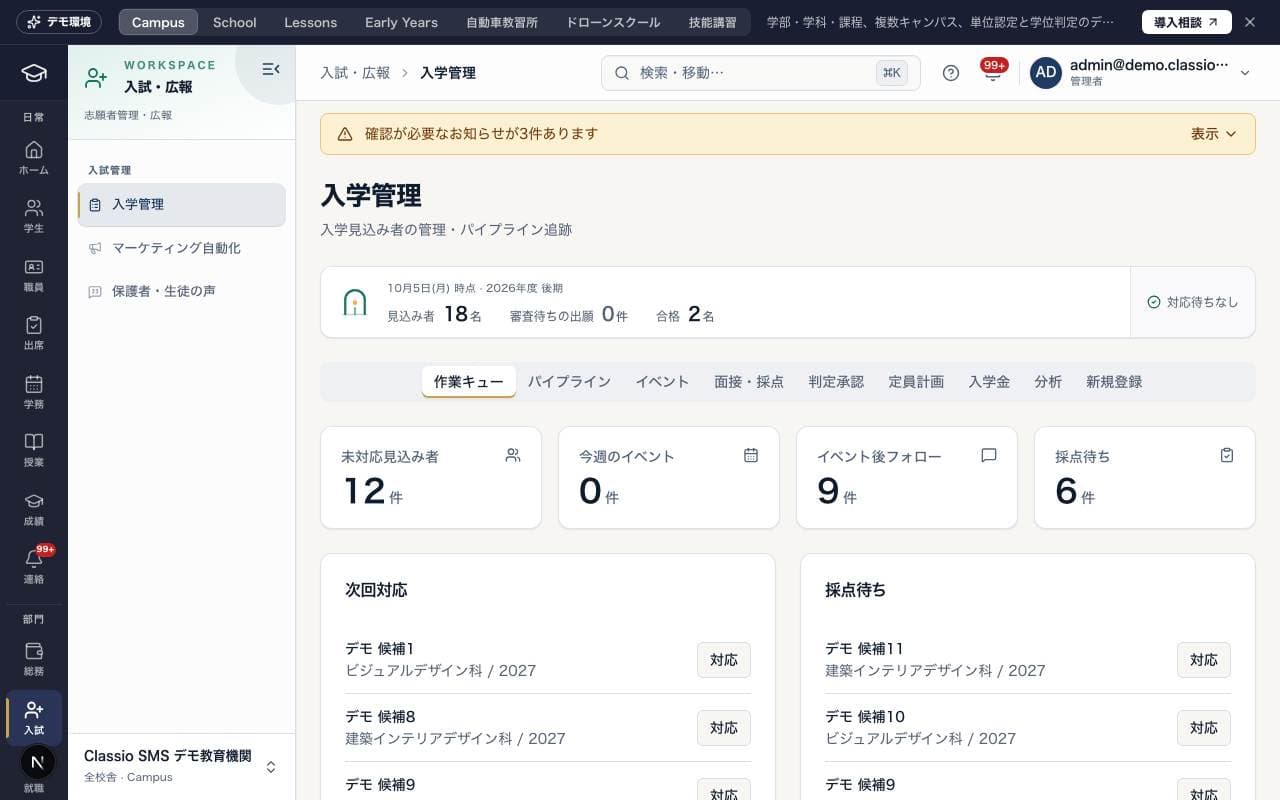
入学管理
Register prospective students and follow them from first inquiry to enrollment.
Work through the day with the tabs Work queue (作業キュー), Pipeline (パイプライン), Events (イベント), Interviews & scoring (面接・採点), Analytics (分析) and New registration (新規登録).
Depending on your role and feature settings, you also see Decision approval (判定承認), for approving or returning submitted admission decisions; Capacity plans (定員計画), for the number of acceptances per department and intake year; and Deposits (入学金), for the enrolment and reservation deposits (予約金) created when an acceptance is approved. Administrators can record payments, waivers and refunds in the Deposits tab.
A pass/fail decision is submitted from Submit decision (判定を申請) in the prospect's details, and is finalized when a staff member other than the submitter approves it (Admission decision).
Accepted prospects are switched to students with Register as student (学生として登録).
For the full flow, see From prospect follow-up to student registration.
Screen
判定承認・入学金
This screen is for Executives and Finance, so that roles that do not use Admissions (入学管理) can still handle admission decisions and deposits. The tabs shown depend on your role:
Decisions (判定承認) (Executive): review submitted admission decisions and approve or send them back. The person who submitted a decision cannot approve it.
Deposits (入学金) (Executive, Finance): the enrolment deposits and reservation deposits (予約金) created when an acceptance is approved. Finance can record payment, waiver or cancellation for unpaid ones and a refund for paid ones (Record payments, waivers and refunds of enrolment deposits).
Capacity plans (定員計画) (Executive, Finance): check the number of acceptances per department and intake year and how many have been approved.
Administrators use the same panels as tabs in Admissions.
Screen
マーケティング自動化
Create and manage email and LINE messages to prospective students as sequences. You set a trigger, such as when a prospect is registered or after they attend an open campus, and a send day for each step, and you can review analytics such as the number sent and the open rate.
Screen
保護者・生徒の声
This screen is for approving and publishing testimonials from guardians and students who have consented to publication. Testimonials that are published can be embedded on your website with Copy embed code (埋め込みコードをコピー).
Was this article helpful?